
The audit log
What OMAI records about who changed what, what it does not record, who is allowed to read it, how long entries are kept, and how to use it when you are investigating a change.
- Who
- Owners and admins
- Plan
- All plans
- Role
- Owner or Admin
The Audit Log is a table of sensitive actions taken inside your organization. Its own subtitle describes the scope: “A record of sensitive actions in the system — sign-ins, permission changes, billing, and assistant changes.” It is written automatically, it cannot be edited from the product, and nothing in the dashboard deletes an entry.
What the table shows
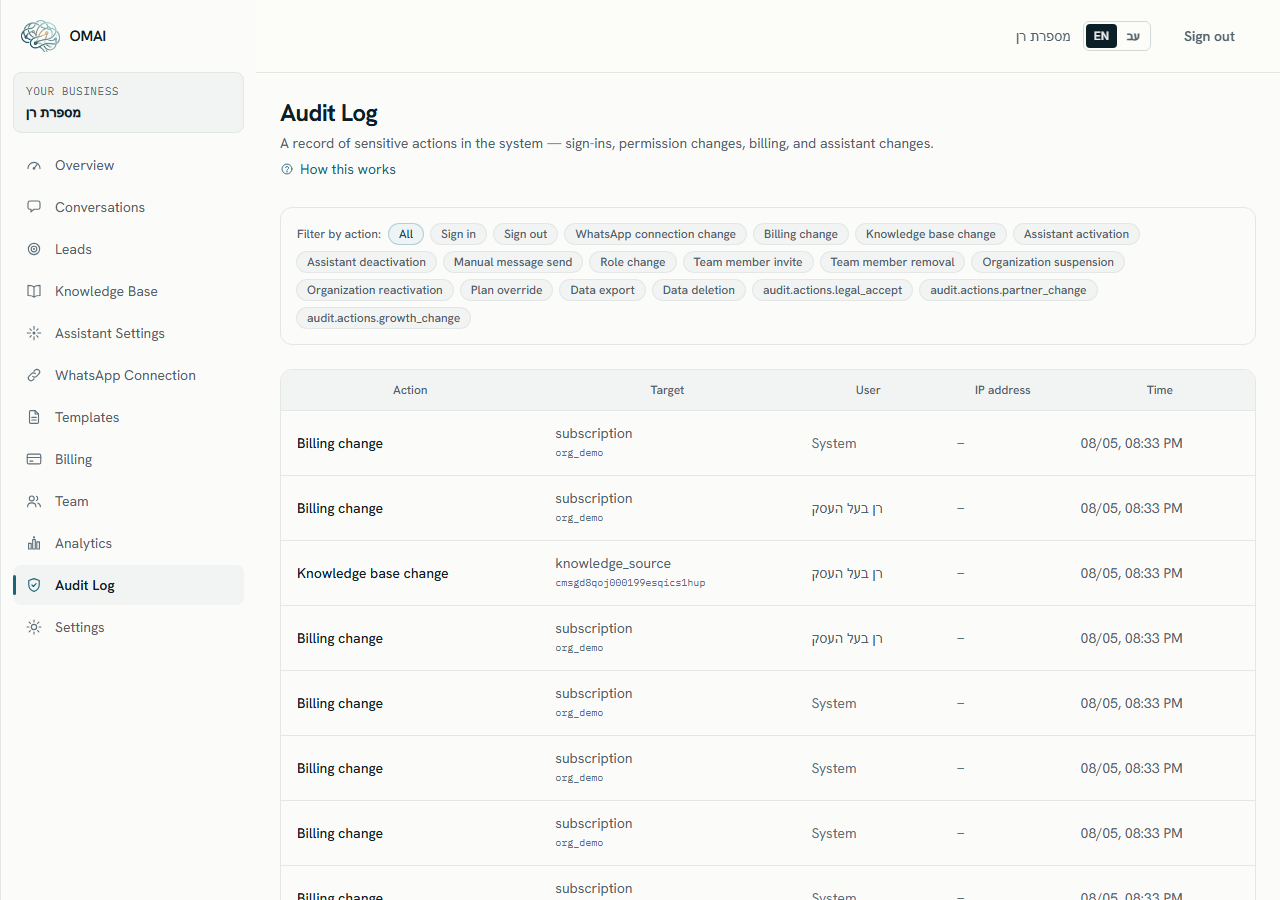
| Column | What it contains |
|---|---|
| Action | The kind of action, in your language. Three action kinds have no label yet and show their internal name instead. |
| Target | What the action was performed on. Six kinds have a translated name — Organization, Conversation, Template, Assistant, Team member, Lead — and everything else shows its internal name, such as knowledge_source or business_hours. The record’s internal id is printed underneath. |
| User | The person’s name, falling back to their email address; hovering shows the email. System means the action was performed by OMAI itself rather than by a signed-in person. |
| IP address | In practice always —. No action in OMAI records an IP address today, so the column stays empty. |
| Time | Day, month and time of day. The year is not shown, so on a long-lived account read old entries with care. |
What is recorded
The filter bar above the table has an All chip plus one chip per action kind. The chips are the complete list of what can ever be recorded. Several labels cover more ground than they suggest, so this table gives the real trigger for each one.
| Action | Written when |
|---|---|
| Sign in | An organization is created at signup. Later sign-ins are not recorded. |
| Sign out | Never. Nothing in OMAI writes this entry, so the filter is always empty. |
| WhatsApp connection change | A message template is created, edited, deleted or synced. Connection changes themselves are not written under this label. |
| Billing change | Checkout, a plan change, a cancellation, a refund, a renewal, trial expiry, and number add-ons. |
| Knowledge base change | The assistant’s persona and tone, business hours and special closures, the business profile, FAQs, policies, services, every knowledge-source action (upload, approve, reject, re-index, enable, disable, delete, sync) and the organization’s language and region settings. |
| Assistant activation | The assistant being switched on for the organization, the setup wizard being launched, and the AI being resumed on a single conversation. |
| Assistant deactivation | The assistant being paused for the organization, and the AI being paused or taken over on a single conversation. |
| Manual message send | A team member sending a free-text reply or a template reply from the inbox. |
| Role change | A team member’s role being changed — and also a conversation being assigned to or unassigned from someone. |
| Team member invite | An invitation is sent to a new team member. |
| Team member removal | A team member is removed from the organization. |
| Organization suspension | An OMAI operator suspends the organization. |
| Organization reactivation | An OMAI operator reactivates the organization. |
| Plan override | An OMAI operator changes the plan terms for the organization. |
| Data export | An export of the organization’s data is produced. |
| Data deletion | A deletion request is created or cancelled, and when the deletion itself runs. |
Three further chips at the end of the filter bar show their internal names — audit.actions.legal_accept, audit.actions.partner_change and audit.actions.growth_change — because no label has been written for them yet. The first records acceptance of the legal documents; the other two belong to features that are not switched on for accounts.
What is not recorded
- Reading anything. Opening a conversation, running a report, or opening this log leaves no entry.
- Message content. No entry stores a customer message, a reply, or a customer’s details.
- Everyday sign-ins. Only the very first one, at signup, is written.
- Extra detail. Each entry stores structured detail alongside it, and the table does not display any of it. There is no row detail view.
- Failed writes. Writing an entry never interrupts the action it records, so if a write fails the action still succeeds and the missing entry is not reported anywhere.
How much history you can see
The page loads the newest 200 entries, filtered by the chip you chose. There is no pagination, no free-text search, no date filter and no export, so entry 201 and older is not reachable from the product. Filtering by action is the only way to reach older entries of one specific kind.
How long entries are kept
Nothing deletes audit entries on a schedule: they stay for as long as the organization does. When an organization is deleted, the entries are deliberately kept and stripped instead — the stored detail and the IP field are cleared, and the record of who did what and when remains, because it is the evidence that the deletion was requested and authorised.
Investigating a change
Step 1 Open Audit Log from the dashboard menu.
- If the page instead explains that the log is limited to owners and admins, your role cannot open it — ask an owner to look. If it explains that the log is paused until the subscription is settled, that is an account-level state rather than anything to do with your role, and Billing is where it is resolved.
You should see: The newest 200 entries appear, newest first.
Step 2 Choose the action chip closest to what you are investigating, using the table above to pick the right one.
- For “who changed the assistant’s answers”, choose Knowledge base change — it covers services, FAQs, policies, hours and uploaded documents.
You should see: The page reloads showing only that action. All brings the unfiltered list back.
Step 3 Read the Time column and find the entries around the moment the behaviour changed.
- The year is not shown. If the account is more than a year old, confirm the year from the change itself before drawing a conclusion.
You should see: Each row names the person in the User column, or System.
Step 4 Use the Target column to identify the exact record, then open that screen to see its current state.
You should see: The internal id under the target name matches the record on the relevant screen.
Step 5 If the entry you need is older than the newest 200, or you need a copy of the log, contact support with your organization name and the dates you need.
Why is the IP address column always empty?
Because nothing passes an IP address when an entry is written. The column exists and would display one, but no action supplies it today, so every row shows —.
A team member says they were signed out and I want to check. Will the log show it?
No. Sign-outs are never written, and only the very first sign-in — the one at signup — is. Sign-in problems are covered in Sign-in problems.
Some entries say System. Who is that?
An action that was not performed by a signed-in person: a scheduled renewal, a trial expiring, a background sweep, or a deletion running on its schedule. It is not another user.
Can I turn the audit log off, or remove an entry?
No. It is on for every plan and there is no control anywhere in the product for editing or deleting an entry.