
WhatsApp message templates
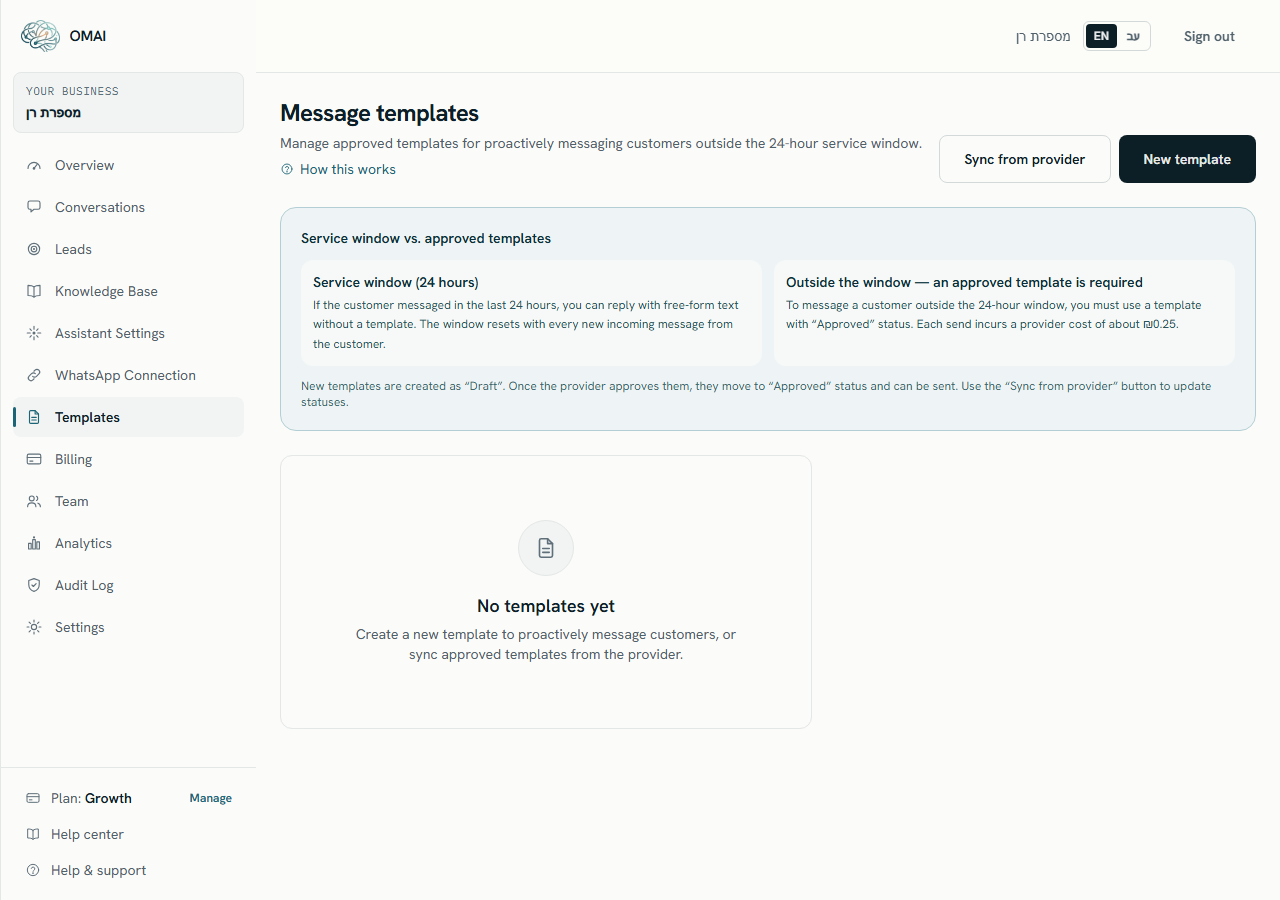
Why WhatsApp requires an approved template outside the 24-hour window, what the Templates screen can and cannot do — it does not submit templates to Meta — and how to send one from a conversation.
- Who
- Admins and owners
- Plan
- All plans
- Role
- Admin or Owner to create, edit, delete or sync. Agent or above to send a template in a conversation
Before you start
- A connected WhatsApp number
- Access to the WhatsApp Manager for your WhatsApp Business Account
A message template is a fixed piece of text that WhatsApp has reviewed and approved in advance, with slots you fill in at send time. Templates are the only kind of message a business may send to a customer who has not written recently. In OMAI they live on the Templates screen and are sent from a conversation.
Why WhatsApp requires a template
WhatsApp allows free-form business replies only inside a 24-hour service window, counted from the customer’s last incoming message. Every new incoming message from that customer restarts the 24 hours. Once the window closes, a free-form reply is refused before it leaves OMAI — with the message "The 24-hour window has closed — a free-form reply can’t be sent. Please send an approved template instead." — and the composer in the conversation switches to a template picker. The same rule applies to the assistant: it does not answer outside the window either.
What the Templates screen does
- Lists every template stored in your account, most recently updated first, with its status, language, category, message body, variable chips and — when the provider has matched it — its provider template id.
- Creates a new template with New template. It is saved in OMAI with the status Draft.
- Edits and deletes a stored template. Deleting is permanent and removes it from the send list.
- Sync from provider reads the template catalogue of *your own* WhatsApp Business Account and updates the templates in your account that match by name and language — status, category and provider template id. It needs a number you connected yourself through Meta: a catalogue belongs to a WhatsApp Business Account, and a number hosted by OMAI sits on OMAI’s, whose templates are not yours to import. On a hosted number the button explains that instead of syncing.
- It does not submit a template for approval, does not check a template against Meta’s rules, and does not tell you why a template was rejected.
Creating a template
Step 1 Open Templates from the dashboard menu and choose New template.
You should see: An empty New template form opens beside the list.
Step 2 Fill in the name, language, category and message body, using the fields described below.
- Use the same name and language the template is registered under at the provider — that pair is what OMAI sends when the message goes out.
Step 3 Type an example value for each variable, in the Variable examples box that appears as you type placeholders into the body.
You should see: Each example becomes the placeholder text an agent sees when they send the template, so they know what belongs in the slot.
Step 4 Choose Create template.
- If the name is refused, it contains a character outside letters, digits, spaces, underscores, dots and hyphens.
You should see: The message "Template created as a draft." appears and the template joins the list with the status Draft. It cannot be sent yet.
The template form
- Template nameTextRequired
- Identifies the template at the provider. This name, with the language, is what OMAI sends — so it must match the approved template exactly.
Default:
—·Up to 120 characters. Letters, digits, spaces, underscores, dots and hyphens only. - LanguageDropdownRequired
- The language the template is registered under. Sent to the provider alongside the name.
Default:
Hebrew·Hebrew or English only. A template registered at the provider under a regional code such as `en_US` will not match an `en` template stored here. - CategoryDropdownRequired
- What the message is for. Choose the same category the template is registered under at the provider.
Default:
Utility·Utility, Marketing or Authentication. - Message bodyText areaRequired
- The text used for the preview in the send form and for the copy kept in the conversation. What the customer actually receives is the text WhatsApp approved for that template.
Default:
—·Up to 2,000 characters. - Variable examplesText
- One box per variable found in the body. The value is only an example — it is never sent to a customer.
Default:
—·Appears only when the body contains at least one placeholder.
Variables
A variable is written in double curly braces inside the body — {{1}} or {{name}}. OMAI reads them as you type, removes duplicates, and lists numbered placeholders first in numeric order, then named ones in the order they appear. When the template is sent, each variable becomes a required box in the send form.
Getting a template approved
Step 1 Create the template in Meta’s WhatsApp Manager, under the same WhatsApp Business Account your number is connected to, and submit it for review there.
- Meta reviews the wording, the category and the placeholders. OMAI is not part of that review and receives no notification about it.
Step 2 Wait for Meta to publish a decision in its own tools.
You should see: The template shows an approved, rejected or paused state at Meta.
Step 3 Back in OMAI, open Templates and choose Sync from provider.
- A template that arrives through sync has no message body — the provider returns the name, language, category and status only. Paste the approved text into the body in OMAI so the preview and the copy kept in the conversation match what the customer receives.
- Up to 100 templates are read from the provider in one run.
- When nothing comes back, the screen says no templates were found in your WhatsApp Business Account. The same message appears whether it genuinely has none or the request did not succeed.
- If the number is one OMAI hosts, or its Meta connection needs re-establishing, the button says so and syncs nothing rather than importing a catalogue that is not yours.
You should see: A note appears under the button reporting how many templates were synced, and how many of those were new or updated. Templates that came back approved now show the Approved status and can be sent.
Template statuses
| Status | What it means | Can be sent |
|---|---|---|
| Draft | Created in OMAI and not yet matched to an approved template at the provider. | No |
| Pending approval | The provider reports it as submitted or under review. | No |
| Approved | The provider reports it as approved. | Yes |
| Rejected | The provider rejected it. The reason is only visible in the provider’s tools. | No |
| Paused | The provider paused it, usually after negative customer feedback. | No |
| Disabled | The provider disabled or deleted it. | No |
Sending a template
Step 1 Open the conversation from Conversations.
- With no approved template in the account, the panel says so and links to the Templates screen instead of offering a picker.
You should see: When the customer last wrote more than 24 hours ago, an amber panel replaces the reply box: "The 24-hour window has closed".
Step 2 Choose a template from the Template list, shown as its name and language.
You should see: A Message preview of the body appears underneath.
Step 3 Fill in every variable box. Each one is required.
- Leaving one blank refuses the send with
Missing value for template variable, naming the variable.
- Leaving one blank refuses the send with
Step 4 Choose Send template.
- A template send that the provider rejects still appears in the thread, marked Failed with a red icon. There is no retry button — fix the cause and send again.
You should see: The rendered message appears in the thread as an outgoing message and the conversation’s unread count is cleared. An accepted send is recorded against your account as a template message, and Meta bills its own messaging fee for it separately from your plan.
Who can do what
| Action | Lowest role that can do it |
|---|---|
| Open the Templates screen and read every template | Viewer |
| Create, edit or delete a template, and use Sync from provider | Admin |
| Send a template inside a conversation | Agent |
Creating, editing, deleting and syncing are also paused while the subscription has an outstanding payment — the message reads "This feature is paused while the subscription has an outstanding payment. Settle the payment in Billing to continue." Reading and sending existing templates keep working. See Failed payments.
Limits
- Template name: up to 120 characters, restricted to letters, digits, spaces, underscores, dots and hyphens.
- Message body: up to 2,000 characters.
- A variable value typed in the send form: up to 640 characters in the browser.
- Sync from provider reads up to 100 templates per run.
- A template name and language pair is unique per account — the same name in Hebrew and in English are two templates.
- New templates are always created as Draft; the status cannot be set by hand and only changes through a sync.
- The service window is 24 hours from the customer’s last incoming message. Outgoing messages do not extend it.
Can I submit a template for approval from OMAI?
No. The dashboard stores templates and sends approved ones. Submission and review happen in Meta’s WhatsApp Manager against your own WhatsApp Business Account.
I ran a sync and the list is still empty.
The screen shows the same message whether the provider returned nothing or the request failed. Check that WhatsApp is connected on the WhatsApp screen and that the templates exist at the provider under the same WhatsApp Business Account.
A synced template has an empty message body — is it broken?
No. Provider sync returns names, languages, categories and statuses, not the text. Add the approved text in OMAI so the preview and the record in the conversation match what WhatsApp sends.
Can I send a template while the 24-hour window is still open?
No. Inside the window the conversation shows the normal reply box and you write free text. The template picker appears only once the window has closed.
Is a template send counted as an AI answer?
No. Your plan allowance counts AI answers. A template send is recorded separately, and Meta charges its own messaging fee for it.