
Paying for your plan
How a plan is paid for: the confirmation screen that states the amount, the secure payment page, what is stored on your account afterwards, and when the next charge falls.
- Who
- Owners and admins
- Plan
- Starter, Growth and Pro are bought from the dashboard
- Role
- Owner or Admin
Before you start
- A credit card
- The current Terms of Service accepted for your organization
- A mobile number for the payer
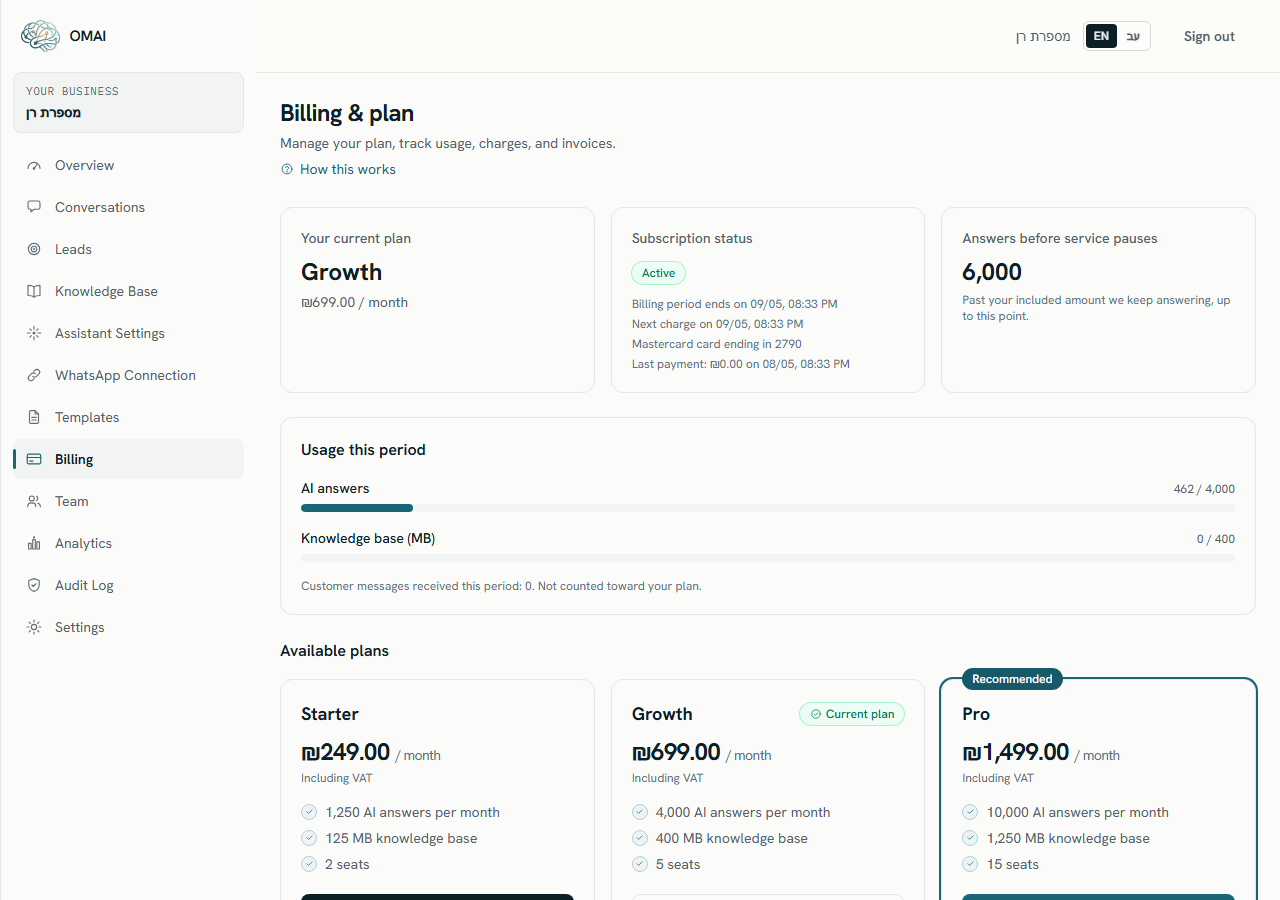
Paying for a plan runs through three screens. The plan cards on the Billing & plan page, an OMAI confirmation screen called Almost there that states exactly what will be charged today, and the payment provider’s secure page where the card details are typed. Your card is debited only on the last one.
Starter, Growth and Pro are bought this way. The Custom plan is not sold from the dashboard — it is agreed per contract, so write to us if you need it. See Plans and what they include for the full comparison.
Before you start
Every member of your team can open the Billing & plan page and read the plan, the usage and the invoices. Only an owner or an admin can complete a payment. If someone else uses the plan buttons, the payment is refused at the last step.
Your organization must also have accepted the current Terms of Service. If a new version was published since you last accepted, the checkout stops and shows a Review the Terms button that takes you to the acceptance page. Accept it there and start again.
Paying for a plan
Step 1 Open Billing from the dashboard menu.
You should see: The Billing & plan page opens, with your current plan, subscription status and usage for this period.
Step 2 Scroll to Available plans and press Switch to this plan on the plan you want.
- The plan you are on already shows Active plan instead of a button, and cannot be bought a second time.
You should see: The Almost there screen opens with the plan name, the monthly price and the amount due.
Step 3 Read the Total charged today line.
You should see: For an Israeli account the screen shows the plan price before VAT, a VAT (18%) line and the Total charged today underneath — that VAT-inclusive total is the amount debited from the card.
Step 4 Fill in Full name and Mobile number, and add an address under Email for invoices (optional) if you want the tax document sent by email.
- The full name needs two parts of at least two characters each — it goes on the tax document.
- An Israeli account needs an Israeli mobile number, in the form 050-1234567.
Step 5 Tick I agree to the Terms of Service and the Privacy Policy, and the approval below it that your card is saved with the payment provider and charged monthly until you cancel.
- Both boxes are required. The card-saving approval is separate from the Terms on purpose, so agreeing to the Terms never silently approves a saved card.
Step 6 Press Continue to secure payment.
- If a field on the OMAI screen was rejected, the page stays where it is, keeps everything you typed and moves the cursor to the field that needs fixing.
You should see: The payment provider’s secure page opens. Card details are typed there, never on an OMAI screen.
Step 7 Complete the payment on the provider’s page.
You should see: You are returned to an OMAI confirmation page. Once it reads Payment received — you’re all set!, the plan is active and the assistant is answering under it.
The details on the confirmation screen
- Full nameTextRequired
- The payer’s name. It is saved as your billing contact and printed on the tax document.
At least two name parts of two characters or more.
- Mobile numberTextRequired
- Used by the payment provider to identify the payer and reach them about the payment.
Israeli accounts: an Israeli mobile number, for example 050-1234567.
- Email for invoices (optional)Email
- Where the tax invoice/receipt and the billing emails are sent. Leave it empty and the emails go to the oldest owner’s address instead.
A single valid address, or empty.
- I agree to the Terms of Service and the Privacy Policy.CheckboxRequired
- Records your acceptance of the current documents against this purchase.
Default:
Not ticked - I approve that my card details are saved securely with the payment provider and charged monthly for this subscription until I cancel.CheckboxRequired
- Without it the payment provider will not save the card, and a monthly subscription cannot be set up.
Default:
Not ticked
What is charged today
The full monthly price of the plan you chose is charged the moment the payment goes through. There is no first-month discount and no pro-rated amount — the paid month starts on the day you pay and runs for one month.
| Plan | Charged today | AI answers included each month |
|---|---|---|
| Starter | ₪234.82 (₪199 + VAT) | 1,250 |
| Growth | ₪647.82 (₪549 + VAT) | 4,000 |
| Pro | ₪1,414.82 (₪1,199 + VAT) | 10,000 |
What is stored on your account
Card numbers are typed on the payment provider’s page and are never sent to OMAI. What comes back to us, and is kept on the subscription, is this:
- A payment token from the provider, which is what lets us charge the same card next month. It is stored encrypted.
- The card brand and its last four digits, shown on the billing page as {brand} card ending in {last4}, plus the card’s expiry month.
- Your billing contact: the full name, the mobile number and the invoice email you typed.
- The payment’s transaction reference, which is what a refund and the tax document are matched against.
To replace the saved card later, use Update payment method on the billing page. That flow opens the same confirmation screen and then a ₪1 verification at the payment provider, which is what saves the new card — the plan price is not charged again. When a payment fails covers what happens when a monthly charge is declined.
The confirmation page
The provider confirms the payment to us on a server-to-server callback, which usually lands within seconds. The confirmation page waits for it and refreshes itself every 2.5 seconds while you watch.
| What the page says | What it means | What to do |
|---|---|---|
| Payment received — you’re all set! | The payment was confirmed and the plan is active. | Nothing. If you saved an invoice email, the page also says an invoice is on its way to it. |
| Confirming your payment… | The provider’s confirmation has not arrived yet. This usually takes a few seconds. | Leave the page open. It updates by itself. |
| Still waiting for the payment confirmation | Three minutes have passed without a confirmation. You have not been charged twice. | Press Check again after a minute. |
| The payment didn’t go through | The card was declined, or the payment page was closed part-way. Nothing was charged. | Choose the plan again and retry, or use a different card. |
| This payment link is no longer valid | The confirmation link was opened after the payment page had expired or been canceled. | Press Back to billing and start again from the plan cards. |
When the next charge happens
The paid period runs for exactly one month from the payment. The billing page shows that date twice: as Billing period ends on {date} and as Next charge on {date}. On that date the same card is charged the same amount for the next month, and a new tax invoice/receipt is issued.
Renewals are attempted by a background sweep that runs every 15 minutes, so a renewal is charged shortly after the date, not at a fixed hour. If it is declined, the retries run one, three and seven days later — When a payment fails describes the whole ladder.
On your card statement
The merchant behind the charge is OMAI Software Ltd., company registration 517341764 — the company that operates OMAI. The amount equals the Total charged today figure you approved, in shekels.
The exact wording your card issuer prints is set by the payment provider’s merchant record, not by OMAI, so it may be shortened on the statement. If you cannot match a line, compare its amount and date against the Invoices table on the billing page — every charge has a row there. See Invoices and receipts.
Currency
When checkout will not start
A refusal is shown as a banner titled We couldn’t start the checkout, with the reason underneath. Nothing is charged in any of these cases.
| What the banner says | Why | What to do |
|---|---|---|
| Online payment isn’t available at the moment. | Card payment is switched off on the platform right now. | Write to us and we will set the plan up for you. |
| Self-serve checkout isn’t open for your account yet. | Your organization’s language is outside the current checkout rollout. | Write to us and we will set the plan up for you. |
| Self-serve checkout isn’t open in your region yet. | The organization is registered outside Israel and the international payment route is not switched on. | See Paying from outside Israel. |
| Please review and accept the current Terms before starting a subscription. | A newer version of the Terms was published since your organization last accepted. | Press Review the Terms, accept, then choose the plan again. |
| You’re already on this plan. | The subscription is active on exactly this tier. | Pick a different plan, or change nothing. |
| This account is scheduled for deletion, so a new subscription can’t be started. | A deletion request is open for the organization. | Cancel the deletion request in Settings → Account & privacy first. |
| Too many checkout attempts in a short time. | More than 20 checkout starts, or more than 10 submissions, in one minute. | Wait a minute and try again. |
Do I need a card to start the 30-day trial?
No. The trial is created with the account and asks for no payment details. See Your 30-day trial.
Does the trial become a paid plan by itself?
No. Nothing is charged automatically at the end of a trial. When the 30 days are over the assistant stops answering until an owner or admin buys a plan.
Can I pay by bank transfer or against a monthly invoice?
The checkout in the dashboard takes a credit card. For any other arrangement, write to support@omai-software.com and we will handle it.
I closed the payment page by mistake. Was I charged?
No. A payment that was not completed on the provider’s page never reaches your card. Start again from the plan cards; the same pending checkout is reused rather than a second one created.