
Every assistant setting explained
A field-by-field reference for the Assistant Settings screen: what each control does to the assistant’s replies, what its shipped default is, what the limits are, and which two controls do nothing today.
- Who
- Owners and admins
- Plan
- All plans
- Role
- Owner or Admin
- Takes
- A few minutes
Before you start
- A signed-in owner or admin account
The Assistant Settings screen holds eight controls, grouped into three sections. Together they decide how the assistant sounds — its register, its point of view, its emoji habit, the language it answers in and what it says while you are closed. They do not decide what it knows; the facts come from your business knowledge.
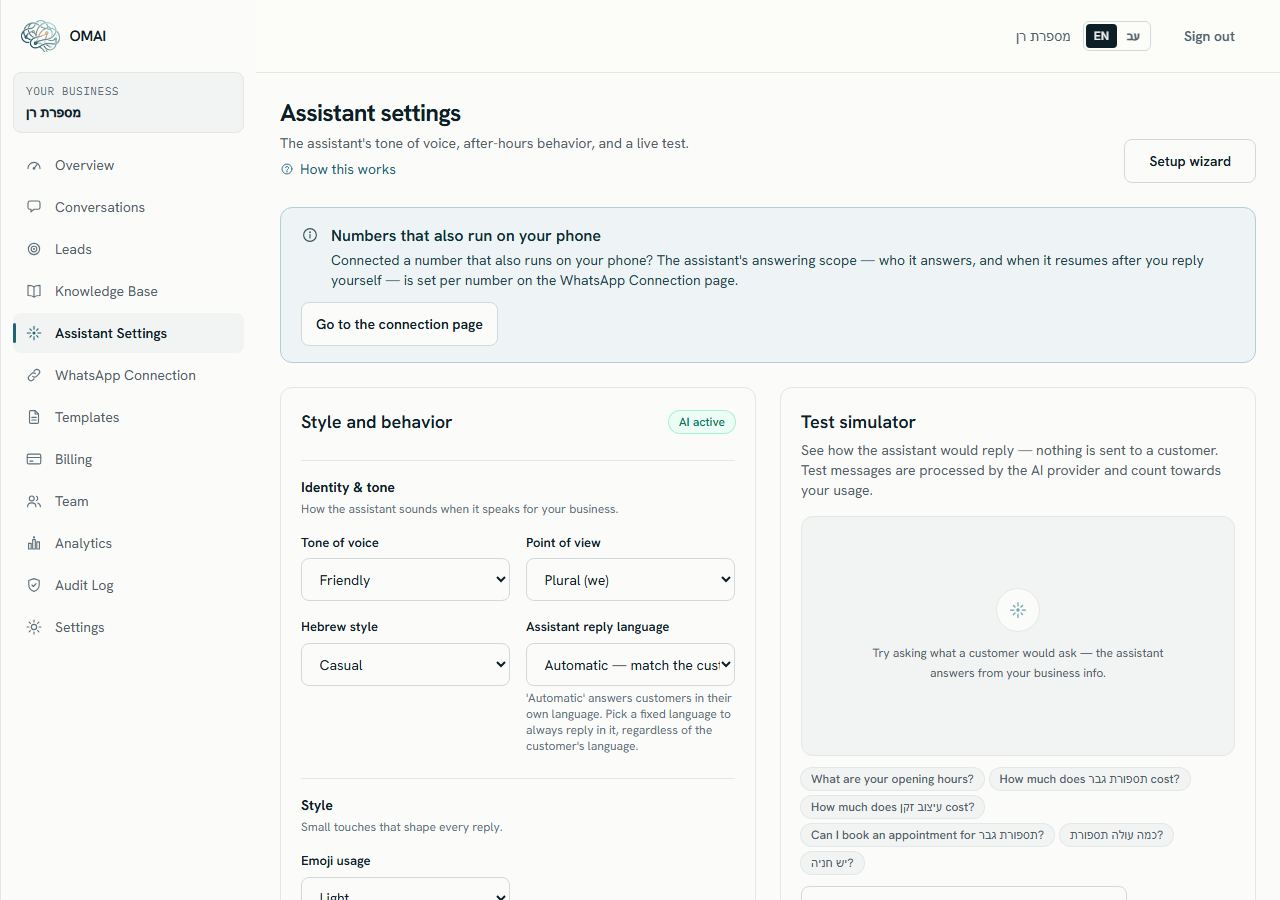
Opening the screen for the first time creates your settings record with the shipped defaults listed below, so a brand-new account already has a working persona before you touch anything.
Identity & tone
These four controls are written into the assistant’s instructions as one style line at the top of every reply it composes. They change wording and register, never the facts.
Section: Identity & tone
- Tone of voiceDropdownRequired
- Sets the register of every reply. Friendly is warm and conversational, Formal is businesslike, Premium is polished and unhurried, Concise keeps answers as short as the question allows. The value is passed to the model as an instruction, so it shapes wording rather than enforcing a fixed script.
Default:
Friendly·One of: Friendly, Formal, Premium, Concise. - Point of viewDropdownRequired
- Decides whether the assistant speaks for the business (“we open at 9”) or as one person (“I can check that for you”). Plural reads as the voice of a team; singular reads as one member of staff.
Default:
Plural (we)·One of: Plural (we), Singular (I). - Hebrew styleDropdownRequired
- Chooses between everyday Israeli Hebrew and a more formal register. It only reaches replies that are written in Hebrew — when the assistant answers in English this control changes nothing, even though it stays visible on the screen.
Default:
Casual·One of: Casual, Formal. Affects Hebrew replies only. - Assistant reply languageDropdownRequired
- On Automatic — match the customer the assistant answers in the language the customer wrote in. Choosing Hebrew or English makes every reply come back in that language whatever the customer wrote, and it also fixes the language of the messages OMAI writes itself, such as the handover acknowledgement. Full rules in how the assistant chooses a language.
Default:
Automatic — match the customer·One of: Automatic — match the customer, Hebrew, English.
Style
Section: Style
- Emoji usageDropdownRequired
- Adds one sentence to the assistant’s instructions: None tells it not to use emojis, Light allows at most one where it fits, Rich lets it use them freely. This is an instruction to the model, not a filter applied to the finished text, so an occasional emoji can still slip through on None.
Default:
Light·One of: None, Light, Rich.
After hours & closures
Section: After hours & closures
- After-hours messageText area
- Used only while your business hours or a special closure say you are closed at that moment, and only when the box is not empty. The text is handed to the assistant as guidance for that reply, together with an instruction to say when you are back and to keep collecting useful details. It is not sent to the customer word for word, so write it as the message you want conveyed, not as a script.
Default:
— (empty)·Up to 1,000 characters. Leave it empty to switch the behaviour off.
Saving your changes
Step 1 Open Assistant Settings from the dashboard sidebar.
You should see: The Style and behavior card shows the form with your current values already selected.
Step 2 Change the controls you want.
- The form has no unsaved-changes warning. If you leave the screen without saving, your edits are gone.
Step 3 Press Save settings.
- If a red box appears above the form instead, nothing was saved — read the message and try again.
You should see: A “Settings saved.” toast appears and the screen reloads with the stored values.
Save settings writes all eight controls together, so the form always stores exactly what is on screen. There is no publish or apply step and no draft state: the next customer message is answered with the new values.
A message that was already being processed when you pressed save finishes with the values it started with. In practice that is at most one reply, because the settings are read fresh for every inbound message.
Every save is recorded in your audit log as a knowledge change, so you can see who last changed the assistant’s persona and when — see the audit log.
Settings that live somewhere else
Much of what people expect to find here is elsewhere, because it is not part of the assistant’s voice.
| What you are looking for | Where it is |
|---|---|
| Business hours, special closures | Settings — they decide when the after-hours instruction applies. |
| Services, prices, FAQs, policies | Settings, then Sync details from settings on the Knowledge base screen. |
| Documents the assistant can quote from | Knowledge base — upload them there. |
| Business content language | Settings → Business content language. It sets the language your business knowledge is written in and the assistant’s fallback language. |
| Which contacts the assistant answers on a number that also runs on your phone | WhatsApp Connection, per number. |
| Stopping the assistant in one conversation | Pause AI and Take over on the conversation itself — see taking over a conversation. |
| The language of your own dashboard | Settings → Interface language. It has no effect on what customers receive. |
What goes wrong
| What you see | Why | What to do |
|---|---|---|
| “The assistant settings are invalid.” | A submitted value is outside the allowed list, or the after-hours message is longer than 1,000 characters after trimming. | Shorten the after-hours message and re-pick the dropdowns, then save again. |
| “Something went wrong. Please try again.” | The save did not complete — for example the request could not reach the database. | Save again. If it keeps failing, note the time and write to support. |
| A short explanation instead of the settings screen | You are signed in as an Agent or a Viewer. Only Owners and Admins can open the screen, and the sidebar does not offer it to the other roles at all. | Ask an owner or admin to change the settings, or to raise your role — see roles and permissions. |
| The reply style did not change | The change was saved but the conversation you are watching was already handled, or a human took it over. | Send a new test in the Test simulator, which uses the same persona values. |
Does changing the tone change what the assistant is allowed to say?
No. Tone, point of view, Hebrew style and emoji usage change wording only. What the assistant may state as fact comes from your business knowledge, and the instruction not to invent prices, availability or policies stands whatever you pick here.
Can I keep different settings for different numbers?
No. These eight controls apply to the whole account and to every connected number. Only the answering scope of a number that also runs on your phone is set per number.
Why is Hebrew style shown when I answer in English?
The form shows all eight controls to everyone. Hebrew style only reaches replies written in Hebrew; on an English reply it changes nothing.
Does the after-hours message get sent as its own message?
No. Nothing is sent on a schedule. While you are closed, the assistant folds your after-hours text into the answer it writes to the customer who just messaged you.