
Your dashboard at a glance
Every card on the Overview screen: what it shows, where the number comes from, and what to do about it — including the Your assistant card that tells you whether the assistant is live right now, and the alerts that can appear above it.
- Who
- Everyone with a dashboard sign-in
- Plan
- All plans
- Role
- Owner, Admin, Agent and Viewer all see the same Overview screen
Before you start
- A signed-in account
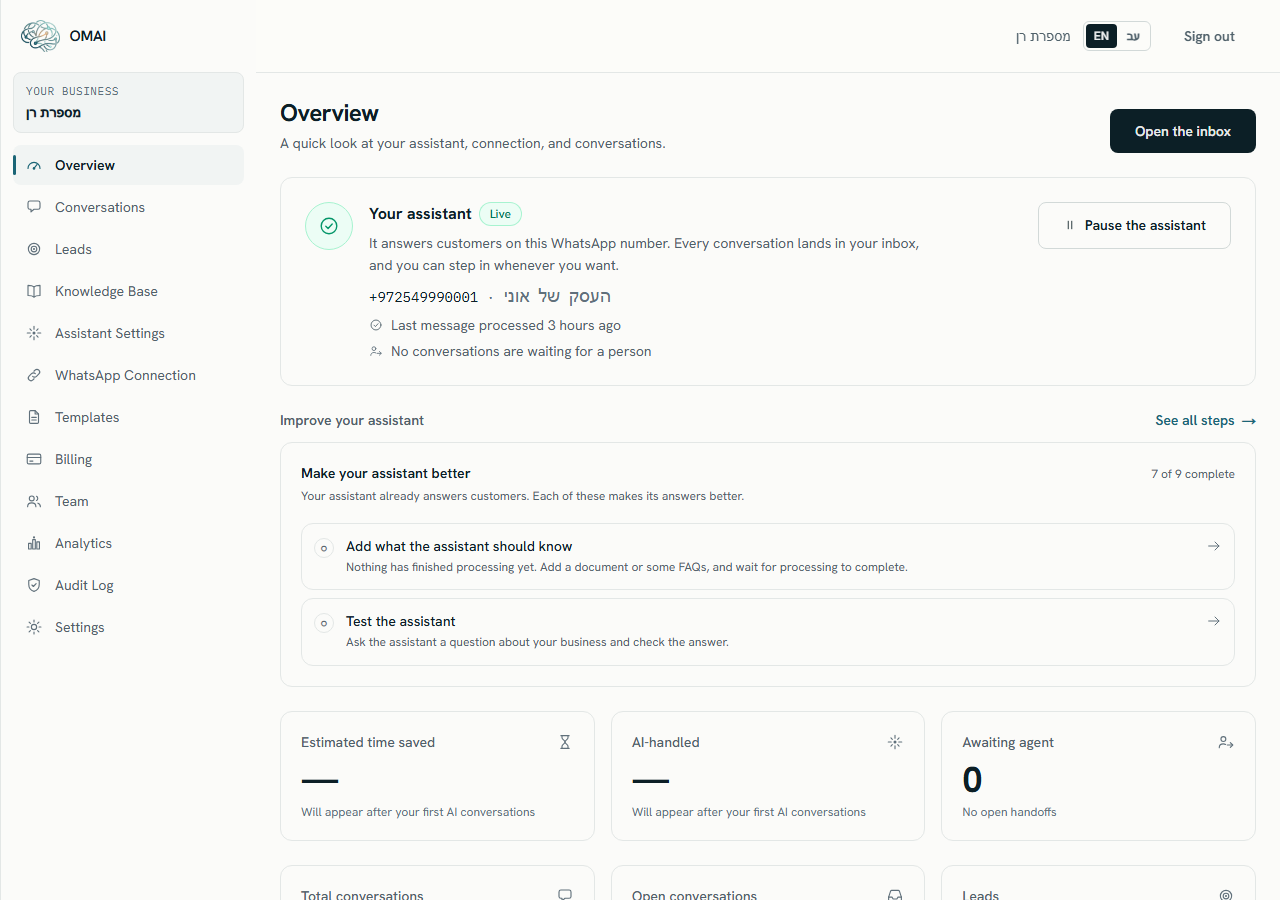
Overview is the first item in the dashboard menu and the page you land on after signing in. Its subtitle describes it exactly: “A quick look at your assistant, connection, and conversations.” This article goes card by card, says what each number is counted from, and names the cases where a number is narrower than its label suggests.
What is on the screen
The page is built top to bottom, and parts of it appear only in certain states. Reading order:
- The alert strip — billing, connection and usage alerts. It is drawn by the dashboard shell, so it appears above every dashboard page, not only this one.
- One status banner about the assistant, at most.
- The Your assistant card — the one place that answers “is my assistant working right now?”
- Either Improve your assistant (once the assistant is live) or the AI readiness score card (while it is not, and the score is below 100).
- Three primary tiles: Estimated time saved, AI-handled, Awaiting agent.
- Three secondary tiles: Total conversations, Open conversations, Leads.
- The Billing & plan status card.
The alert strip
The strip is recalculated on every page load and has no dismiss control — an alert stays until the condition behind it goes away. The billing alerts are mutually exclusive; the connection and usage alerts stack under them.
| Alert | When it appears | Button |
|---|---|---|
| There’s a problem with your payment | The subscription status is past due. | Update payment |
| Your free trial has ended | The subscription is unpaid, or it is still marked as a trial and the trial end date has passed. | Choose a plan |
| Your free trial ends in N days | The trial ends in 3 days or fewer, and has not ended yet. | Choose a plan |
| Your WhatsApp connection needs attention | At least one connected number has the status Action required. | Reconnect now |
| Approaching your plan limit | 80% or more of the AI answers included in your plan are used in the current billing period. | Upgrade plan |
| Plan limit reached for AI replies | 100% of the included AI answers are used, and the plan still allows answering above the included amount. | Upgrade plan |
| AI replies are paused — plan limit reached | The point at which answering stops on your plan has been reached. | Upgrade plan |
Two things about the usage alerts are worth knowing. Only one metric can produce them — the AI answers your plan is sold in, which the strip calls AI replies. And the percentage is measured over your billing period, not over the range you picked on the reports screen, so it will not match the Usage vs. plan quota panel there. What counts as an AI answer explains the unit and the stopping points.
The status banner
Below the alert strip the page shows at most one banner about the assistant. The first matching condition wins, and none of them appear on a brand-new account that has no conversations yet.
| Banner | When it appears | Button |
|---|---|---|
| The assistant is paused | Someone paused the assistant for the whole organization. | — (no button; resume it from the card below) |
| Your assistant isn’t answering yet | The number is connected but something in the setup needs a look — or the account is suspended or awaiting deletion. | Check the connection |
| WhatsApp isn’t connected | No number has the status Connected. | Connect WhatsApp |
The six numbers
| Tile | What it counts | Window |
|---|---|---|
| Estimated time saved | The number of AI conversations the assistant answered or asked a clarifying question in, multiplied by an assumed number of minutes each. The hint under the tile states the assumption it used. | Last 30 days |
| AI-handled | Answered plus clarification-needed outcomes, as a percentage of every AI outcome recorded — which also includes handovers and replies the assistant did not send. | Last 30 days |
| Awaiting agent | Conversations whose status is waiting for a person or taken over by a person. The hint reads Need human attention, or No open handoffs when there are none. | All time |
| Total conversations | Conversations in your inbox. The hint says last 100, which is exactly what it counts. | All time |
| Open conversations | Conversations whose status is open. | All time |
| Leads | Lead records created in the window. The hint reads In the last month. | Last 30 days |
The Leads tile counts lead records the assistant captured in the window. A new account reads 0 until the first enquiry with real buying interest arrives — see Leads. Estimated time saved and AI-handled show — with the hint Will appear after your first AI conversations until the assistant has handled something. Those two and Leads also show a dash — with a hint naming the subscription instead — in the states described under What goes wrong below.
AI readiness score
The AI readiness score card scores how much of the assistant’s source material you have filled in, out of 100, with the subtitle “How ready the assistant is to handle real customers”. It lists the items worth the most points you have not earned yet, under What to complete next, and it disappears once the score reaches 100. It is advisory: nothing in the product is blocked or unblocked by it.
| Signal | How the points are earned | Points |
|---|---|---|
| Services & prices | 3 or more services earns the full amount, 1 or 2 earns 10. | 15 |
| FAQ | 5 or more questions earns the full amount, 1 to 4 earns 8. | 15 |
| WhatsApp connection | At least one number with the status Connected. | 15 |
| Business hours | Weekly hours are set. | 10 |
| Business profile | 5 for a business name, 5 for a description. | 10 |
| Knowledge base | At least one source that finished processing and produced searchable content. | 10 |
| Test the assistant | 3 or more simulator questions earns the full amount, 1 or 2 earns 5. Capped at 5 when there were at least 10 AI outcomes in the last 30 days and fewer than half of them were handled by the assistant. | 10 |
| Policies | At least one policy. | 5 |
| Tone of voice | A tone has been chosen. | 5 |
| Subscription | The subscription is on trial or active. | 5 |
The badge on the card reads Needs setup below 40, Almost ready below 70, and Ready from 70 up. The score card is shown while the assistant is not yet live. Once the Your assistant card reads Live, it is replaced by a shorter Improve your assistant strip: the same idea, listing the next few things worth doing, with See all steps opening the setup wizard.
The status cards
- Your assistant — one card with a state badge, the number customers write to, when the last WhatsApp message was processed, how many conversations are waiting for a person, and the button that pauses or resumes the assistant. It is described in full in the next section.
- Billing & plan — your plan name, the subscription status (Trial, Active, Past due, Canceled or Unpaid) and either Trial ends with a date or Your current plan.
Before your first conversation
An account with no WhatsApp number connected gets a setup panel instead of the banners: Let’s get your assistant live, two steps — Tell OMAI about your business and Connect your WhatsApp number — a completion meter, and a Continue setup button that opens the setup wizard. The tiles are still there, under the line Your numbers will appear here once customers start messaging you. The panel goes away for good the moment a number is connected, because that is the moment the assistant is live.
The Your assistant card
There used to be two cards here — one for the assistant and one for the connection — and they could disagree with each other. There is now one, and it reports the same fact the assistant itself acts on. The badge is worked out fresh on every page load from your connection, your subscription and whether anyone has paused answering; nothing about it is stored, so it cannot go out of date.
| Badge | What it means | What to do |
|---|---|---|
| Live | The assistant is answering customers on the number shown below the badge. | Nothing. Message the number from another phone to watch it work. |
| Connecting | A number is connected and Meta is still verifying it. | Wait a few minutes. Refresh status on the WhatsApp Connection screen re-asks Meta. |
| Setting up | The number is connected and OMAI is finishing the last steps behind it. | Wait — it normally clears in seconds. If it stays, open WhatsApp Connection. |
| Needs a look | The number is connected but something around it needs fixing: the connection to Meta expired, a registration failed, or a sync did not complete. | Follow the banner’s Check the connection button. Your number and your conversations are safe. |
| Paused | Someone paused the assistant for the whole organization. | Press Resume the assistant on the card. |
| Not connected | No WhatsApp number is connected, so there is nowhere for the assistant to answer. | Use the Connect your WhatsApp number link on the card. |
| Setup unfinished | The account is suspended, or a deletion request is in progress. Nothing runs in that state. | Open Billing, or contact support if you did not expect it. |
- Under the badge sits the number itself, with its WhatsApp display name beside it. When several numbers are connected, the card names the one whose state it is reporting.
- Last message processed is a health line, not an alarm: it says when the most recent WhatsApp event for your account was handled. It reads No messages yet on a new connection, and turns into a quieter warning if messages stop arriving after a period of activity. A genuinely quiet week is normal and is not marked as a problem.
- Conversations waiting for a person counts the handover queue. When it is more than zero it is a link straight into the inbox, filtered to those conversations.
- Pause the assistant / Resume the assistant stops and restarts answering everywhere. Only Owners and Admins see the button, and it is not shown before a number is connected.
How current the numbers are
Every number on this page is calculated on the server while the page is being built, from your live data. There is no cache, no automatic refresh and no refresh button: reload the page to recalculate. There is also no date filter and no export here — the reports screen has the date ranges, and What each report measures covers it.
What goes wrong
Three of the tiles read `—` and there is a line about my subscription. What happened?
In a few subscription states — checkout or payment that never completed, or a deletion request in progress — the analytics figures behind Estimated time saved, AI-handled and Leads are switched off for the account. Those three tiles show a dash, one line above them says so and links to Billing, and the rest of the Overview is untouched: the assistant card, the alert strip, the inbox counts and the plan card all still work. Settle the payment or cancel the deletion request and the figures are back on the next page load. The reports screen behaves the same way in that state — it names the subscription as the reason and links to Billing rather than failing.
The alert strip says I am over my plan limit, but the reports screen shows me well inside it. Which is right?
The alert strip. It measures your billing period, which is what enforcement uses. The Usage vs. plan quota panel on the reports screen adds up the 7, 30 or 90 days you selected and compares that total with a monthly allowance, so on a 90-day range it will show far more than your quota for a perfectly normal month.
The tiles say the AI handled 80% of inquiries, but customers are still waiting. What am I reading?
The AI-handled figure is a share of AI outcomes over the last 30 days; Awaiting agent is a live count of conversations sitting in the handover queue right now. They answer different questions, and a healthy percentage on the first does not empty the second. Open the inbox filtered to conversations waiting for a person.
Someone on the team sees something different from what I see.
The Overview is open to every role, and it does not hand anyone a failure card. What differs is the menu and the controls: items only an Owner or an Admin can use — the audit log and assistant settings among them — are not offered to an agent or a viewer, and a page one of them reaches by URL explains in words that it is limited to owners and admins. The same applies to the buttons on the WhatsApp connection screen. See Roles and permissions.