
The conversation list
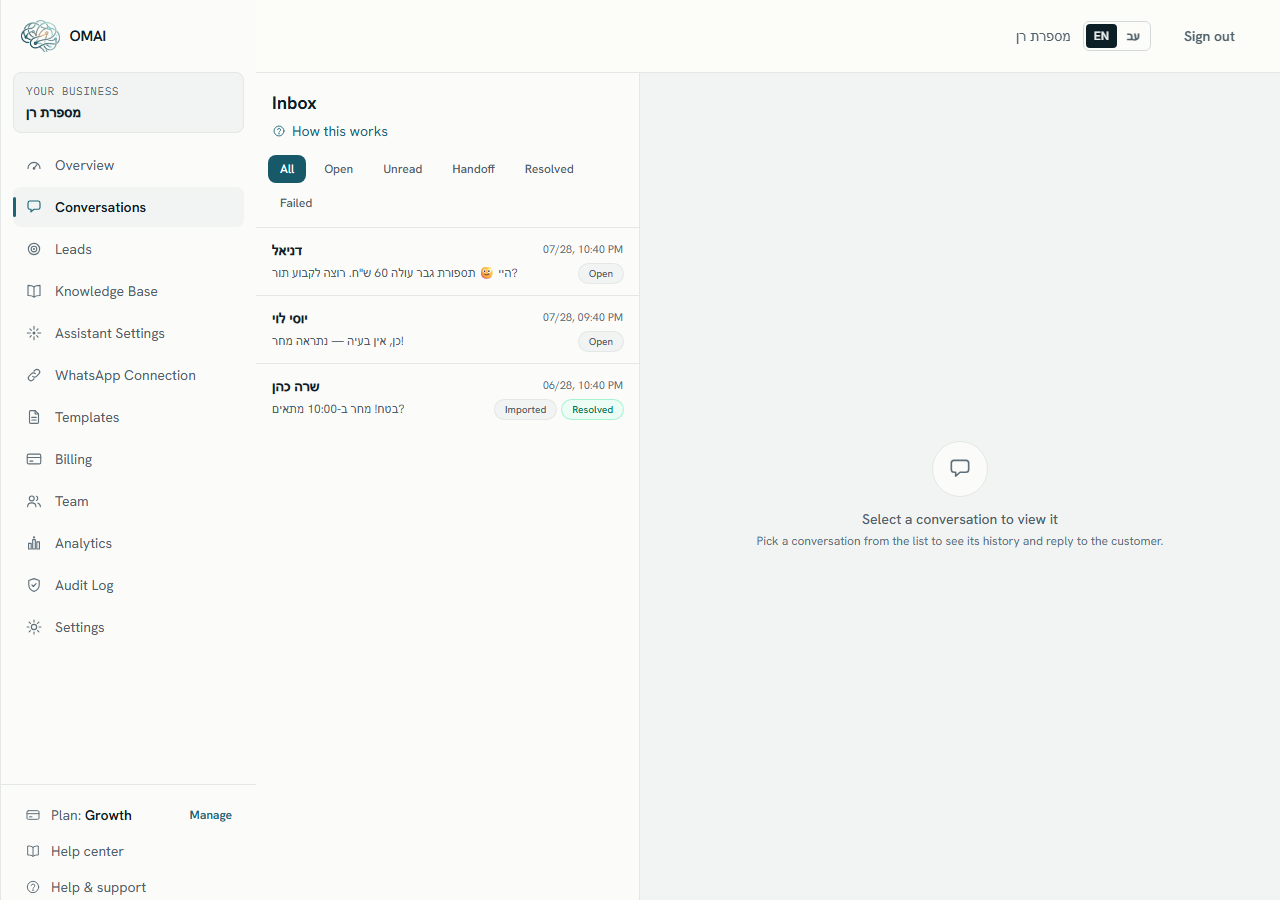
The shared inbox lists every WhatsApp conversation your business has had. This article explains what puts a conversation there, what each row shows, what the filters and status badges mean, and how the list keeps itself current.
- Who
- Everyone on your team
- Plan
- All plans
- Role
- Viewer and above
Before you start
- A connected WhatsApp number
The inbox is the shared view of every WhatsApp conversation that reached a number you connected. The sidebar calls it Conversations; the screen itself is headed Inbox. Both names point at the same page, and everyone on your team sees the same conversations — the inbox is not split per person.
The assistant starts answering as soon as a WhatsApp number is connected, so the first rows you see here usually already contain an assistant reply. There is no separate switch that turns answering on.
What puts a conversation in the list
Conversations are created by incoming messages, not by you. There is no button that starts a new conversation, and you cannot message a phone number that has never written to you from this screen.
- A customer sends a message to one of your connected numbers and no live conversation exists for them — a new row appears with the status Open.
- A customer writes again while an earlier conversation is still live — the message joins that existing conversation instead of starting a new one.
- A customer writes again after somebody marked their last conversation Mark resolved — that starts a brand-new conversation, so the same person can appear in the list more than once.
- You connected your number while keeping WhatsApp on your phone, and history was imported — those conversations arrive with an Imported badge and the status Resolved, so they do not sit on top of your live traffic.
The list covers your whole organization: every conversation is shown regardless of which of your numbers it arrived on. Messages you send from your own phone on a number connected in coexistence mode also appear here, labelled as coming from the owner.
What each row shows
- The contact name. When WhatsApp gave no name, the phone number is shown instead; when there is neither, the row reads Customer.
- A one-line preview of the most recent message. A message that carries no text — a photo or a file sent without a caption — has nothing to preview, so the row reads No messages.
- The day, month and time of the most recent message, in your browser’s time zone. The year is not shown.
- A blue counter with the number of messages that arrived since anyone last opened the conversation.
- An Imported badge when the conversation came from the history import on your phone.
- A From ad badge when the very first message arrived from a click-to-WhatsApp ad or post.
- The status badge — see the table further down.
Order, and how many rows you get
Rows are sorted by the time of the most recent message, newest first, so a conversation jumps to the top whenever anyone writes in it. The list loads the 100 most recent conversations. There is no second page, no "load more" button and no search field, so older conversations drop off the bottom as new ones arrive.
The six filters
| Filter | What it lists |
|---|---|
| All | Every conversation, whatever its status — including resolved ones. |
| Open | Conversations whose status is Open. |
| Unread | Conversations with at least one message nobody has opened yet. |
| Handoff | Conversations whose status is Waiting for agent or Agent handling. |
| Resolved | Conversations whose status is Resolved. |
| Failed | Conversations containing at least one message that failed to send. |
Choosing a filter clears whichever conversation you had open, so the reading pane returns to its prompt. The filter is carried in the page address, which means you can bookmark the view you work in most.
What each status means
| Status | What it means |
|---|---|
| Open | The normal live state. Every new conversation starts here, and in practice it is the only status the assistant answers in. |
| Waiting for AI | A label the product does not currently use — no conversation is put into this state. |
| Waiting for agent | The assistant handed the conversation to your team and stopped replying. It stays this way until somebody acts on it. |
| Agent handling | Somebody pressed Take over. The assistant stays out of this conversation until a person presses Resume AI. |
| Resolved | Somebody pressed Mark resolved, or the conversation arrived through the history import. The assistant does not answer, and the reply box is replaced by a notice until you press Reopen. |
| Archived | A label the product does not currently use. |
| Blocked | A label the product does not currently use. |
The assistant only answers a conversation whose status is Open and whose assistant state is AI active. Both are shown on the conversation itself — see Inside a conversation for where to find them, and Take over from the assistant for how to change them.
Unread counts
The counter goes up by one for every message a customer sends. It is set back to zero when anyone opens the conversation, sends a reply, sends a template, or marks the conversation resolved. Simply opening a conversation clears it, and there is no way to mark a conversation unread again.
How the list keeps itself current
The list reloads itself about every 5 seconds while its browser tab is in the foreground. While the tab is hidden it stops refreshing, and it reloads once as soon as you come back to it. You do not need to press anything to see new conversations.
The conversation you have open is updated separately and faster: new messages are pushed into the thread as they arrive. That behaviour is described in Inside a conversation.
When the list is empty
An empty list shows No conversations to show and the line "Incoming WhatsApp conversations will appear here automatically." The same empty state is shown for every filter, so a filter that simply has no matches looks exactly like an inbox with nothing in it. If you were expecting rows, switch back to All before concluding that nothing arrived.
On a phone
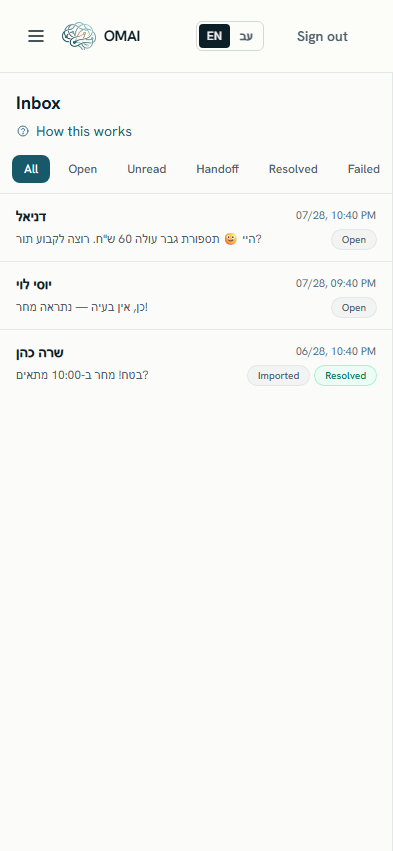
On a narrow screen only one pane fits, so opening a conversation replaces the list. A back arrow labelled Back sits to the left of the contact name and returns you to the list with your filter intact.
Can I search for a customer by name or phone number?
Not from the inbox — it has no search field. The list is sorted with the most recent activity on top, so a customer who wrote recently is near the top of All.
Why does the same customer appear on two rows?
Because their earlier conversation was marked resolved. A message that arrives after that cannot rejoin a resolved thread, so it opens a new one. The old conversation stays in the list under All and Resolved.
Why does a row say "No messages" when the customer clearly sent something?
The most recent message carries no text — typically a photo, a voice note or a document with no caption. The row has nothing to preview. Attachments are not displayed inside the thread either.
Does the list mix conversations from several WhatsApp numbers?
Yes. Every conversation in your organization is listed together, whichever connected number it arrived on. The number a conversation belongs to is used when you reply, so your answer goes back out on the same number.
Who on my team can see this screen?
Every role can, including Viewer. Replying, tagging, assigning and the pause, take-over and resolve buttons need Agent or above.