
Invite and remove teammates
How to add someone to your workspace, what they actually receive, how many people your plan includes, and what happens to their access and their past work when you remove them.
- Who
- Owners and admins
- Plan
- Starter includes 2 members, Growth 5, Pro 15 — the count includes you
- Role
- Owner or Admin. Only an Owner can add someone as an Owner.
- Takes
- A minute or two
Before you start
- The person’s email address
- A free seat on your plan
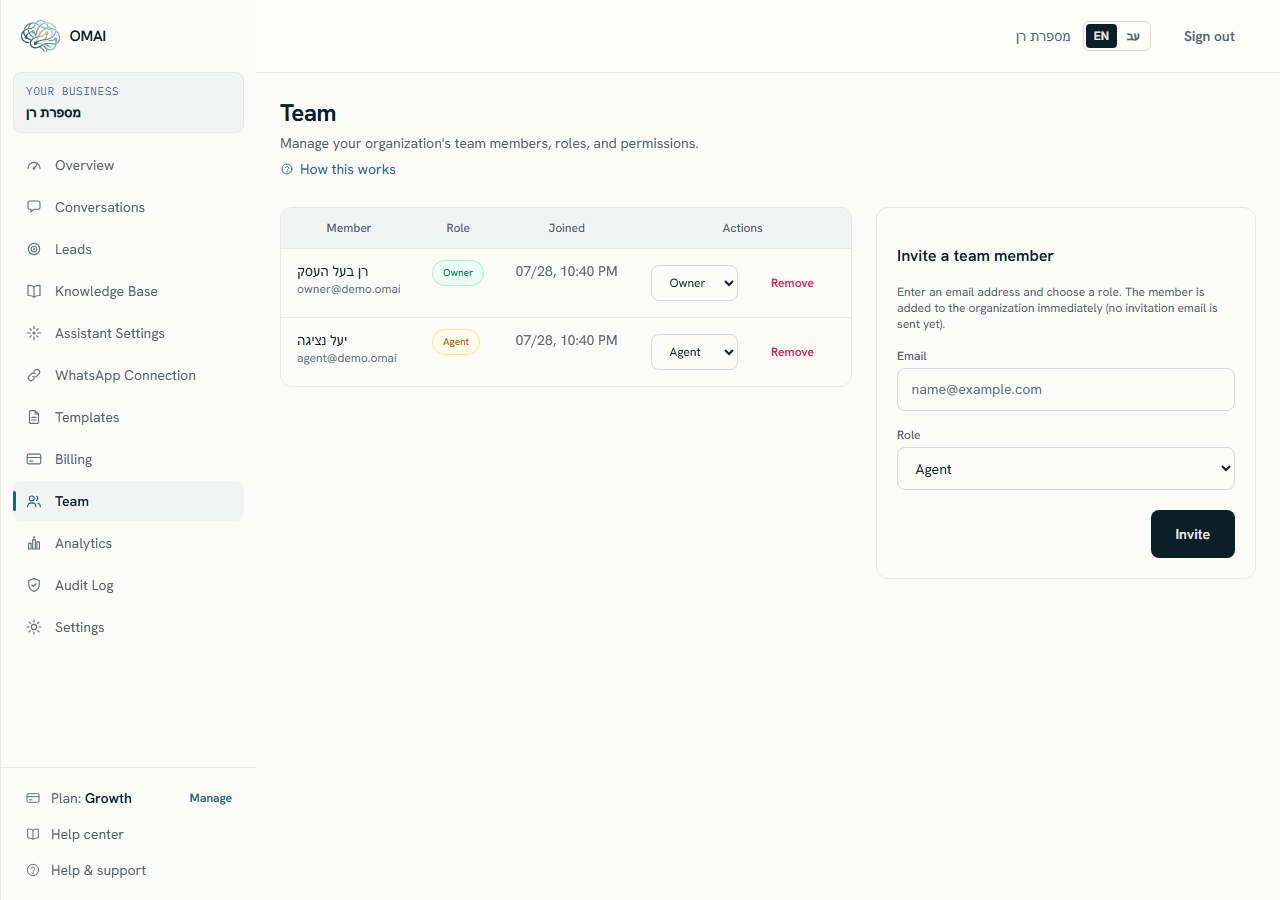
Adding a teammate takes one email address and one role. Dashboard → Team lists everyone in the workspace, oldest first, with their role and the date they joined, and the panel beside the list is where you add someone new.
Before you start
- You need the Owner or Admin role. An Agent or a Viewer sees the form but every submission is refused.
- You need a free seat on your plan. The seat count includes you.
- You need the exact email address the person will sign in with. It is stored in lower case and cannot be edited afterwards — a typo means adding the right address and removing the wrong one.
- Decide the role first. Roles and permissions lists exactly what each one can do.
How many people your plan includes
| Plan | Team members included |
|---|---|
| Starter | 2 |
| Growth | 5 |
| Pro | 15 |
| Custom | 100 |
The limit is checked at the moment you add someone, by counting the members that exist right then — so removing a person frees their seat immediately. A workspace with no subscription record at all is held to a single member until a plan is chosen.
Add a teammate
Step 1 Open Dashboard → Team.
You should see: The member list appears on the left and the Invite a team member panel on the right.
Step 2 Type the address into Email.
- The field expects one address in the form
name@example.com. There is no bulk import.
- The field expects one address in the form
Step 3 Choose the Role.
- Only an Owner may choose Owner here. An Admin who tries is refused with “Only an owner can invite another owner.”
You should see: The dropdown offers Owner, Admin, Agent and Viewer, and starts on Agent.
Step 4 Select Invite.
- The green line tells you which happened: “Invitation sent.” means the email went out, and a different line appears if it could not be sent — in which case tell them to use Forgot password? to set one.
You should see: The button reads Sending… briefly, a green note says “Team member added to the organization.”, a toast says “Invitation created.” and the person appears at the bottom of the member list.
What the new member receives
An invitation email goes out as soon as they are added. What it contains depends on whether that email address already had an OMAI account.
- They already have an OMAI account. The email points them at sign-in and your workspace is available to them. One catch: sign-in always opens the workspace they joined first, and the dashboard has no workspace switcher — so a person who signed up for their own OMAI account earlier will land in that older workspace rather than yours.
- They have never used OMAI. The email carries a single-use link to Set your password, valid for 7 days. Following it sets their first password and verifies the address, and they sign in normally from then on. If the link expires or the email never arrives, Forgot password? now works for them too and produces the same result.
If someone was added before 7 August 2026 they received nothing, and at the time Forgot password? could not help them either. Both now work: ask them to use Forgot password? with the address you added, or remove and re-add them to send a fresh invitation. See Team invitation problems.
Change someone’s role
Step 1 Find the person in the member list and open the dropdown in their Role column.
Step 2 Choose the new role.
- Only an Owner can set someone to Owner.
- The last remaining Owner cannot be changed to anything else. The attempt is refused in red under the dropdown.
- The new role applies from that person’s next page load. They do not need to sign out.
You should see: The change is saved as soon as you pick it — there is no Save button and no confirmation dialog. Nothing is shown on success; the dropdown simply keeps the new value.
Remove a member
Step 1 Find the person in the member list and select Remove in the Actions column.
You should see: A dialog opens: “Remove this member from your team?” with the line “They will immediately lose access to the dashboard.” The keyboard focus starts on Cancel.
Step 2 Select Remove in the dialog.
- If the person is the only Owner, the removal is refused and a red banner above the member list says why — a workspace must always keep at least one Owner. Nothing is changed. Make someone else an Owner first.
You should see: The row disappears from the list and their seat is free again.
What removal does, and what it does not
- Their access to this workspace stops at once, because membership is checked on every request.
- Their next click in the dashboard lands on a page telling them they no longer have access to this workspace, with a button to sign out — not a crash card and not a sign-in form. Tell them anyway, so the change is not a surprise.
- Their sign-in account still exists. Removing them from your workspace does not delete their OMAI login, and does not touch any other workspace they belong to.
- Everything they did stays. Their replies remain in the conversations, their internal notes remain on the threads, and the audit log keeps the record of what they did and when.
- The removal itself is written to the audit log, with who removed them and the role they held.
- A removed person can be added again later. Adding them back is a new membership with a new join date, and it takes a seat again.
Messages you may see
These are the refusals the Team screen produces, and what each one means.
| Message | What it means |
|---|---|
| You’ve reached the number of team members included in your plan. Upgrade to add more. | Every seat on your plan is taken. Remove someone, or change plan — an Upgrade plan link is shown next to the message. |
| This user is already a member of the organization. | That address is already in the list. Change their role instead of adding them again. |
| Only an owner can invite another owner. | You are an Admin and chose the Owner role. Ask an Owner to do it, or add the person as an Admin. |
| A workspace must always keep at least one owner. | Shown as a banner above the member list when a removal — or a role change — would leave the workspace with no Owner. Nothing was changed; promote someone else first. |
| The submitted data is invalid. | The email address did not pass validation — usually a typo, a missing @, or a stray space. |
Common questions
How long is an invitation valid?
There is no invitation and therefore no expiry. The person is a member from the moment you add them, and stays one until someone removes them.
How do I resend an invitation?
You cannot, because none was sent. If a teammate says they never got anything, that is expected — send them the sign-in address yourself.
Can I see who is waiting to accept?
No. There is no pending-invitation list, because everyone in the list is already a full member with the role shown next to them.
Can I add the same person to two workspaces?
Yes — one address can belong to several workspaces with a different role in each. Be aware that signing in opens the workspace they joined first, and there is no way to switch between them from the dashboard.
Does adding a teammate cost extra?
No. Members are included in the plan up to the number in the table above. Going beyond that number needs a larger plan; see Changing plan.
Can I stop a teammate from seeing prices and invoices?
Not with roles. Every role, including Viewer, can read the billing screen. Only Admins and Owners can change anything there.