
Questions and answers
A question and its approved answer are stored as one unit and are the fastest way to make the assistant useful. This page covers the fields and their limits, how to write entries that get found, how many are worth having, and how to prove one is being used.
- Who
- Owners and admins
- Plan
- All plans
- Role
- Owner or Admin
- Takes
- About 10 minutes for the first five questions
Before you start
- An OMAI account with a business created
An entry in FAQ is a customer question and the answer you approve for it. It is the cheapest knowledge you can give the assistant: you write the sentence you would have written by hand, and from then on it is available at any hour.
You can add entries in two places, and both work the same way: the FAQ card on the Settings screen, which has the full form, and the FAQ step of the setup wizard, which asks only for the question and the answer. In both cases the entry reaches the assistant after you press Sync details from settings on the Knowledge Base screen.
Adding a question
Step 1 Open Settings from the sidebar and scroll to the FAQ card.
You should see: You see your existing entries, or No FAQ yet. if there are none, with a New FAQ form under them.
Step 2 Type the customer’s question into Question, and your approved wording into Answer.
- A star in a label means the field is required. Both the question and the answer are required.
Step 3 Optionally add Tags (comma-separated) — for example
prices, hours, parking.Step 4 Press Add question.
You should see: The line Question added. appears and the entry joins the list above the form.
Step 5 When you have added everything, open Knowledge Base and press Sync details from settings.
You should see: A source named Frequently asked questions, tagged FAQ, appears with a Ready badge and one chunk per entry.
The fields and their limits
- Question *TextRequired
- The question as a customer would ask it. This text is searched, so the words you choose here decide whether the entry is found.
Default:
—·Required. Up to 500 characters. - Answer *Text areaRequired
- The answer you are happy for a customer to receive. The assistant rephrases it in your tone rather than pasting it verbatim, so write the facts, not the greeting.
Default:
—·Required. Up to 4,000 characters. - Tags (comma-separated)Text
- Labels for your own filing. They are shown as small badges next to the entry in your list. They are not sent to the assistant and do not affect which entry is found.
Default:
—·Optional. Up to 20 tags, each up to 40 characters. Separate them with commas.
Writing entries that get found
The question and the answer are stored together as one indivisible piece, exactly like this:
Do you have parking at the Tel Aviv branch?
There are 12 spaces in the building car park, free for the first hour. Street parking is blue-and-white.- Use the customer’s words in the question, not your internal name for the thing. People ask “do you have parking?”, never “what are the site access arrangements?”.
- Make the answer stand on its own. It may be retrieved without the entries around it, so “yes, as above” is useless.
- One topic per entry. Two topics in one answer means one of them is invisible to a search about the other.
- Name the thing in the answer as well as in the question — “12 spaces in the building car park”, not “12 of them”.
- Write numbers, prices and times in full, with their unit or currency.
- Avoid answers that expire: “until the end of the month” will be wrong next month, and nothing rewrites it for you.
- Keep every price in the service list instead, so there is one place to change it — see Services and prices.
How many are worth having
The assistant keeps the 5 closest pieces of knowledge per customer message, and those five slots are shared with your services, opening hours, policies and documents. That is what decides the shape of a good FAQ list: many small, sharply separated entries beat a handful of sprawling ones, because a sprawling entry takes a whole slot to answer a fraction of the question.
For a sense of scale, the setup score in the setup wizard awards partial credit from the first question and full credit at 5. Entries you type in are not files, so they are not measured against your plan’s knowledge storage.
How they work with documents
Questions and answers and uploaded documents live in the same index and are searched together. Nothing gives one kind priority over the other at search time: the pieces that best match the customer’s wording win, whichever source they came from.
The practical consequence is that a document and an entry that disagree are a real risk — the assistant may use either. Decide where each fact belongs, and keep it there: prices in services, policies in Policies, the long explanation in a document, the short answer in an entry here.
Checking that an entry is used
Step 1 Open Knowledge Base and press Retrieval test in the top right.
Step 2 Type the question the way a customer would type it into Test question, then press Search.
- The Language selector next to the button does not change the results — the search runs the same way whichever value it holds.
You should see: The page reports how many chunks were found and lists them, each with the source title, a type tag and a score.
Step 3 Look for a result whose text is your entry.
- If you get the pill saying no results were found, the entry was never synced, was deleted, or is worded so differently from your search that nothing matched.
You should see: If it is in the list, the assistant can find it.
Step 4 For the full answer rather than the raw pieces, use the test simulator on Assistant Settings and ask the same question.
You should see: You get the reply the customer would get, with the sources it used listed underneath.
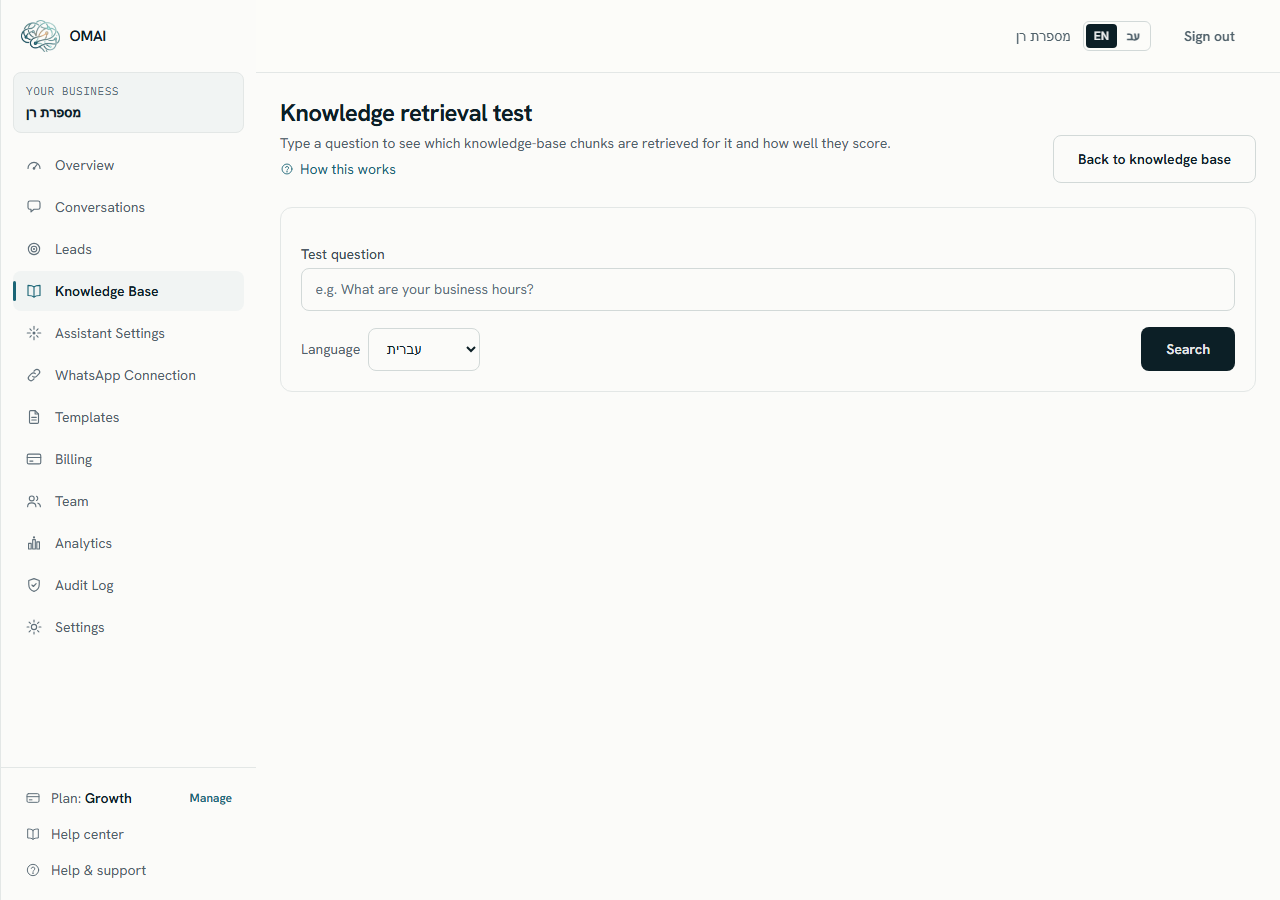
The score next to each result is a rough similarity number, useful for comparing two results with each other and not much else. Testing what the assistant knows explains how to read the page properly.
Changing or removing an entry
There is no edit form. To reword an answer, press Delete on the entry, confirm, add it again with the new wording, and press Sync details from settings. Until you sync, the assistant keeps giving the previous answer.
Does the assistant send my answer word for word?
No. Your text is given to the assistant as the information it may use, and it replies in the tone you configured — short, WhatsApp-style, in the customer’s language. It is instructed to answer from your business information and not to invent prices, availability or policies.
Do tags change which entry gets used?
No. Tags are only shown in your own list. Put any word that matters for finding the entry into the question or the answer itself.
Can I write entries in both Hebrew and English?
You can, and both will be searched. The labels around your knowledge are written in your Business content language, and the assistant replies in the customer’s language — see The language your assistant replies in.
A customer asked something my entry covers and the assistant still handed the conversation over. Why?
Handover has its own triggers, and they run before the answer is generated: an explicit request for a person, frustrated wording, or a sensitive topic such as medical, legal or financial matters. That is by design — see When the assistant hands over.