
Buy a number
The purchase wizard end to end: country, number type, business details where a regulator asks for them, the exact number, payment, and activation. What is charged, when it is charged, and what stops the wizard before you get there.
- Who
- Owners and admins
- Plan
- An active paid plan. Buying is blocked during the 30-day trial.
- Role
- Owner or Admin
- Takes
- A few minutes, unless the country requires a regulator review
Before you start
- A saved payment method on the billing page
- A billing contact with a full name and a valid phone number
- A free slot under your plan’s dedicated-number limit
Buying a number is a six-step wizard. You choose where the number should be from and what kind it is, OMAI charges the first month, buys that exact line, attaches it to WhatsApp and gets Meta to verify it. You do not need a phone in your hand and there is nothing to install.
Before you start
- Only an Owner or an Admin can buy a number. Another role is not offered the CTA, and opening the wizard directly shows them a short explanation and a link back to the WhatsApp screen — nothing is reserved and nothing is charged.
- Decide the country and the type first — see Countries, prices and requirements. Changing the country later clears your number choice.
- Check your plan’s dedicated-number limit: 1 on Starter, 1 on Growth, 3 on Pro.
- Add a payment method on the billing page if you have not already. The wizard keeps everything you picked while you go and come back.
Opening the wizard
Step 1 Open Dashboard → WhatsApp Connection.
You should see: The connection screen. With no numbers connected yet you see a section headed Don’t have a number yet?; with a number already connected you see a compact Need another number? card lower down.
Step 2 Choose Choose your number.
- If the card is disabled and suggests connecting an existing number instead, buying is not switched on for this deployment.
- If you left a purchase half-finished, the wizard resumes it rather than starting again. A paid but unassigned order reopens on Pick a number with the country locked and your payment intact.
You should see: The wizard opens on the Country step, with the step list on the left: Country, Number type, Pick a number, Review & pay, Activation.
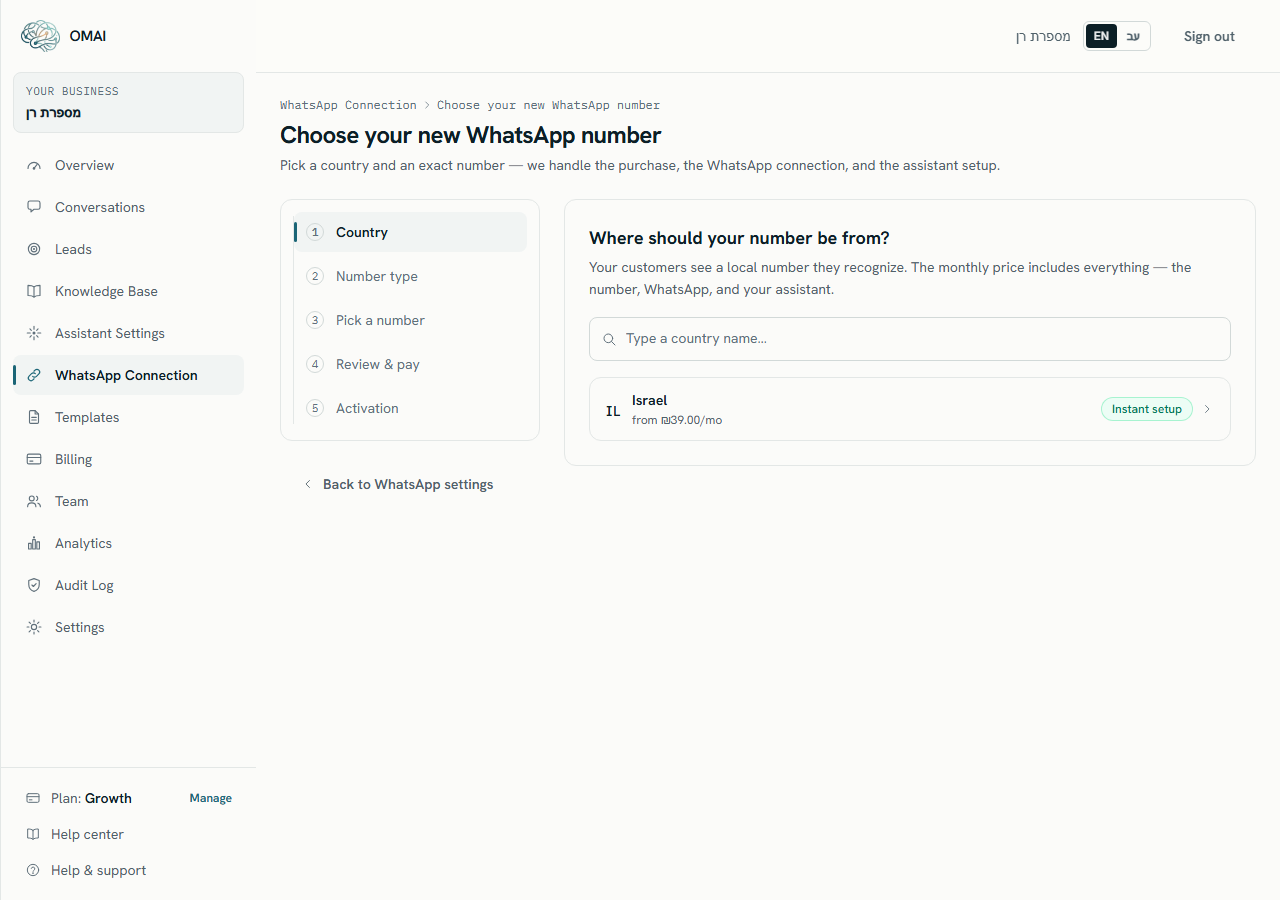
The steps
Step 1 On Country, pick where the number should be from.
- Each country shows a from-price and a badge: Instant setup, Address required or Documents required.
- Use Search countries to filter by name or by the two-letter country code.
You should see: The wizard moves to Number type.
Step 2 On Number type, choose Landline-style number or Mobile-style number.
- Both types work identically on WhatsApp. Only the price and the first impression differ.
You should see: You go to Pick a number, or to Business details first if the country requires it and your details are not approved yet.
Step 3 On Business details, if it appears, fill in the fields the regulator asks for and choose Submit details.
- A document review usually takes a few business days. Use Check status to re-check, or come back later.
- A rejection shows The submission wasn’t approved with Edit and resubmit.
You should see: For an address requirement you continue immediately. For a documents requirement you see Your details are in review and can leave the page — nothing has been charged.
Step 4 On Pick a number, select one of the numbers offered and choose Continue with this number.
- Up to 10 candidates are shown. Refresh list asks for a fresh set; Pick for me simply takes the first one in the list.
- If the list is empty, wait a moment and choose Check again, or go back and try the other type.
You should see: The Review & pay step, with your number, country, type, monthly price and the card that will be charged.
Step 5 On Review & pay, tick the confirmation that this is a monthly recurring charge, then choose Pay & activate.
- Without the tick the wizard shows “Please confirm the monthly charge to continue.” and nothing is sent.
- If the first month is already paid from an earlier attempt, there is no tick box and the button reads Activate my number.
You should see: The button changes to Charging your card…, then the wizard moves to Activation.
Step 6 Wait on Activation while the four progress rows complete.
- Do not answer the verification call — the call is placed to the new number, not to your phone.
- The page checks for up to 7 minutes. If it runs out, come back later and it picks up where it stopped.
You should see: Your new number is connected and live! and a link to your WhatsApp page.
What is charged, and when
The first month is charged before the line is bought, on the card saved for your subscription. From then on the number is billed as a line on the same monthly charge as your plan, at the price frozen on the day you bought it. The billing page lists it under Add-ons with its status and a Paid through date.
- If the card is declined, nothing is bought and nothing is activated. The wizard offers Try again for a retryable decline, and Update payment method either way.
- If someone else buys your chosen number first, your payment carries over to the next attempt — you are not charged twice.
- If the purchase fails after the card was charged — for example WhatsApp has no capacity for a new number — the first month is refunded in full and the wizard says you have not been charged.
- If the answer from the payment provider never arrives, the wizard shows Confirming your payment… and keeps checking by itself. Leaving the page is safe; the purchase resumes where it stopped.
- Meta charges its own messaging fees for WhatsApp conversations, separately from this price and from your plan.
When the wizard will not let you pay
Browsing is always open. The block appears on Review & pay, where the payment button is replaced by a banner naming the reason and a link that fixes it.
| Banner | Why it appears | The link |
|---|---|---|
| Dedicated numbers are available on paid plans | You are on the 30-day trial. | Choose a plan |
| There’s a payment to settle first | A subscription charge did not go through and the account is in arrears. | Fix payment |
| Add a payment method first | No card is saved, or the billing contact is missing a full name or a valid phone number. | Add payment method |
| You’ve reached your plan’s number limit | You already rent as many numbers as the plan allows. | See plans |
| Buying a number requires an active subscription | There is no subscription, it is cancelled or scheduled to cancel, or the account is frozen. | Go to billing |
Limits on buying
| Limit | Value | Scope |
|---|---|---|
| Dedicated numbers per plan | 1 on Starter, 1 on Growth, 3 on Pro | Per organization |
| New number orders | 5 per day | Per organization, UTC day |
| Purchase attempts | 5 per hour | Per organization |
| Repeat purchases in a row | 1 every 5 seconds | Per organization |
| Number searches | 10 per minute | Per organization |
| Business-details submissions | 3 per day | Per organization |
A number counts against the plan limit from the moment the line is bought, even if activation never finished. If the limit looks wrong, check the WhatsApp page for a half-finished purchase before contacting support.
What you should see afterwards
The number appears as a connection card on Dashboard → WhatsApp Connection with a Connected badge, a Refresh status button and a Remove button. On the billing page it appears under Add-ons as a dedicated number for its country and type.
Your assistant starts answering on that number as soon as the connection is live. There is no separate switch to turn replies on — so send the new number a WhatsApp message from another phone before you advertise it, and check that the reply reads the way you want. If it does not, fix the assistant settings or your business knowledge first.
Can I buy a number during the free trial?
No. The wizard shows Dedicated numbers are available on paid plans and links you to the plans. Choose a plan first, then come back — everything you picked is still there.
I paid but the wizard closed before I picked a number. Did I lose the money?
No. The order stays paid and unassigned. Reopen the wizard and it lands on Pick a number with the country and type locked and a note that the first month is already paid.
Can two people in my team buy at the same time?
The purchase is serialised per organization, and a second attempt within five seconds is refused with a message asking you to wait. Nothing is charged twice.
Why does the price on the review step differ from what I saw a moment ago?
The price is read from the catalog at the moment you pay. If it changed in between, the purchase is refused with a message about the updated price; choose Try again to reload it and confirm the current one.