
The check before Meta’s window opens
Nothing reaches Meta until you have confirmed you are allowed to connect the number. That is two tick boxes on the connect card for most people — and a full guided check, with a verdict, for anyone who wants to know exactly what will happen first.
- Who
- Owners and admins
- Plan
- All plans
- Role
- Owner or Admin
Before you start
- The phone number you intend to connect
- Knowing which app that number is on today
There are two ways through, and they end in the same place. Most people meet the short one: two tick boxes on the connect card confirming you may act for the business and for the number, and then Meta’s window. Anyone who would rather know exactly what is about to happen can open the guided check instead — a short questionnaire that works out which path your number is on and shows you what to prepare and what to expect, as its intro promises, before anything changes.
Why it runs before the Meta window
Because two of the things that can happen inside Meta’s window cannot be taken back afterwards.
- A number that is on the regular WhatsApp app is moved off it in order to connect. You lose regular WhatsApp on that number, and no message history comes across.
- The business you pick owns the WhatsApp Business Account permanently — a WABA cannot be moved to a different business later.
There is a third case the check catches early rather than late: a number that is already tied to another OMAI account, or to a setup that was started and never finished. Discovering that halfway through Meta’s window leaves you with a half-connected number and no way to roll it back.
So the product enforces a plain rule: no check, no pop-up. The Meta window never opens until one of the two forms has run, and both of them record the same thing — your confirmation that you may do this, and an automatic look for the number in every other setup OMAI knows about.
The short version, on the connect card
This is what you meet if you go straight to WhatsApp Connection and start connecting. There is no separate page and no questionnaire — the confirmation sits on the card itself, directly above the button that opens Meta.
Step 1 Open Dashboard → WhatsApp Connection and find the card for the way you are connecting.
You should see: For a number that is already running in the WhatsApp Business app, the card asks for the number first, under Which number are you connecting?
Step 2 Tick I’m authorized to manage this business’s Meta / Facebook account.
Step 3 Tick I’m authorized to connect this phone number.
- Under the boxes: You’ll sign in with Meta in a secure window — we never see your password. That is exactly what happens.
You should see: Continue to Meta becomes available. It stays disabled until both boxes are ticked.
Step 4 Choose Continue to Meta.
- If that check finds the number is tied to another active setup, the window does not open. A red panel appears on the card instead — This number needs a quick review — with a link to support.
You should see: OMAI records your confirmation, checks the number against every setup it already knows about, and then opens Meta’s window.
What the check never does
- It never registers or removes a number, never sends a message and never charges anything.
- It never asks for a password, a token or a verification code. As the number question says: We use this only to check your setup — we never ask for passwords or codes here.
- It never connects anything by itself. Every verdict ends in a button you choose to press.
Running the guided check
Take this path when you are not certain which app the number is on, when you want the buy-a-new-number route, or when you would simply rather read the consequences before you commit. It is entirely optional — the connect card works without it.
Step 1 Open Dashboard → WhatsApp Connection and choose Not sure which path fits? Run the guided check, at the bottom of the connect screen.
- That link only shows while nothing is connected. With a number already connected, open
/dashboard/whatsapp/preflightdirectly.
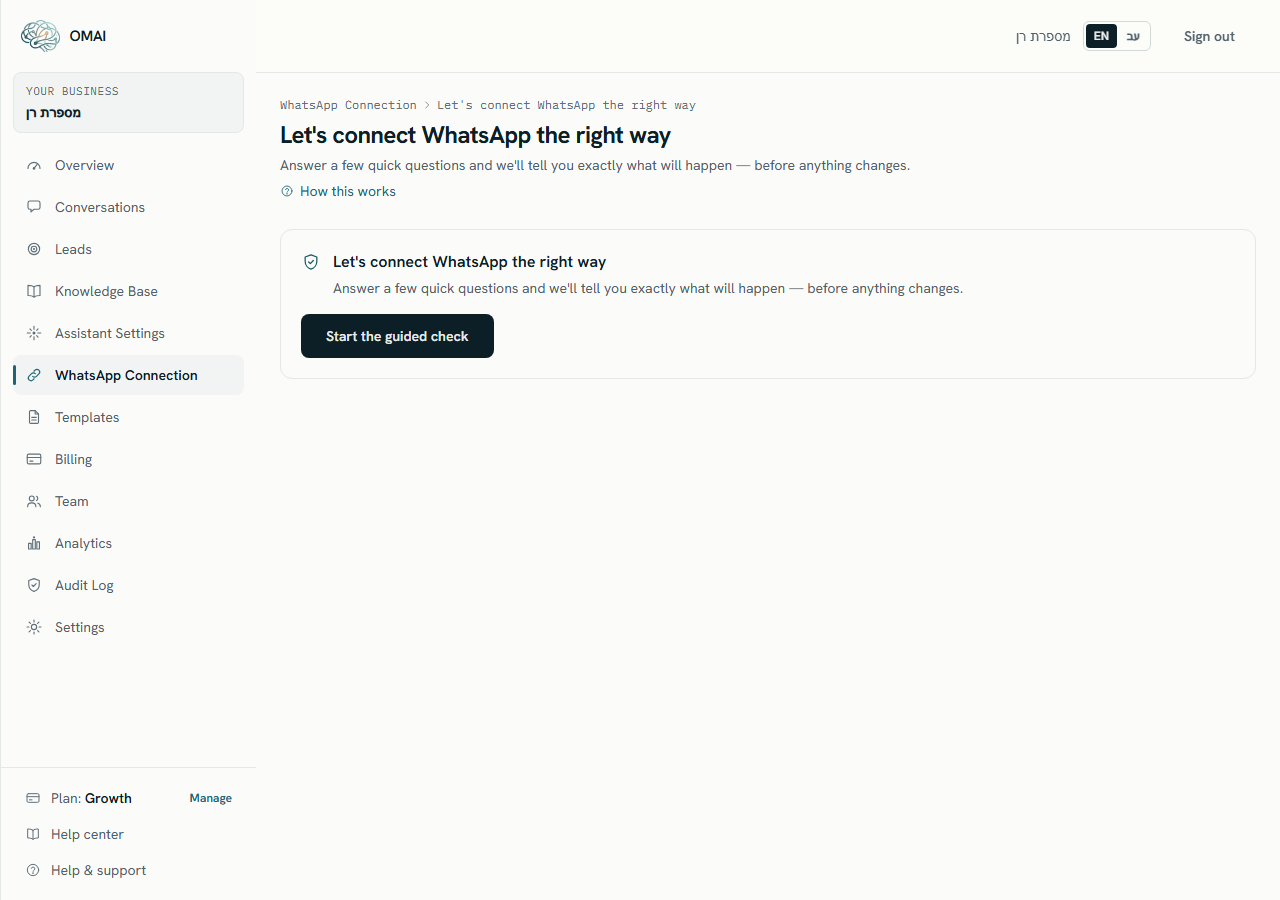
You should see: The guided check opens on the line *Let’s connect WhatsApp the right way*.
- That link only shows while nothing is connected. With a number already connected, open
Step 2 Press Start the guided check.
You should see: The first question appears. If you left a check unfinished earlier, it resumes where you stopped instead.
Step 3 Answer each question by pressing one of the answers.
You should see: The next question replaces it immediately — there is no Continue button on the choice questions.
Step 4 Check the country in the dropdown beside the field (it opens on your organization’s country), type the number the way you dial it, and press Continue once the Full number: line shows the international form.
- This question is skipped entirely when you answered Get a new number.
- A number typed with its country code (
+972…,00972…) reads the same; a number pasted from another country with its+moves the dropdown to that country by itself.
Step 5 Tick the boxes under Before we continue, then press Check my setup.
- Check my setup stays disabled until every box shown is ticked. There is no way to run the check without them.
You should see: The verdict appears: a headline, What to prepare, What to expect and one Next step.
The questions, one by one
Every question the check can ask
- Do you want to connect a number you already have, or get a new one?ChoiceRequired
- The first fork. Choosing Get a new number skips straight to the confirmation boxes — the check does not need to know anything else about a number that does not exist yet.
Two answers: **Connect a number I already have** · **Get a new number**.
- Where is this number used today?ChoiceRequired
- The single most important answer: it decides whether your number keeps working on the phone, has to move, or is set up from scratch. Only asked after Connect a number I already have.
Five answers: **On the WhatsApp Business app (the green business one)** · **On the regular WhatsApp app** · **With WhatsApp Business Platform / another tool** · **It isn’t on WhatsApp yet** · **I’m not sure**.
- Who runs that WhatsApp integration today?ChoiceRequired
- Asked only when the previous answer was With WhatsApp Business Platform / another tool. It separates “this is already ours” from “someone else has to release it”.
Four answers: **OMAI** · **Another provider** · **We set it up directly with Meta** · **I’m not sure**.
- What’s the phone number?Country dropdown + phone fieldRequired
- Used to check the number against every setup OMAI already knows about, and to confirm it is a real, dialable number. Skipped when you chose Get a new number.
The dropdown shows each country with its dial code: your organization’s own country first, then the supported countries (Israel, United States, United Kingdom, Canada, Australia, Germany, France, Spain, Italy, Netherlands, India, Brazil, Mexico, South Africa, United Arab Emirates) sorted by name in your language, plus any country a pasted `+` number belongs to. Type the number the way it is dialled in that country; a mistyped number is refused right under the field, naming the country and showing an example in its format, and **Continue** stays disabled until the number reads correctly.
- Before we continueCheckboxesRequired
- Your confirmation that you may act for the business, and — when you are connecting an existing number — for the number. It is recorded against the check, not just used to enable a button. These are the same two confirmations the connect card asks for on its own.
**I’m authorized to manage this business’s Meta / Facebook account.** is always shown. **I’m authorized to connect this phone number.** is added when you are connecting an existing number. **Check my setup** is disabled until both shown boxes are ticked.
Where each answer leads
The first two rows are decided before your answers are weighed: a number that belongs elsewhere, or that you have already connected, short-circuits the whole questionnaire. Everything below them follows from what you chose.
| What you answered | The verdict you see | Next step |
|---|---|---|
| The number is tied to another OMAI account, or an earlier setup for it is still open | This number needs a quick review | Talk to support — the check will not take a number over from another account. |
| The number is already connected to your own account | We’ll set this number up on WhatsApp | Reconnect the number — back to WhatsApp Connection, where you reconnect the existing card. |
| Get a new number | Let’s get you a new number | Get a new number — opens the number purchase wizard. |
| Connect a number I already have → On the WhatsApp Business app (the green business one) | You can keep using WhatsApp on your phone | Continue to connect — the Meta window opens on the path that leaves the number working on your phone. |
| Connect a number I already have → On the regular WhatsApp app | This number needs to move to connect | Continue to connect — with the warning that the number leaves regular WhatsApp and no history comes across. |
| Connect a number I already have → With WhatsApp Business Platform / another tool → OMAI | We’ll set this number up on WhatsApp | Reconnect the number — it is already yours here, so the connection is refreshed rather than created. |
| Connect a number I already have → With WhatsApp Business Platform / another tool → Another provider, We set it up directly with Meta, or I’m not sure | This number needs to move to connect | Continue to connect — after your current provider releases the number. Expect a short gap in messaging. |
| Connect a number I already have → It isn’t on WhatsApp yet | We’ll set this number up on WhatsApp | Continue to connect — a fresh setup, with a one-time code, a display name and a two-step verification PIN. |
| Connect a number I already have → I’m not sure | Let’s finish this together | Talk to support — the check will not guess its way into a path that cannot be undone. |
Between the headline and the button, the verdict lists What to prepare and What to expect for that exact path — the app version to update, the phone to have ready, the features that stop working, the provider to call. Every path that ends in Meta’s window is presented as a candidate, never a promise: We’ll get everything ready, but Meta makes the final decision on verification, your display name, and messaging limits.
How long a check lasts
- A check is valid for 60 minutes, whichever form produced it. After that it expires and you start a new one.
- Leaving the page does not lose a guided check — reopening it resumes the answers you already gave.
- Start over abandons the current guided check and begins a fresh one from the first question.
- A completed check is spent by the connection that follows it. Connecting another number means confirming again — but reconnecting a number you already have here does not, so repairing an expired connection never sends you back through this.
- Starting guided checks is limited to 20 per minute for the whole account, pressing Check my setup to 60 per minute, and the short version on the connect card to 30 per minute.
What goes wrong, and what it means
| What you see | What it means | What to do |
|---|---|---|
| We couldn’t start the guided check. Please try again. | OMAI could not open a check session. | Reload the page and press Start the guided check again. |
| That doesn’t look like a number in Israel. Check the country and the digits — e.g. 050-123-4567. | Shown right under the field, with your country’s name and an example in its format: the number does not read as a real, dialable number for the selected country (a digit missing or extra, a short code, or a number from another country typed without its +). Nothing has been sent yet. | Fix the digits, or pick the right country in the dropdown — or type the number with its country code (+…). The refusal disappears as soon as the Full number: line appears. |
| Enter a valid phone number, including its country. | The server did not accept a number the field had read as valid — rare, and only after Continue or Check my setup. | Check the country in the dropdown, then re-enter the number in full. |
| This onboarding check has already finished. | The check has been completed, abandoned or has passed its 60 minutes. | Press Start over. |
| This number needs a quick review | The number is recorded against another active setup, or an earlier setup for it was never finished. Shown inline on the connect card, and as a verdict in the guided check. | Talk to support with the number in full international format. OMAI will not take a number over from another account by itself. |
| One step left — the guided check | You reached a connect card without a valid check — usually because the 60 minutes ran out while Meta’s window was open. | Press Go to the guided check and run it again. On the phone-app path, an approval you already gave on the phone is not lost. |
| Too many onboarding checks — wait a moment and try again. | The account ran more checks in a minute than the limits above allow. This message is shown in English in both languages. | Wait a minute, then try again. |
| The page sends you back to WhatsApp Connection | Your role is not Owner or Admin. | Ask an owner or an admin to connect the number. |
Can I skip the check entirely?
You can skip the questionnaire — that is what the two tick boxes on the connect card are for. You cannot skip the confirmation itself: Continue to Meta stays disabled until both boxes are ticked, and the pop-up never opens without them. The rule exists so that no irreversible Meta-side step runs before you have said you are allowed to take it.
My country is not in the dropdown.
Your organization’s own country is always there, at the top. For a number from anywhere else, type it with its country code (+…): it is read as an international number and the dropdown moves to that country by itself. If a number you know is right is still refused, contact support and we will complete the check with you.
Does answering “I’m not sure” block me forever?
No. Press Start over and answer again once you know which app the number is on. The guided check routes an unclear answer to support rather than guessing, because the wrong guess cannot be reversed.
The check says my number needs a review, but it is definitely mine.
That verdict means the number is recorded against another active setup, or an earlier setup for it was never finished. Write to support with the number in full international format and we will look at both records.