
Connection states and what each one means
Every state the WhatsApp screen can show for a number — what it means, what put it there, and what to do about it — plus how the connection to Meta expires and renews itself.
- Who
- Anyone with a dashboard account
- Plan
- All plans
- Role
- Everyone can read the screen. Refreshing, reconnecting and disconnecting need Owner or Admin.
Before you start
- At least one WhatsApp number connected to OMAI
Every number you have connected gets its own card on WhatsApp Connection. The card leads with a plain sentence about the situation, and carries a coloured badge with the underlying state. This article lists every badge you can see, what caused it, and the move that clears it.
Where the states appear
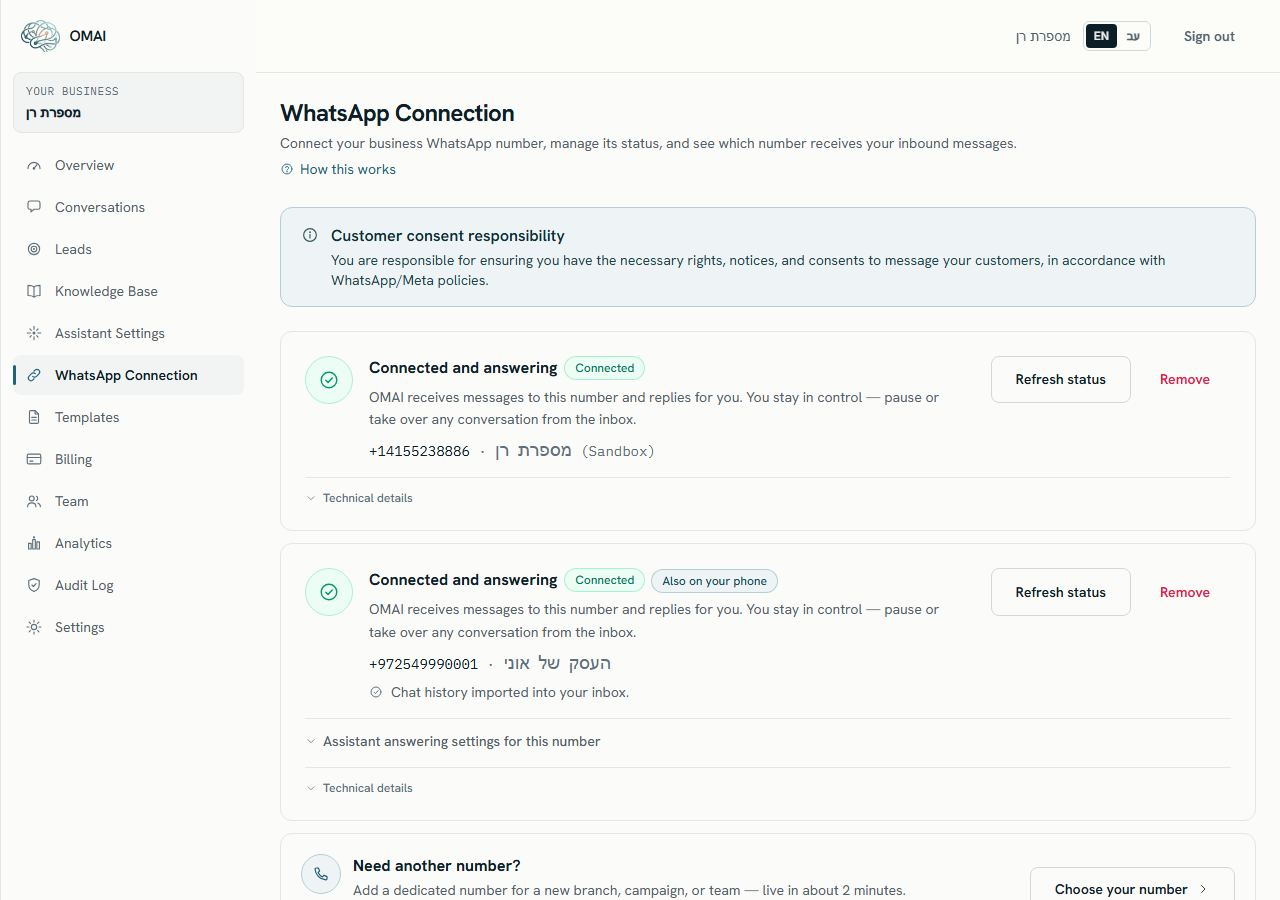
Open Dashboard → WhatsApp Connection. Each card shows the state headline, the state badge, the number in international format, and the display name approved by Meta for it. Underneath sits a Technical details disclosure with the raw values: provider, phone_number_id, waba_id and the internal detail code. Anyone signed in can read this screen; the Refresh status and Remove buttons are shown only to an Owner or an Admin, and the other roles get a line telling them who to ask instead.
The five connection states
| Badge | What it means | What put it there | What to do |
|---|---|---|---|
| Connected | The number is set up with Meta and OMAI receives its messages. | Setup finished, or an automatic renewal repaired an earlier problem. | Nothing. The headline reads “Connected and answering”. |
| Pending verification | The number is recorded here, but Meta has not confirmed it as usable yet. | You have just connected a number, or a number bought through OMAI is still being activated. | Wait, then press Refresh status. The headline reads “Almost there — verifying your number”. |
| Action required | Something about this number needs a decision from you, and OMAI will not send on it. | Meta refused a setup step, the number was disconnected from the phone app, the connect-time import did not finish, or the connection to Meta expired. | Read the extra line under the headline — it names the fix. See the two tables below. |
| Disconnected | Meta reports the number as no longer usable on this account. | The last time OMAI asked, Meta returned BANNED, DELETED or MIGRATED for the number. | Run the connect flow again from this screen. If Meta refuses, write to us. |
| Not connected | A connection record exists, but no working number is attached to it. | The state a record starts in before any successful setup is recorded against it. | Run the connect flow. With no connections at all the screen shows the connect options instead of a card. |
OMAI refuses to send on a number in Action required, Disconnected or Not connected. A reply typed in the inbox is rejected with This WhatsApp number isn’t connected. Reconnect it before sending. — so a state that is not Connected is never cosmetic.
What a healthy connection looks like
- The headline reads Connected and answering, with a green Connected badge.
- The number is shown in international format, followed by the display name approved by Meta.
- There is no orange guidance line between the headline and the number.
- A number that also runs in the WhatsApp Business app on your phone carries a second badge, Also on your phone.
- Under Technical details the
detailrow is absent — an emptydetailis the healthy case.
The extra line under Action required
When a card is in Action required, OMAI prints one orange sentence under the headline that names the specific problem. These are the ones the product recognises; anything else shows no extra line, and the raw code is still visible under Technical details.
| Line on the card | Underlying detail code | What to do |
|---|---|---|
| Reset the two-step verification PIN in WhatsApp Manager, then reconnect the number. | two_step_pin_mismatch | Meta refused the registration because the number’s existing PIN does not match. Reset it in WhatsApp Manager, then run the connect flow again. |
| Meta allows a limited number of registration attempts per 72 hours. Wait for the window to reset, then try again. | registration_rate_limited | Stop retrying. Repeated attempts consume the same allowance and make the wait longer. |
| WhatsApp couldn’t finish registering this number. Try reconnecting — if it keeps happening, contact support with the technical details below. | registration_failed:meta_<code> | Reconnect once. If it repeats, open Technical details and send us the whole detail string. |
| The number was disconnected via the phone app. If that was a mistake, run the connect flow again from this page; otherwise you can remove the connection. | coex_phone_disconnected | Someone disconnected the business platform inside WhatsApp on the phone. Reconnect here, or remove the card. |
| Importing your contacts and chat history didn’t finish in time. Disconnect from the phone app (Settings › Account › Business Platform) and connect again from this page. | coex_sync_incomplete | The connect-time import from the phone stalled. Disconnect on the phone, then connect again from this screen. |
Connection expiry and automatic renewal
When you connect a number, Meta issues OMAI a credential for your business. Credentials issued this way last 60 days, so OMAI watches them and renews them for you. You normally never see this happening — you see it only when renewal stops working.
- A background pass runs once an hour and looks at every stored credential.
- Renewal starts while there are still 14 days left before expiry, so a single failure is not a crisis.
- A successful renewal clears the problem by itself: a card that had been moved to Action required for a credential problem returns to Connected, and the guidance line disappears.
- After 3 consecutive failed renewals — or as soon as the credential has actually expired — the card moves to Action required with a
token_expired,token_expiringortoken_invaliddetail. - A credential-related Action required shows the headline Reconnect to keep receiving messages, and the screen adds a banner at the top: Your WhatsApp connection needs attention.
Reconnect an expired connection
Step 1 Open Dashboard → WhatsApp Connection.
You should see: The warning banner Your WhatsApp connection needs attention appears above the cards.
Step 2 Use the connect card directly under the banner — it is already set to the same kind of connection as the number that needs attention.
- If nothing opens, your browser blocked the pop-up. Allow pop-ups for this site and press the button again.
You should see: Meta’s secure window opens and you sign in with the Facebook account that manages the business.
Step 3 Pick the same business and the same number you connected before.
You should see: The card returns to Connected and the banner disappears.
The chat-history line on a phone-connected number
A number that stays live in the WhatsApp Business app on your phone gets one more line on its card, describing the import of your contacts and past chats. It appears only on those numbers, and only while there is something to report.
| Line | What it means |
|---|---|
| Waiting for history-sharing approval from your phone… | The request went out; you have not yet approved or declined it in the app. |
| Importing your chat history… this can take a few minutes. | Meta is pushing your past conversations and OMAI is writing them into the inbox. |
| Chat history imported into your inbox. | The import finished. Older conversations are marked Imported in the inbox. |
| You chose not to share history — the inbox will fill from new conversations only. | You declined sharing on the phone. This is a normal, finished state, not an error. |
| History import didn’t complete. Refresh the status — if it persists, contact support. | The import stopped before it finished. Press Refresh status; if the line stays, write to us. |
Refresh status
Step 1 On the number’s card, press Refresh status.
You should see: OMAI asks Meta for the number’s current state and stores the answer, then the card re-renders.
Step 2 Read the badge again.
- The card does not update on its own while you watch it — it is drawn when the page loads.
- Refresh status reads Meta’s view of the number. It cannot repair a credential problem; that needs a reconnect.
One side effect is worth knowing: a refresh overwrites the stored detail code with Meta’s own verification value, so a guidance line such as the history-import or PIN message can disappear after you press it. The situation has not changed — only the sentence describing it. Reconnecting is still the fix.
Does the card update by itself while I watch?
No. It is rendered when the page loads. Reload the page, or press Refresh status to ask Meta again.
Where do I find the phone number ID and the WhatsApp Business Account ID?
Open Technical details at the bottom of the card. It lists provider, phone_number_id, waba_id and the raw detail code — the four values our support team asks for.
The badge says Connected but a test message got no reply. What now?
The connection is fine, so the cause is further along. Start with how messages reach your assistant, then the assistant is not answering.