
WhatsApp connection problems
The connection failures customers actually hit — a Meta window that never opened, a number already used somewhere else, a card stuck on Action required, a reconnect banner, a card that vanished — each with its causes, the fix in order, and what to send support.
- Who
- Owners and admins
- Plan
- All plans
- Role
- Owner or Admin
Before you start
- Admin access to the business’s Meta account
- The phone that receives WhatsApp for the number, if it also runs in the WhatsApp Business app
Connecting a number involves three parties: you, Meta and OMAI. Meta owns the window you sign in to and decides whether your number may be used; OMAI runs a guided check before that window opens, and stores the result afterwards. Almost every failure below belongs to exactly one of those three stages, and the fix depends on which one.
Check these first
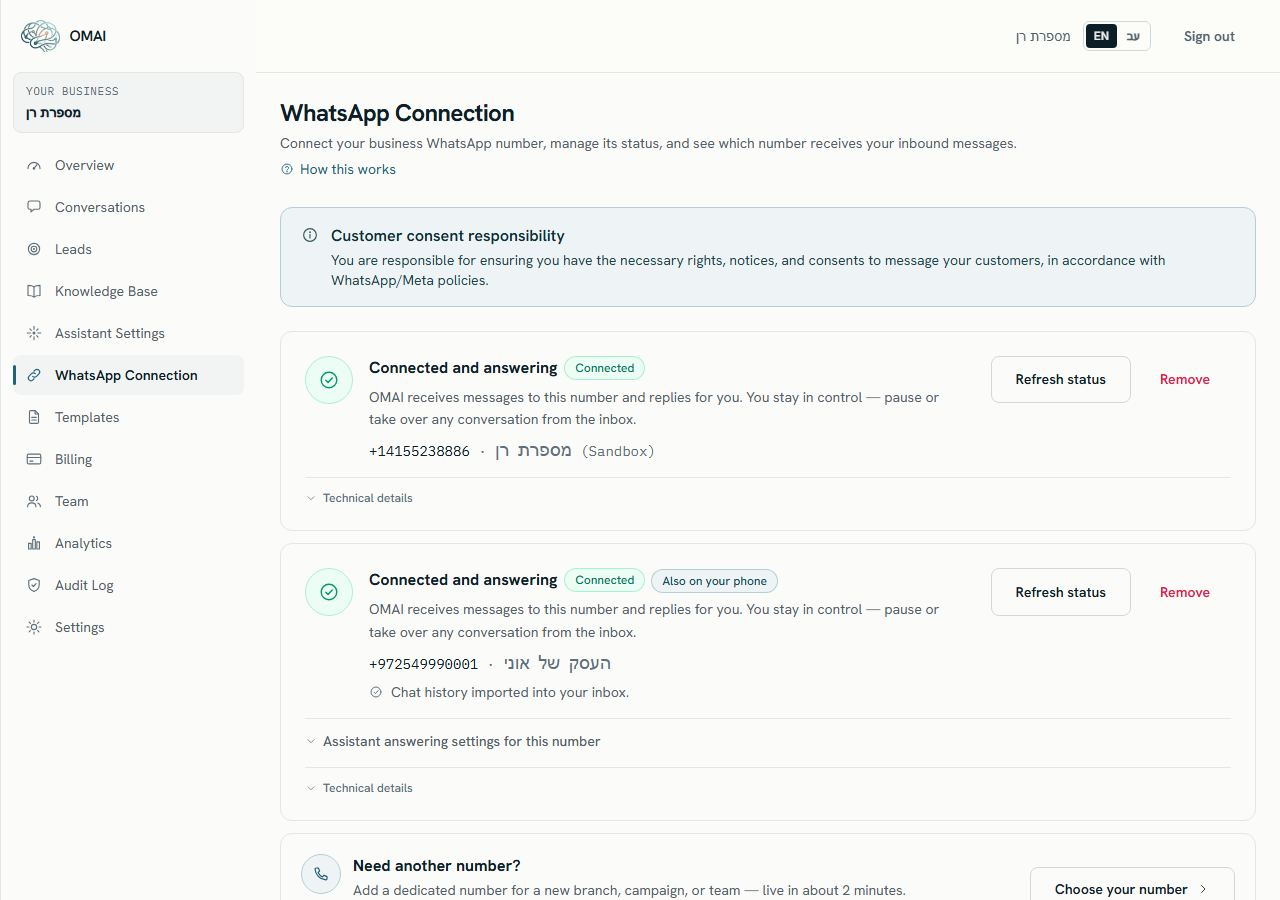
Step 1 Open Dashboard → WhatsApp Connection and look at the badge on the number’s card.
- No card at all means the number was never connected here, or it was removed. Go to the last symptom on this page.
You should see: One of five words: Not connected, Pending verification, Action required, Connected or Disconnected. The badge, not the message you remember seeing, is the current truth.
Step 2 Open Technical details at the bottom of the card.
You should see: The provider, the phone-number id, the WhatsApp Business Account id and a
detailvalue. Thedetailline is the single most useful thing you can send us.Step 3 Press Refresh status to re-read the number’s state from Meta.
- Copy the
detailvalue before you press it — refreshing replaces that value with Meta’s own verification status, and the guidance line disappears with it.
You should see: The badge and the guidance line are rewritten with what Meta reports right now.
- Copy the
Symptoms and fixes
Meta’s window never opened, or it closed before I finished.
Likely causes
- The browser blocked the pop-up, or an ad blocker or privacy extension stopped Meta’s script from loading.
- The button was pressed before Meta’s script finished loading — the card says
Still loading — please try again in a moment. - The window was closed, or a permission was declined, before the last step — the card says
Login was canceled. - The window finished but returned no business account and no number — the card says
No number details received from Meta. Please try again.
What to do
- Allow pop-ups for this site, and switch off ad or privacy blockers for it.
- Wait a few seconds for the page to settle, then press Log in with Facebook again.
- Complete every step inside Meta’s window and let it close by itself instead of closing the tab.
- If it still will not open, try another browser, or a private window with extensions disabled.
- On the path for a number that also runs in the WhatsApp Business app: if you already approved the connection on your phone, do not start over. The page keeps watching for that number for about 10 minutes and finishes the setup on its own.
How to check it worked
The card moves through Opening the secure Meta window… and Complete the steps in the Meta window…, and ends on “Connected! Your assistant can now receive messages.”
When to contact us
If the window refuses to open in two different browsers, write to us with the phone number in international format, the browser and version, and the exact line the card showed.
The number is refused because it is already used somewhere else.
Likely causes
- The number, or the Meta identity behind it, belongs to a different OMAI account —
This number is already connected to another organization. - Another account is part-way through connecting the same number —
This number is being connected by another account. - The guided check found an existing or unfinished setup and stopped on This number needs a quick review.
- The number is already connected in your own account, on a card further down the page.
What to do
- Scroll the WhatsApp Connection page first. A number that already has a card does not need connecting again.
- If an old account or a colleague’s account holds it, disconnect it there, then connect it here.
- If someone else is mid-setup on the same number, wait — an unfinished attempt is released after 30 minutes — then try again.
- If the review panel appears, use Talk to support on it. A conflict between two accounts is not cleared by trying again.
How to check it worked
Run the guided check again with the same number: a free number reaches a verdict whose next step is Continue to connect, not the review panel.
When to contact us
Write to us with the number in international format and, if you know it, the name of the other business or account that holds it. We cannot release a number from another account without that.
The guided check ends with “Let’s finish this together” or “This number can’t be used”.
Likely causes
- The two authorisation statements on the last step were not both ticked, so the check has nothing to act on.
- A question that decides the path was answered I’m not sure, and the check refuses to guess on your behalf.
- The number cannot be used with WhatsApp Business — a short code, for example, where a full phone number is required.
- There is an earlier, unfinished setup for this number that we have to look at first.
What to do
- Press Start over and answer “Where is this number used today?” precisely — the green WhatsApp Business app, the regular WhatsApp app, another WhatsApp tool, or not on WhatsApp at all.
- Tick both statements on the Before we continue step: authority over the business’s Meta account, and authority over the phone number.
- Use a full phone number that can receive a text message or a call for the one-time code.
- If the verdict still sends you to support, follow the Talk to support button rather than repeating the check.
How to check it worked
A usable verdict shows one of the connect headings — “You can keep using WhatsApp on your phone”, “We’ll set this number up on WhatsApp” or “This number needs to move to connect” — with a What to prepare list and one next step.
When to contact us
Send us the verdict heading you saw, the number, and your answers to the check’s questions. That is enough for us to reproduce the same decision.
The card shows Action required with an orange line under it.
Likely causes
- Meta refused to register the number because it already has a two-step verification PIN that does not match — the guidance names WhatsApp Manager.
- Meta refused because too many registration attempts were made for this number inside its 72-hour allowance.
- Meta refused for another reason, and the code it gave is kept in the card’s
detailvalue. - On a number that also runs on your phone: the business platform was disconnected from inside the phone app, or the connect-time import of contacts and history never finished.
What to do
- Read the orange guidance line first — it names the exact repair for the code behind it.
- For the PIN case, reset the two-step verification PIN in WhatsApp Manager, then connect the number again from this page.
- For the attempts case, wait for Meta’s 72-hour window to reset. Do not keep pressing connect: every attempt spends the same allowance.
- For a phone-side disconnect, run the connect flow again from this page; for an import that did not finish, disconnect in the phone app (Settings › Account › Business Platform) and connect again.
- Copy the
detailvalue from Technical details before pressing Refresh status.
How to check it worked
After the repair the badge returns to Connected and the card reads “Connected and answering”. Send a message from a phone that is not one of your business numbers and watch it arrive in the inbox.
When to contact us
Write to us with the number, the whole detail line, the orange guidance sentence, and the times of your last two connect attempts. While a card sits on Action required, replies cannot be sent from OMAI on that number.
A banner says the connection needs attention and asks me to reconnect.
Likely causes
- The credential Meta issued for your business expired. Those credentials last 60 days and are renewed automatically before that; renewal can fail.
- The credential was revoked on Meta’s side — for example by removing the app’s access, or by a change of business admin.
- Renewal failed three times in a row, which moves the connection to Action required with a
token_value indetail.
What to do
- Use the connect card directly under the banner — it already matches the way this number was connected.
- Sign in with the same Meta business account that connected the number, and complete the guided check if you are asked for it.
- Do not remove the number first. Reconnecting replaces the credential in place and keeps everything else.
How to check it worked
The banner disappears, the badge returns to Connected, and a test message from another phone gets an answer. Conversations, tags and assistant settings are unchanged by a reconnect.
When to contact us
If the banner returns within a day, send us the number and the detail value — token_expired, token_invalid or token_expiring — plus the name of the Meta business account you signed in with.
The number that was connected has disappeared from the page.
Likely causes
- Someone with the Owner or Admin role pressed Remove on the card. That deletes the connection.
- The number was rented from OMAI and was released, which returns it to the general pool.
- You are signed in to a different account or organization than the one that held the number.
What to do
- Check which account you are signed in to before anything else.
- Ask whoever else holds Owner or Admin access whether they removed it.
- Connect the number again from the same page. Conversations and settings from before are kept.
- If it was a number rented from us, it has to be bought again — a released number is not held for you.
How to check it worked
A card for the number is back on the page with a Connected badge, and a test message from another phone reaches the inbox.
When to contact us
Write to us with the number and the day it disappeared, and tell us who else has Owner or Admin access. Removing a connection is not written to the audit log, so the dashboard cannot tell you who did it.
What to send us
- The phone number, in international format.
- The date, time and time zone of the attempt.
- The exact line the card or the connect panel showed you.
- The whole
detailline from Technical details, if there is a card. - Which path you used: your own number through Meta, or a number that also runs in the WhatsApp Business app on your phone.
- Your browser and version, and whether pop-up or content blockers are on.
- A screenshot that includes anything Meta’s own window displayed — that text never reaches us otherwise.
Does reconnecting lose my conversations?
No. Reconnecting replaces the credential behind the number; conversations, contacts, tags and assistant settings stay as they are. Removing a number is different — it stops the assistant and the inbox for that number, though the conversations are still kept.
The guided check expired while I was inside Meta’s window.
A guided-check session lasts 60 minutes. When it runs out you get the panel “One step left — the guided check”. Finish the check and connect again. If you had already approved the connection on your phone, nothing has to be redone there — the approval still stands.
Can an Agent connect a number if the Owner is away?
No. Only Owner and Admin can connect, reconnect or remove a number. Change the person’s role on the Team screen first, or have an Owner do it.
Who decides whether my number is eligible?
Meta does, inside its own window, after the guided check has run. The check tells you which path your number is on and what to prepare; it cannot approve a number on Meta’s behalf.