
A page is blank, stuck or looks wrong
Pages that never finish loading, blank screens, buttons that do nothing, the wrong interface language, Hebrew that reads oddly, and layouts on a phone — with the browser checks that genuinely help and the exact details to send us.
- Who
- Anyone using the dashboard
- Plan
- All plans
- Role
- None. Some of these symptoms are caused by permissions — the article says which.
Before you start
- The exact page address from your browser bar
- The time the problem happened
OMAI pages are built on our servers and sent to your browser as finished pages, so a screen that never appears is usually one of three things: the request did not come back, your browser blocked part of what the page needs, or the page rendered exactly as designed and it is the design you are questioning. This article separates the three, and ends with the details that let us find your case in seconds instead of hours.
The checks worth doing first
Step 1 Reload the page once, then reload it again while holding the reload key combination for a full refresh.
- On most browsers that is Ctrl+Shift+R, or Cmd+Shift+R on a Mac.
You should see: A page that was showing a stale or half-loaded version comes back correctly.
Step 2 Open the same address in a private window with extensions switched off.
- Ad blockers and strict privacy extensions are the usual culprits. Meta’s connection window in particular will not load with one active.
You should see: If it works there, an extension or a cached file in your normal window is the cause.
Step 3 Allow cookies for
app.omai-software.com.- Being signed in is a cookie. A browser that blocks or clears it cannot keep you signed in.
You should see: Sign-in holds and your language choice is remembered between visits.
Step 4 Try one other browser on the same device.
You should see: This separates a browser problem from an account or a product problem in one step.
Step 5 Check the address in the bar.
- Public pages are different: English keeps the plain address and Hebrew sits under
/he/….
You should see: Dashboard screens all sit under
/dashboard, and they do not carry a language prefix.- Public pages are different: English keeps the plain address and Hebrew sits under
Step 6 If a specific action fails, note exactly which control you pressed and what happened next.
You should see: That one sentence is what turns a support ticket into a fix.
Pages that will not render
The page shows grey placeholder blocks and never finishes.
Likely causes
- Those blocks are the loading skeleton. It stays on screen until the server sends the finished page, so a skeleton that never resolves means the answer has not come back.
- The connection dropped mid-request — common on a phone moving between networks.
- The screen you opened is doing a large amount of work, for example a long conversation list or a wide reporting range.
- A browser extension is holding the request.
What to do
- Wait about 30 seconds, then reload the page once.
- Open a different dashboard screen. If that one loads, the problem is the first screen and not your connection.
- On the reports screen, choose a shorter range — 7 days instead of 90 days.
- Try once in a private window with extensions off.
How to check it worked
The real content replaces the placeholder blocks and stays there when you reload.
When to contact us
If the same screen never loads twice in a row, write to us with the page address, the time, and whether other screens load normally.
The window is completely blank, or shows an unstyled page.
Likely causes
- The page’s script or style files were blocked or failed to arrive — an extension, a corporate proxy, or a network filter.
- A cached copy from a previous release is still being used.
- The page did render, but you are looking at a very short one after a redirect.
What to do
- Do a full refresh so the browser fetches new files rather than reusing its cache.
- Try a private window with extensions off. This is the fastest way to confirm a blocker.
- On a work device, ask whoever manages it whether
app.omai-software.comis filtered. - If you see a plain card with a warning symbol and a Try again button instead of a blank page, the app caught the problem — press Try again once.
How to check it worked
The page renders with the OMAI styling: a navigation menu, a top bar and cards.
When to contact us
Send the page address, your browser and version, and whether the device is managed by an employer.
You press a control and nothing at all happens.
Likely causes
- Scripts are blocked for this site. Confirmation dialogs, the language toggle and the dropdowns that save as soon as you change them are all handled in the browser.
- The action ran and succeeded, but that particular control confirms nothing. Changing a team member’s role is the clearest example — the list simply keeps the new value.
- Your role cannot perform the action. Some screens still draw a control for every role and refuse only the action itself — the billing screen is the clearest example — while others no longer offer what your role cannot use.
- The button is in its working state — its label changes while it runs, for example to Signing in… or Charging your card….
What to do
- Allow scripts for
app.omai-software.comand reload. - Reload the page and look at the value again before pressing anything else — the change may already be saved.
- Check your role on the Team screen. Buying, cancelling, connecting WhatsApp and changing settings need Owner or Admin.
- If the Something went wrong card appears after you press it, read the next section.
How to check it worked
The change is still there after a reload, or a green confirmation appears where the screen offers one.
When to contact us
Send the page address, the exact label of the control you pressed, your role, and the time.
What the “Something went wrong” card means
The card carries a retry control and a way back to the overview. It is a genuine failure card, and it is now much closer to meaning only that: a screen your role may not use explains itself in plain words instead, a screen your role cannot use at all is usually left out of your menu, and a screen that is waiting on your subscription says so and sends you to billing. So treat this card as a fault first. The exceptions left are about the state of the account rather than the page you opened.
| Where you see it | What it usually means | What to do |
|---|---|---|
| On every dashboard screen, every time | The organization itself is blocked — it was suspended, or deletion was requested for it. Losing your own membership is no longer this card: that sends you to a short page saying you no longer have access to the workspace, with a button to sign out and sign in again. | Write to us with the organization name and your email address. |
| On Settings, Assistant Settings or Audit Log | A real fault. None of the three answers a permission problem with this card any more: Settings opens for every role and shows you the settings that belong to your own account, and the other two explain in a sentence that they are limited to owners and admins. | Use the retry control once, then send us the page address and the time. |
| On Analytics or Audit Log while there is a payment problem | Also not this card any more. In those subscription states the two pages say they are paused, and link to billing; the overview keeps working with a dash in place of the figures it cannot show. | Open Billing, settle what it asks for, and reload. If you get this card instead, tell us. |
| After pressing a button on Billing | The billing controls are drawn for every role and the action is refused for roles that cannot take it. Some of those refusals come back as a message on the billing screen; cancelling, ending a trial and resuming a subscription still produce this card. | Ask an owner or admin to press it — those actions need Owner or Admin. |
| Once, and the retry control clears it | A one-off failure on that request. | Nothing, unless it comes back. |
Language, direction and small screens
The interface is in the wrong language.
Likely causes
- The choice is stored per browser. A new browser, a new device, or cleared browsing data falls back to your browser’s own language.
- Someone else changed it on a shared computer.
- You changed Business content language instead of Interface language. They are two different settings on the same screen.
- You are on a public page rather than the dashboard — those carry the language in the address.
What to do
- Use the language toggle in the top bar of the dashboard.
- Or open Settings → Account & privacy → Interface language.
- Or add
?lang=heor?lang=ento the address. - If it is the assistant replying to customers in the wrong language, that is Business content language under Settings — a different setting with different consequences. See Interface and content language.
How to check it worked
The screen reads in the language you chose, and it stays that way after you close and reopen the browser.
When to contact us
Send the page address, the language you expected, and whether the device is shared.
Hebrew text is laid out oddly, or numbers appear in the wrong place.
Likely causes
- A Hebrew page runs right to left, but phone numbers, email addresses, prices, plan names and technical identifiers are deliberately kept left to right inside it so the digits read correctly. That mixture looks unusual and is intended.
- The browser’s built-in page translation is rewriting the text.
- A stale style file from a previous release is still cached.
- A reader, font or accessibility extension is overriding the page.
What to do
- Check whether only numbers, addresses and identifiers look reversed. If so, nothing is broken.
- Turn off automatic page translation for this site — a Hebrew page does not need it, and translating it back and forth is what usually breaks the direction.
- Do a full refresh to pick up the current style files.
- Test in a private window with extensions off.
How to check it worked
Headings and menus sit on the right, sentences read right to left, and a phone number still reads left to right.
When to contact us
Send a screenshot of the whole window, the page address, and your browser and version. A crop of one line is rarely enough to tell direction problems apart.
The layout looks broken on a phone.
Likely causes
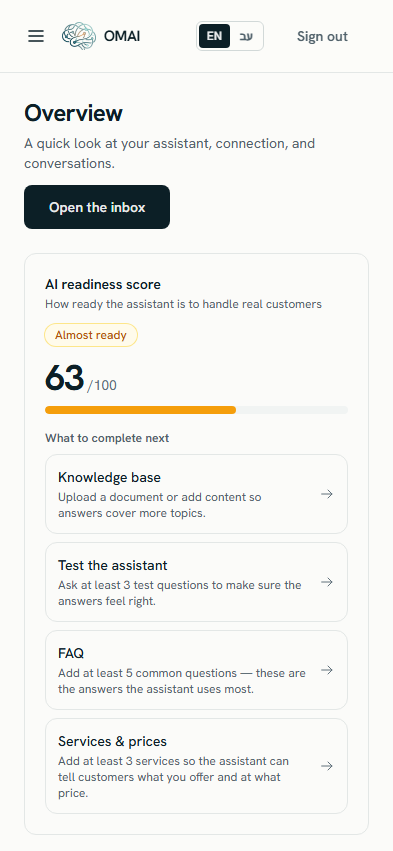
- Below a certain width the navigation menu collapses into a menu button and the organization name in the top bar is hidden. That is the intended layout on a narrow screen.
- A few screens are built around a wide table — the audit log and the team list in particular — and a narrow screen cuts columns off.
- The browser is zoomed, or a forced minimum text size is enlarging everything.
- The page was opened while the connection was down and only part of it arrived.
What to do
- Use the menu button at the top of the screen — it opens the same list of screens as the desktop menu.
- Turn the phone to landscape for wide tables, or open those screens on a computer.
- Reset the browser zoom to 100% and reload.
- Reload once on a stable connection.
How to check it worked
The menu button opens the full navigation list, and the page content fits the width without sideways scrolling of the whole page.
When to contact us
Send a screenshot, the device model, the browser, and the page address.
What to send us
Display problems are the hardest kind to reproduce from a description, and the easiest kind to find from a record. Send these six things and we can usually match your case to the failure we already have on file.
- The exact page address, copied from the browser bar rather than described.
- The time it happened, with your timezone. Within a minute or two is enough.
- What you pressed or opened immediately before it.
- A screenshot of the whole window, not a crop.
- The browser and its version, and whether you are on a phone, tablet or computer.
- Whether it also happens in a private window with extensions off.
Is there a status page I can check?
No. If several screens fail at once and a private window does not help, write to us — that pattern is worth reporting rather than waiting out.
Which browsers does OMAI support?
There is no published browser list. What the dashboard needs is a current browser with scripts and cookies allowed for app.omai-software.com. Very old browsers and hardened privacy modes are the two configurations that reliably produce the symptoms in this article.
The menu shows a screen I cannot open. Is that a bug?
The menu is no longer the same for everyone: the two pages a lower role cannot use at all — Assistant Settings and Audit Log — are left out of it for an Agent and a Viewer, so the list you see is shorter than an owner’s. Reaching one of them from a bookmark or an old link still works, and the page explains in a sentence that it is limited to owners and admins. Everything else in your menu does open for your role, even where an individual control on it is refused.
I get sent to the sign-in page instead of an error card. What is the difference?
The sign-in page means your session was not accepted; the error card means you are signed in but the page could not be built for you. Sign-in problems are covered in You can’t sign in.
Does clearing my browser data help?
It clears stale files, and it also signs you out and forgets your language choice. Try a full refresh and a private window first; clear browsing data only if those point at a cached file.