
How your assistant learns your business
Business knowledge is everything the assistant is allowed to answer from: the details you type into OMAI and the documents you upload. This page explains what the product supports, how that information becomes searchable, and how the assistant picks what to use.
- Who
- Owners and admins
- Plan
- All plans
- Role
- Owner or Admin to add or change knowledge. Any member can open the screen.
Before you start
- An OMAI account with a business created
Your assistant answers from one place: the business knowledge stored in your account. That knowledge has two parts — the structured details you type into OMAI (services, questions and answers, policies, opening hours) and the files you upload. Nothing else becomes knowledge: OMAI does not import your website, your social accounts or your email. (The assistant does read the recent turns of the conversation it is in, so a customer can ask a follow-up — but that is context, not knowledge.)
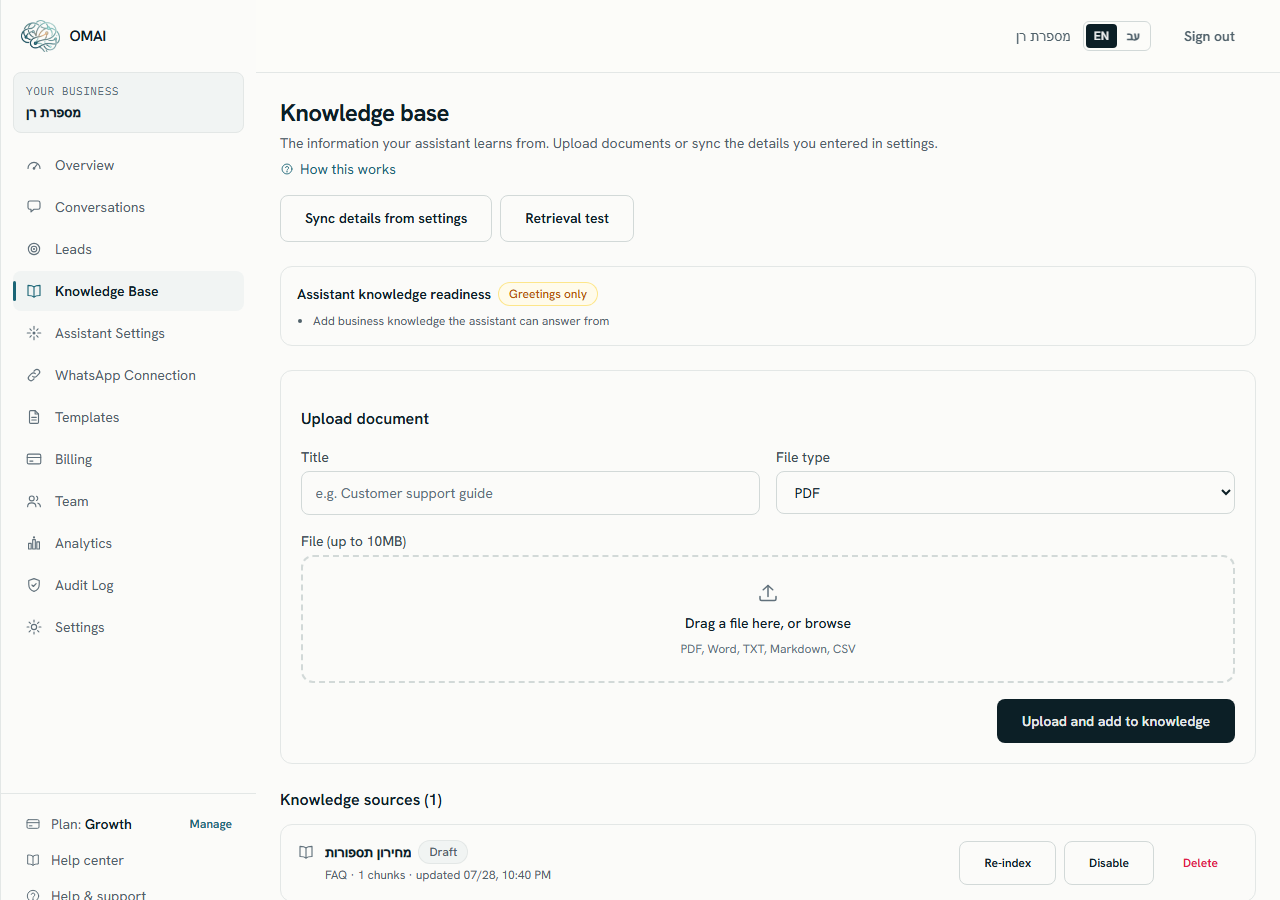
You manage all of it from Knowledge Base in the sidebar. The screen shows one card per source, a readiness summary at the top, and the two controls that put information in: Sync details from settings and Upload document.
What business knowledge is made of
These are the kinds of information the product actually supports. Each one becomes its own knowledge source with its own status.
| What you can add | Where you add it | When it reaches the assistant |
|---|---|---|
| Services and prices | The Services step of the setup wizard | After you press Sync details from settings |
| Questions and answers | Settings → FAQ | After you press Sync details from settings |
| Policies (cancellations, refunds, appointments, privacy, other) | Settings → Policies | After you press Sync details from settings |
| Opening hours, including special closures | Settings → Opening hours | After you press Sync details from settings |
| Documents — PDF, Word (DOCX), Text (TXT), Markdown (MD), CSV | Knowledge Base → Upload document | On its own, once the file finishes indexing |
Getting your information in
Step 1 Type your business details in first — services in the setup wizard, and questions, policies and opening hours in Settings.
You should see: Each list shows what you saved, and a confirmation line such as Question added. appears next to the button.
Step 2 Open Knowledge Base from the sidebar and press Sync details from settings.
- The sync rebuilds those four sources from the rows stored right now. It does not touch uploaded documents.
- Only owners and admins can run it.
You should see: The button reads Syncing… while it works. When the page refreshes you see one source per kind you filled in — Services, FAQ, Policy, Business hours — each with a Ready badge.
Step 3 Upload any document that holds information you did not type in, using Upload document.
You should see: The file joins the list and moves through Waiting to be read, Reading document, Preparing for the assistant and finally Ready.
Step 4 Stay on the page while anything is still processing.
You should see: The page refreshes itself every few seconds and tells you “Indexing usually takes a minute or two”.
Step 5 Read the Assistant knowledge readiness card at the top of the screen and work through the list under the badge.
You should see: The badge moves from Greetings only to Ready for testing, and to Ready for live answers once nothing is left on the list.
Changes in settings need a sync
Editing a service, a question, a policy or your opening hours changes what is stored, but it does not change what the assistant says. Those four sources are rebuilt at only two moments: when you press Sync details from settings, and when you change the Business content language.
How information becomes searchable
Every source is broken into small pieces, and each piece is turned into a numeric representation that can be searched by meaning rather than by exact words. The pieces are stored in an index that is filtered by your organization on every single query.
Details you typed in are never split: one service (its name, description, price and duration) is one piece, one question with its answer is one piece, and one day of opening hours is one piece. That is deliberate — it is what stops a price being separated from the service it belongs to.
The two paths differ in timing. Pressing Sync details from settings rebuilds those sources while you wait, so they are ready when the page comes back. An uploaded document is queued and processed in the background; the screen says indexing usually takes a minute or two, and refreshes itself until it finishes.
How the assistant decides what to use
For every customer message, in this order:
- It takes the customer’s message as the search query. For a short follow-up of 80 characters or fewer it prepends the tail of its own previous reply, so “how much?” still searches for the right thing.
- It searches your indexed knowledge and keeps the 5 closest pieces.
- Only pieces from sources in Ready, Needs a check or Updating are eligible, and only from the source’s current version. Disabled, archived, deleted, failed and awaiting-review sources are excluded.
- The pieces are placed in the assistant’s instructions as numbered data, and the assistant is instructed to answer from your business information and never to invent prices, availability, promotions, policies or service details.
- If nothing matches, the assistant is instructed to ask a short clarifying question or to offer to connect the customer with a team member.
The search ranks pieces by how closely they match the question, not by which kind of source they came from. If an uploaded document and a question-and-answer entry disagree about a price, either can be the one that gets used — so keep each fact in exactly one place.
The readiness card
| Badge | What it means |
|---|---|
| Not ready | Nothing searchable, and no owner or admin on the account to take a conversation over. |
| Greetings only | Nothing searchable yet. The assistant still greets, asks questions and offers to pass the conversation on — it simply cannot state a fact about your business. |
| Ready for testing | There is searchable knowledge, and at least one item on the list below the badge is still open. |
| Ready for live answers | Searchable knowledge and nothing left on the list. |
The bullets under the badge are the open items: Add business knowledge the assistant can answer from, Complete your business name and address, Review the sources waiting for approval, Fix the sources that could not be read, Check the sources that may be out of date, Make sure someone monitors the inbox, Test the assistant with real questions (which clears after 3 runs in the test simulator) and Wait for the deletion in progress to finish.
Storage and plan limits
| Plan | Knowledge storage |
|---|---|
| Starter | 125 MB |
| Growth | 400 MB |
| Pro | 1,250 MB |
The allowance measures the files you upload. Services, questions, policies and opening hours that you type into settings carry no file, so they are not counted against it. A single upload is capped at 10 MB, and TXT and Markdown files are capped at 5 MB — see Uploading documents.
The assistant is already answering and I have not added anything. Is that expected?
Yes. The assistant starts answering as soon as a WhatsApp number is connected — there is no separate “go live” switch that turns answering on. With an empty knowledge base it greets, asks questions and offers to pass the conversation to your team, and the readiness badge reads Greetings only.
Can OMAI read my website or my price list online?
Your website, yes. Knowledge has an Import from your website card: enter the address, OMAI finds the useful pages and shows them to you, and only the ones you tick are added. A price list that is not an ordinary page on your site — save it as a PDF or a text file and upload it, or type the prices into services, where they are easier to keep current.
I deleted every question in settings and synced. Why does the assistant still answer them?
The sync rebuilds a source from the rows that exist. When no rows are left, the previous FAQ source is left untouched with its old content. Delete that source on the Knowledge Base screen — see Keeping knowledge up to date.
Who is allowed to change knowledge?
Owners and admins. Agents and viewers can open Knowledge Base and read what is there, but the upload form, the sync button and the per-source buttons will not work for them.
How do I check that a specific answer is actually being found?
Use Retrieval test on the Knowledge Base screen, or the test simulator on Assistant Settings. Both are described in Testing what the assistant knows.