
The assistant gives a wrong answer
Wrong prices, invented details, “I don’t have that” for information you uploaded, old facts after an update, and answers from a deleted file — what causes each one, how to see exactly what the assistant read, and how to correct it.
- Who
- Owners and admins
- Plan
- All plans
- Role
- Owner or Admin
Before you start
- Access to Settings and the Knowledge Base screens
The assistant is instructed to answer from your business information and not to invent prices, availability or policies. When an answer is still wrong, it is nearly always because of what it had to read: information that never reached the knowledge base, two versions of the same fact, or a file it could not read properly. This page starts by showing you what the assistant actually saw, because every fix follows from that.
See what the assistant read
Step 1 Open Dashboard → Assistant Settings and send the customer’s exact question in the Test simulator.
- Test messages are processed by the AI provider, so they are real work. They are not billed as AI answers, but the simulator stops working once your plan’s AI answers are used up.
You should see: You get the same kind of answer a customer would get, with a Knowledge-base sources list under it. Nothing is sent to anybody.
Step 2 Open the sources list and read the titles and the text extracts.
You should see: This is the material the answer was written from. A wrong figure is usually visible here, word for word.
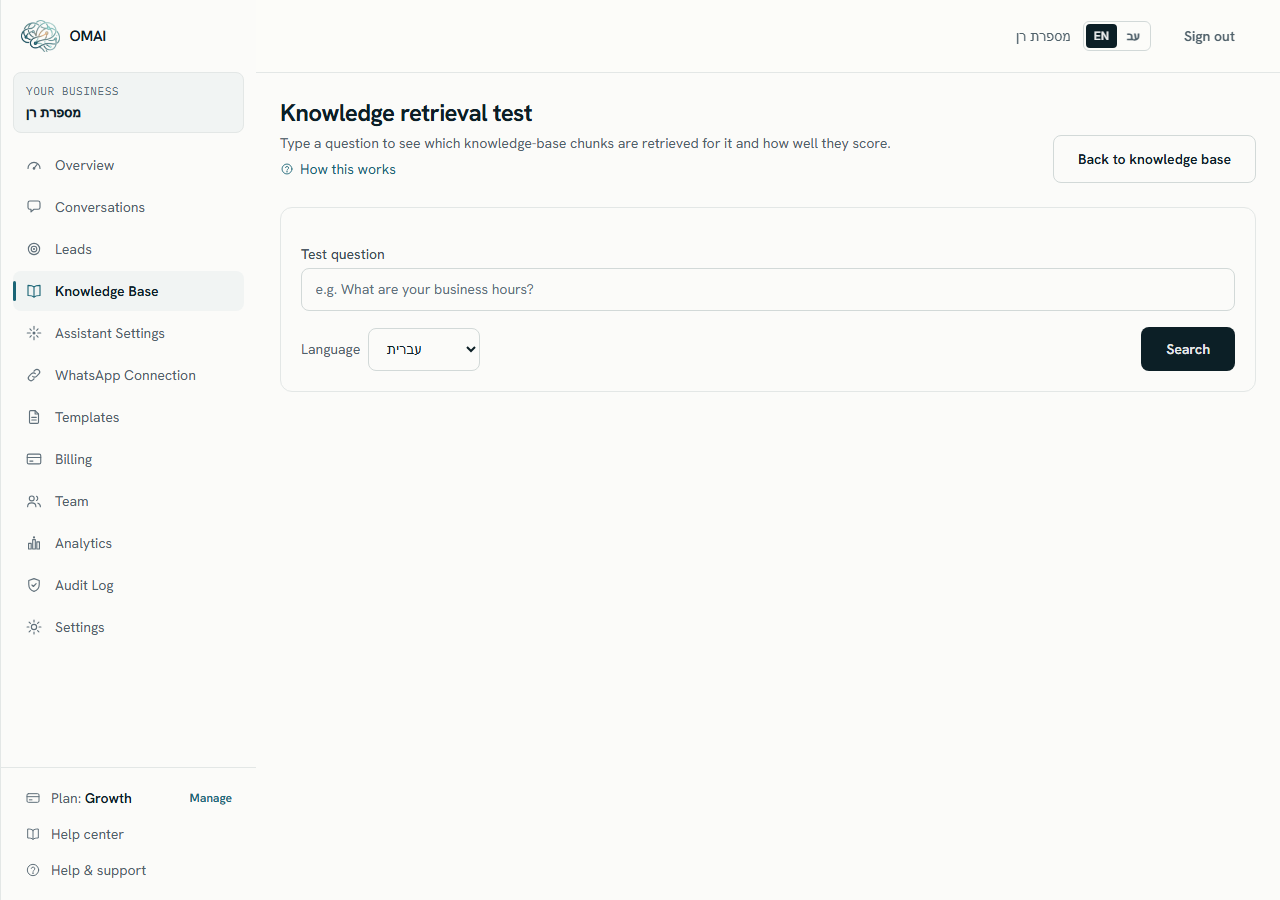
Step 3 Open Dashboard → Knowledge Base → Retrieval test, paste the same question and press Search.
- The score is a rough similarity figure, not a pass mark, and there is no verdict on this page. Read the text, not the number.
- “No results found — fallback” means nothing relevant matched at all — treat it as “the assistant had no evidence for this question”.
You should see: A line reading “Found N chunks”, then one card per chunk with its rank, source title, source type, a score and the text itself.
Symptoms and fixes
It quotes the wrong price.
Likely causes
- The price was corrected in Settings but the knowledge base was never rebuilt, so the old figure is still the one on file.
- An uploaded document still carries the old price alongside the corrected service list.
- The same price exists in two sources with different values, and the answer used the other one.
- The price sits in a table in a PDF or Word file where the layout was not preserved, so the figure lost the service it belonged to. The source card warns about this under What we could not read.
What to do
- Open Dashboard → Settings and confirm the price on the service itself.
- Open Dashboard → Knowledge Base and press Sync details from settings. Wait for the Services source to return to Ready.
- Run Retrieval test with the customer’s question and look for the old figure in the returned text.
- Delete or replace any uploaded document that still carries the old price — a corrected service list does not overrule a document that contradicts it.
- For prices that come from a table, write them out as services in Settings instead of leaving them in a document.
How to check it worked
Run the retrieval test again: only the correct figure appears in the returned chunks. Then ask the same question in the Test simulator and check the answer and its sources.
When to contact us
Send us the customer’s question word for word, the answer you got, the correct price, and the titles of the sources listed under the simulator’s answer.
It states something you never told it.
Likely causes
- Nothing in your business information answers that question, so the model filled the gap from the wording of the question and the conversation so far.
- The retrieved text says something close to it, and the paraphrase drifted.
- A document contains outdated or hypothetical wording — a draft price list, an old promotion — that reads as fact.
- The topic is one the assistant should not be answering at all, and there is no rule in your information saying so.
What to do
- Write the missing fact down explicitly: an FAQ with the customer’s own wording, a service with a price, or a policy. Then press Sync details from settings.
- State the negative too. “We do not offer X” is a fact the assistant can answer from; the absence of X is not.
- Remove documents that contain drafts, old promotions or internal notes. Everything in the knowledge base is treated as current and true.
- Re-ask the question in the Test simulator and confirm the new source appears in the sources list.
How to check it worked
The same question now returns your wording, and the sources list names the FAQ, service or policy you just added.
When to contact us
Send us the question, the wrong answer, and what the answer should have been. A groundedness check runs on every answer and records its result, but it does not currently stop an answer, so a real correction always means correcting the underlying information.
It says it does not have information you know you uploaded.
Likely causes
- The source is not on Ready. Needs your review, Could not be read, File rejected, Blocked by security scan and Archived all mean it is not being answered from.
- The file is a scan or an image-only PDF, so there is no text to read. There is no image text recognition, and the card says so under What we could not read.
- Indexing has not finished — Waiting to be read, Reading document or Preparing for the assistant.
- The words in the file do not match the words the customer used, so the search found nothing relevant.
- Somebody pressed Re-index or Disable on a source built by Sync details from settings. Those sources hold no stored file, so re-reading them fails and they drop to Could not be read.
What to do
- Open Dashboard → Knowledge Base and read the badge on that source before anything else.
- If it is still being processed, wait — indexing usually takes a minute or two, and the page updates itself.
- If the badge is Could not be read on a FAQ, Services, Policy or Business hours source, press Sync details from settings to rebuild it.
- If the file is a scan, upload a text-based version instead: PDF with real text, Word (DOCX), TXT, Markdown or CSV.
- If the badge is Needs your review, be aware that Approve and use sends the file back through the same reading step, and a file that needed review once usually comes back needing review again. Putting the same information into Services, FAQs or Policies and pressing Sync details from settings is the route that works.
- Run Retrieval test with the customer’s exact wording. If it returns nothing, add an FAQ phrased the way customers actually ask.
How to check it worked
The retrieval test returns a chunk from that source, and the Test simulator lists it under Knowledge-base sources for the same question.
When to contact us
Send us the source title, the badge shown on its card, the file type and size, and the question that failed.
It keeps using the old information after you updated it.
Likely causes
- The change was made in Settings and Sync details from settings was never pressed.
- The new document was uploaded but the old one was never deleted, so both are in the answering set.
- The new file is still indexing, or it stopped on Needs your review, so the old one is still the only usable version.
- The source is on Needs a check. It keeps answering while it carries that badge — the badge is a reminder, not a stop.
What to do
- Press Sync details from settings after any change to services, FAQs, policies or business hours.
- Delete the superseded document rather than leaving it disabled next to the new one.
- Look for two sources covering the same subject in the list — that is the usual cause of an answer that alternates between old and new.
- Use Still current only when the content really is unchanged. It clears the reminder; it does not re-read the file.
How to check it worked
The retrieval test on the updated question returns only the new wording, and the source’s card shows a newer version number and update time.
When to contact us
Send us the old and new wording, the source titles, and the time you pressed Sync details from settings.
It answers from a document you deleted.
Likely causes
- The same content also exists somewhere else — an FAQ, a policy, or a second upload of the same file.
- The deletion did not finish. The card shows Deletion incomplete.
- The document was disabled rather than deleted, and then enabled again later.
- You are reading an older reply in the conversation that was written before the deletion.
What to do
- Run Retrieval test with a distinctive phrase from the deleted document. Whatever comes back names the source that still holds it.
- Delete or correct that source too — deleting one file does not remove the same sentence from another.
- If any card shows Deletion incomplete, stop and write to us; that state does not clear by itself.
- Check the time of the reply against the time of the deletion before treating it as a fault.
How to check it worked
The retrieval test with that phrase returns nothing from the deleted document, and the same question in the Test simulator no longer lists it as a source.
When to contact us
Send us the phrase you searched for, the title of the deleted source, and the time of the answer that used it. Deleting a source stops it being answered from at once; backup copies expire on our retention schedule.
What to send us
- The customer’s question, word for word, in the language they wrote it.
- The answer the assistant gave, copied from the conversation.
- What the correct answer is.
- The titles listed under Knowledge-base sources when you repeat the question in the Test simulator.
- A screenshot of the Retrieval test results for the same question.
- The badge on the relevant source card in the Knowledge Base, and the time you last pressed Sync details from settings.
The test simulator hands the conversation over, but customers get an answer. Why the difference?
The simulator treats a search that found nothing as a reason to hand over, and the live assistant does not — it answers and asks a clarifying question instead. So a handover in the simulator on a thin knowledge base does not mean your customers are getting one.
Does the assistant learn from conversations?
No. It answers from your business information plus the recent messages in that one conversation. Nothing a customer writes is added to the knowledge base, so a correction you type into a chat does not change future answers.
Can I stop it answering about a specific subject?
There is no per-subject switch. Write the rule into your information — “we do not offer X”, “Y is quoted individually” — and it will answer from that. Separately, messages that raise medical, legal, financial or emergency wording are handed to your team instead of answered.
How long after pressing Sync details from settings does the change take effect?
Usually a minute or two. The knowledge screen refreshes itself while a source is being processed, and the change applies to the next customer message once the source is back on Ready.