
Inside a conversation
What the conversation thread shows you: who sent each message, what the delivery ticks and the banners mean, where imported history ends, and every control on the screen — the buttons in the header, the reply box and the details panel.
- Who
- Everyone on your team
- Plan
- All plans
- Role
- Viewer to read; Agent and above to reply, tag, note or assign
Before you start
- At least one conversation in the inbox
Opening a conversation gives you three things side by side: the list you came from, the message thread in the middle, and a details panel on the right with the contact, the assignment, the tags and your internal notes. On smaller screens the panel moves behind a Details button, and on a phone the list is replaced by the thread.
Opening a conversation
Step 1 Open Dashboard → Conversations.
You should see: The Inbox screen opens with the filter row and the conversation list.
Step 2 Select a row in the list.
- The whole history of that conversation loads at once — there is no "older messages" button to press.
- Opening a conversation sets its unread counter to zero, even if you close it again immediately.
You should see: The thread opens in the middle column, oldest message at the top, and the row is highlighted in the list.
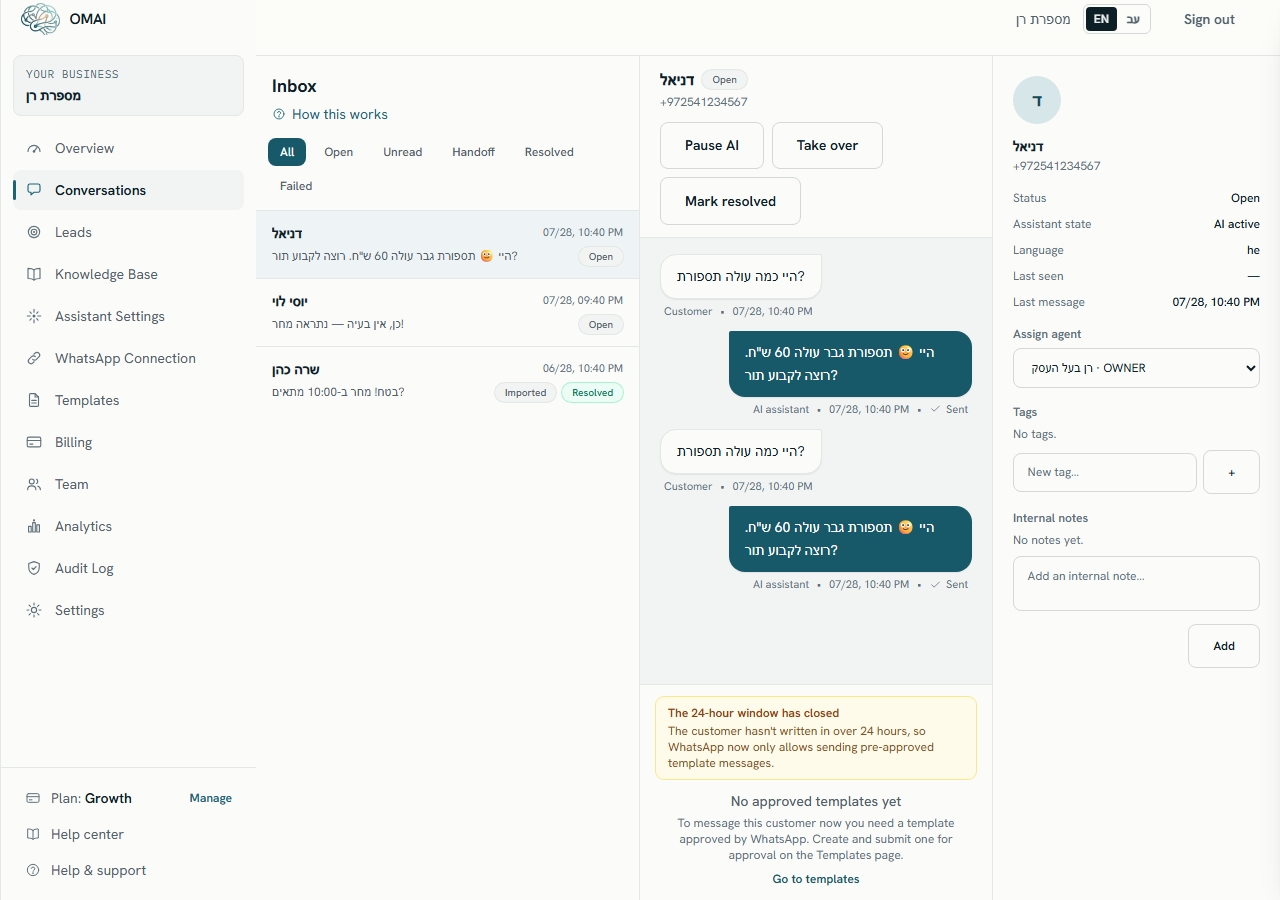
A conversation open beside the list.
The header
- The contact name — or the phone number when WhatsApp gave no name, or Customer when there is neither. The phone number is shown underneath.
- The status badge: Open, Waiting for agent, Agent handling, Resolved and the rest.
- An Imported badge when the conversation came from your phone’s history, and a From ad badge when the first message arrived from a click-to-WhatsApp ad or post.
- The controls: Pause AI or Resume AI, Take over, and Mark resolved or Reopen.
- A Details button on narrower screens, which slides the details panel in from the side.
The amber banner
Directly under the header an amber banner explains why the assistant is not answering. At most one banner is shown; when several conditions are true, the first row of this table wins.
| When it appears | What it says |
|---|---|
| Somebody pressed Take over | "A human agent is handling this conversation — the assistant won't reply." |
| The assistant handed the conversation to your team | "This conversation is waiting for a human agent." |
| You answered this customer from your own phone, on a number connected in coexistence mode | That you replied from your phone, and roughly how many hours remain before the assistant starts answering again in this conversation. |
| Somebody pressed Pause AI here | "AI paused — the assistant won't reply in this conversation." |
No banner means nothing is holding the assistant back in this conversation. It can still be silent for reasons that live elsewhere — see Why the assistant is not answering.
Telling the assistant from a person
Messages from the customer sit on the left in a white bubble. Everything your side sent sits on the right, and the colour tells you who sent it: the assistant writes in blue, a person writes in green. Under every bubble there is a label naming the sender, so you never have to rely on the colour alone.
| Label | Who sent the message |
|---|---|
| Customer | The person writing to you on WhatsApp. Left side, white bubble. |
| AI assistant | The assistant answered on your behalf. Right side, blue bubble. |
| Agent | Somebody on your team sent this from the dashboard reply box. Right side, green bubble. |
| Owner (from phone) | The message was typed in the WhatsApp app on your own phone, not in the dashboard. Right side, green bubble. Imported history shows the same label on your side of the conversation. |
Times and delivery status
Every bubble carries the day, month and time it was recorded, in your browser’s time zone. Messages you and the assistant send also carry a delivery status; messages from the customer do not, because there is nothing to deliver.
| Status | What it means |
|---|---|
| Queued | Accepted by OMAI and waiting to go out. Shown with a clock. |
| Sent | Handed to WhatsApp. Shown with a single tick. |
| Delivered | WhatsApp delivered it to the customer’s phone. Double tick. |
| Read | The customer opened it. Double tick, in blue. |
| Failed | WhatsApp refused it or the send errored. Red warning icon. |
Imported history
If you connected your number while keeping WhatsApp on your phone, past conversations were copied in. Those threads open with the note "This conversation was imported from your phone’s WhatsApp history." at the top, and a separator reading End of imported history marks the point where the copied messages stop and live traffic begins.
Imported conversations are created with the status Resolved so that old threads do not sit above today’s work. Press Reopen if you want to write in one, and remember that the 24-hour rule below still applies.
Photos, voice notes and files
Attachments are received and stored, but the thread does not display them. A photo sent with a caption shows only the caption; a photo, voice note or document sent without one shows a dash. To see the file itself, open the conversation in WhatsApp on the phone that owns the number. You also cannot send an attachment from the dashboard — the reply box takes text only.
The controls, and who can use them
| Control | What it does | Role needed |
|---|---|---|
| Pause AI | Stops the assistant answering in this one conversation. Nothing is sent to the customer. | Agent and above |
| Resume AI | Puts the assistant back in charge of this conversation. It replaces Pause AI whenever the assistant is being held back here. | Agent and above |
| Take over | Marks the conversation as yours and takes the assistant out of it. See Take over from the assistant. | Agent and above |
| Mark resolved | Closes the conversation. The reply box is replaced by "This conversation is resolved. Reopen it to send a message." | Agent and above |
| Reopen | Returns a resolved conversation to Open and brings the reply box back. | Agent and above |
| Details | Opens the contact, assignment, tags and notes panel on a narrow screen. | Viewer and above |
| The reply box | Sends a message to the customer, up to 4,096 characters. Available while the customer has written in the last 24 hours. | Agent and above |
The details panel
- The contact’s name — or No name — and their phone number.
- Status and Assistant state, the two values that decide whether the assistant answers here.
- Language, shown only when WhatsApp told us the contact’s language.
- Last seen — when this contact last wrote to you — and Last message, the time of the newest message either way.
- AI resumes, shown only while the assistant is standing by because you replied from your own phone.
- A green Lead card, shown only when a lead record is linked to this conversation. See Leads.
- Assign agent, Tags and Internal notes — described below.
Assignment, tags and notes
The Assign agent dropdown lists every member of your organization, whatever their role, and saves the moment you choose one. The blank option, Unassigned, clears it. Assignment is a note to your team about who owns the conversation — it does not change what the assistant does and it does not stop anyone else replying.
Tags are free text of up to 40 characters, added one at a time. There is no list to pick from and no way to filter the inbox by tag, so agree on a small vocabulary with your team before you start — Tags and finding conversations covers what tags can and cannot do for you.
Internal notes are never sent to the customer and never appear in the thread. The box takes up to 2,000 characters, newest note first. A saved note cannot be edited or deleted, and the panel shows the time it was written but not who wrote it.
Live updates
An open conversation keeps a live connection to the server, so new messages — from the customer, from the assistant, or from a colleague — appear in the thread within a couple of seconds and the view scrolls down to them. When the status, the assistant state or the assignment changes, the whole screen re-reads itself so the badges and the banner stay truthful.
The live connection is renewed roughly every 5 minutes; you will not notice it. If your network drops, the browser reconnects on its own, and the conversation list behind it reloads about every 5 seconds regardless.
A message says "Owner (from phone)" but I sent it from the dashboard. Why?
That label is used for messages typed in the WhatsApp app on the phone that owns the number, and for your side of imported history. A message sent from the dashboard reply box is labelled Agent.
Can I delete a message from the thread?
No. The thread is a record of what was sent and received, and nothing in the dashboard removes a message from it. Deleting a message in WhatsApp on your phone does not remove it here either.
Why is the reply box replaced by a template picker?
Because more than 24 hours passed since the customer’s last message. WhatsApp only allows approved templates after that. See Take over from the assistant for how the window works.
Does reading a conversation tell the customer anything?
No. Opening a thread, tagging it, assigning it or writing a note are all invisible to the customer. Only a message you send from the reply box or a template you send reaches them.