
Getting your data out
OMAI has one export: a single JSON file covering the whole account, downloaded from Settings. This is what it contains, what it leaves out, and who can run it.
- Who
- Admins and owners
- Plan
- All plans
- Role
- Admin or Owner
Before you start
- A signed-in dashboard account
There is exactly one export in OMAI, and it is account-level: one JSON file covering the whole organization, produced when you press the button and downloaded straight to your computer. It is not a per-conversation download, and there is no other export anywhere in the product.
What you can export
The export is reached from Settings → Account & privacy → Export your data, and it always covers everything in the account — you cannot pick a date range, a single conversation or a single customer. The inbox has no export button of its own.
- No per-conversation transcript download and no "email me this thread".
- No CSV or spreadsheet format — the file is JSON.
- No leads-only, contacts-only or messages-only export.
- No scheduled or automatic export, and no API to fetch one.
- No export of the media files customers sent you.
How to export
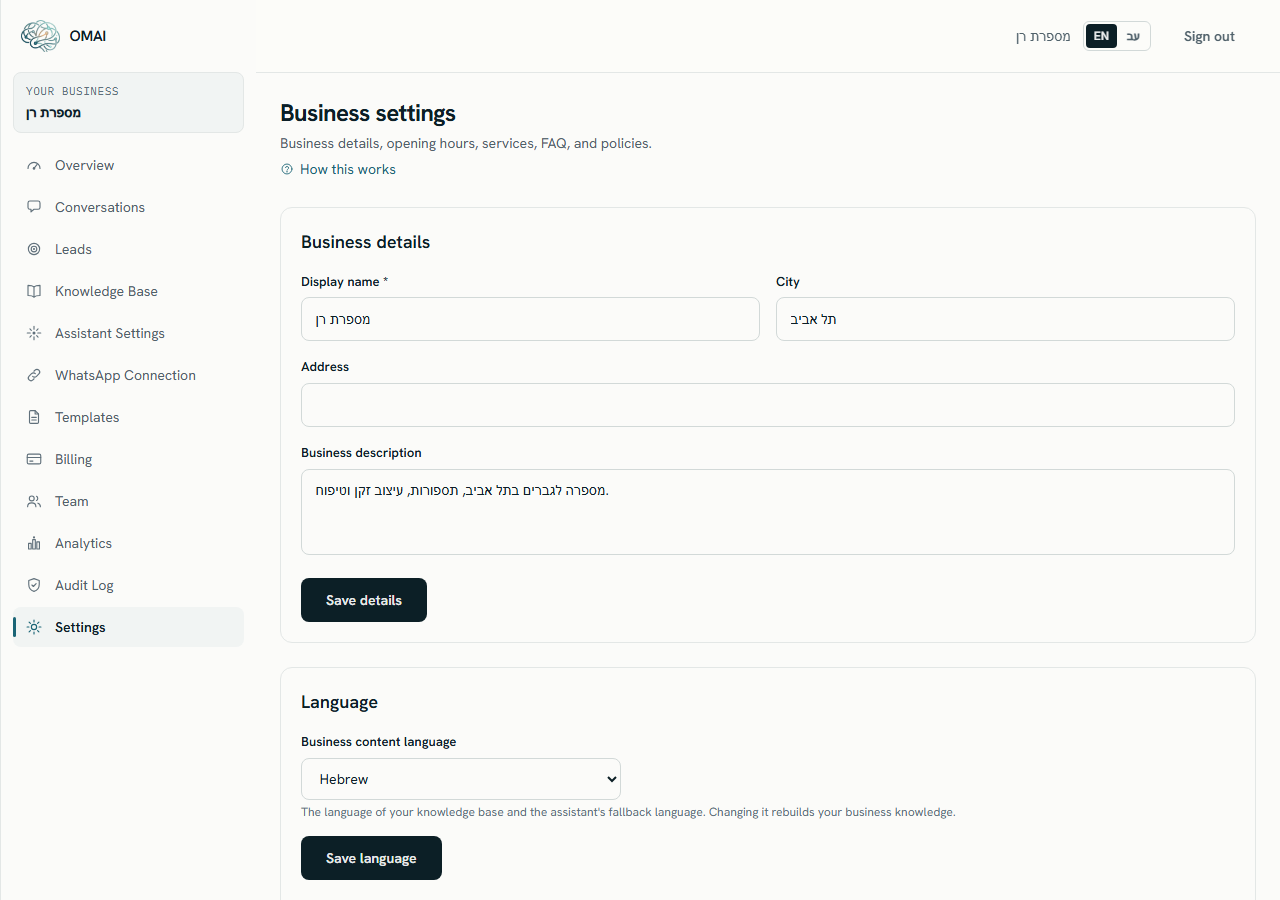
Step 1 Open Settings from the dashboard menu.
You should see: The Business settings screen opens.
Step 2 Scroll to the Account & privacy card.
You should see: You see Interface language, then Export your data, then Delete account.
Step 3 Choose Export data (JSON).
- The same file is behind the Download your data (JSON) link inside the Delete account box — the two links are identical on purpose.
- If the download fails with a server error, your role is below Admin, or the account is suspended or already marked for deletion.
You should see: Your browser downloads a file named
omai-export-followed by your organization id, ending in.json. Nothing is emailed and nothing is queued.
What is in the file
| Section | What it holds |
|---|---|
| exportedAt | The moment the file was produced, as a timestamp. |
| org | Your organization record: name, main language, timezone, country and account status. |
| profile | Business details from Settings: display name, description, address and city. |
| businessHours, services, faqs, policies | Your opening hours, the services you listed, your FAQ entries and your policy texts. |
| whatsAppConnections | One record per connected number: phone number, display name, the WhatsApp Business Account and phone-number identifiers, connection status and when it was created. Access tokens are never included. |
| contacts | Every customer contact known to the account, with phone number and name. |
| conversations | Every conversation with its status, assistant state, language, unread count and timestamps. |
| messages | Every message in both directions, with its text, type, sender, delivery status and any error the provider returned. |
| leads | Lead records with their detail fields. |
| knowledgeSources | The knowledge sources you added, as records — the uploaded files themselves are not in the export. |
| subscription | Plan and version, subscription status, billing period, trial end, billing contact, and your payment method’s brand, last four digits and expiry. The stored payment credential and the payment provider’s own customer identifiers are deliberately left out. |
| assistant | Your assistant settings. |
What is not in the file
- Internal notes and conversation tags.
- Conversation assignments and handoff records.
- Media files sent or received — the export lists messages, not attachments.
- Message templates.
- Invoices, receipts and tax documents. Those live in Billing.
- The audit log.
- Usage records and analytics figures.
- The list of team members and their roles.
- Records of legal acceptances and consent.
- The processed text and search index built from your knowledge base.
How it is delivered
The file is built while your browser waits and streamed back as a download. There is no email, no notification and no stored copy — which also means there is no link, and therefore no link that can expire or leak. If you need the file again, press the button again; each run produces a fresh file from the data as it stands at that moment.
Every export writes an entry to the audit log recording who ran it and when. That entry stays in the log after the download is gone.
Who can export
| Role | Can export |
|---|---|
| Owner | Yes |
| Admin | Yes |
| Agent | No — the request fails with a server error |
| Viewer | No — the request fails with a server error |
The export stays reachable when the account has a pending Terms acceptance, because getting your own data out should not depend on signing something first. Roles are managed on the Team screen.
Large accounts
The whole history goes into one file in one request — there is no paging, no streaming and no size cap. On an account with a long message history the file is large and the download takes noticeably longer; a slow export is the export working, not failing. Open the result with a text editor or a JSON viewer rather than a spreadsheet.
Can I export a single conversation as a transcript?
No. The account-level JSON file is the only export, and it always covers the whole organization.
Can I get it as Excel or CSV?
No. The file is JSON in UTF-8. Converting it to a spreadsheet is something you do outside OMAI.
How long does the download link stay alive?
There is no link. The file is generated on the spot and streamed to your browser, and nothing is stored on our side for later download.
Are my customers’ phone numbers in the export?
Yes. Contacts and messages are included in full, so the file is personal data about your customers and should be handled as such.
Does exporting change anything in my account?
No, apart from the audit-log entry. Nothing is deleted, no message is sent, and the assistant keeps working exactly as before.