
Create your account
How to open an OMAI account with an email address or with Google, what the sign-up form asks for, and exactly what is created for your business in the first few seconds.
- Who
- Anyone opening a new OMAI account
- Plan
- Sign-up starts a 30-day trial on Growth capabilities
- Role
- The person who signs up becomes the Owner
Before you start
- A business email address you can receive mail at
- The name of your business
Signing up once creates three things at the same moment: a user account for you, an organization for your business, and a 30-day trial on Growth capabilities. Everything else — your WhatsApp number, your services, your opening hours — comes afterwards, in the dashboard.
Two ways to sign up
The sign-up screen offers an email-and-password form and a Continue with Google button. Both create the same kind of account and land you in the same place. The Google button is shown only when Google sign-in is configured for the site — if you do not see it, use the form.
Sign up with email and password
Step 1 Open the sign-up page and fill in Full name and Business name.
- The business name becomes the name of your organization and the name the assistant uses when it refers to you. You can change it later in the setup wizard.
Step 2 Choose your Country.
- The Hebrew form does not show this field at all — it records Israel. The country decides your billing currency and your default timezone, and you cannot change it yourself afterwards, so write to support if it is wrong.
You should see: The field is prefilled from your browser’s timezone, so usually there is nothing to change.
Step 3 Enter your Email and a Password of at least 8 characters.
- The address you enter here is your sign-in name and where account email is sent.
Step 4 Tick the acceptance box: I have read and agree to the Terms of Service, and acknowledge the Privacy Policy, on behalf of my business.
- Your acceptance is recorded together with the exact version of the Terms you saw. If the Terms were republished while the form was open, the sign-up is refused and you are asked to review the current version.
You should see: Nothing visible happens, but the box is required — the account is not created without it.
Step 5 Select Create account.
- If sign-in fails at that last moment you see “Account created, but sign-in failed — please sign in manually.” The account exists — go to the sign-in page and use the same details.
You should see: The button changes to Creating account…, you are signed in automatically, and you land on the dashboard Overview screen.
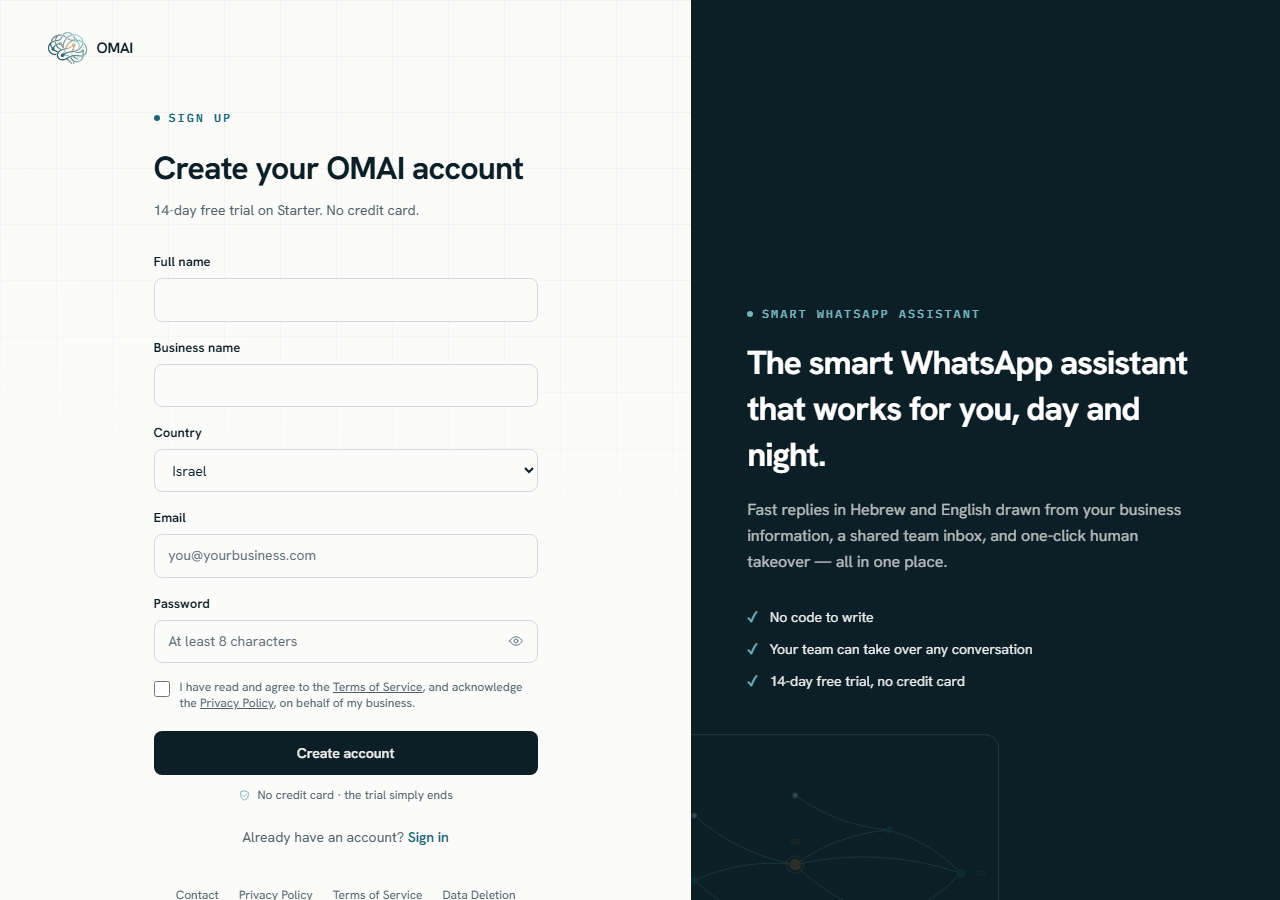
What the form asks for
- Full nameTextRequired
- Your own name. It is shown to your team and recorded as the name of the Owner.
1 to 120 characters.
- Business nameTextRequired
- Becomes the name of your organization and the display name on your business profile. The assistant uses it when it refers to your business.
1 to 160 characters.
- CountryDropdownRequired
- Sets your billing currency, your default timezone and the default language the assistant replies in.
Default:
Prefilled from your browser’s timezone·Not shown on the Hebrew form, which records Israel. It cannot be changed from the dashboard afterwards — support has to do it. - EmailEmailRequired
- Your sign-in name, the address the verification link goes to, and where account email is sent.
Stored in lower case. One account per address.
- PasswordPasswordRequired
- Your sign-in password. The eye icon shows and hides what you typed.
8 to 200 characters. There is no rule about uppercase letters, digits or symbols — length is the only requirement.
- I have read and agree to the Terms of Service…CheckboxRequired
- Records your acceptance of the Terms on behalf of your business, with the version, the date and your role.
Default:
Unticked·The account is not created while it is unticked.
Your browser’s timezone is also submitted with the form, invisibly. It becomes your organization’s timezone, which is what business hours are measured against.
Sign up with Google
Choosing Continue with Google sends you to Google’s consent screen and back. OMAI accepts the account only if Google reports the address as verified, so a Google sign-up starts already verified and you never see the verification email.
- If your email address already has an OMAI account, Google signs you into that same account — the two are matched by the verified email address.
- If it does not, an organization is created for you and named after you, using the same defaults as the form.
- Google sign-up does not present the acceptance box, so no acceptance of the Terms is recorded at that moment.
Verify your email address
A sign-up with a password sends a message with the subject Verify your email for OMAI. Open it and select Verify email. The verification screen then shows “Your email is verified. Thank you!” and a Continue to dashboard button.
- You do not have to verify before using the dashboard — an unverified account has the full product.
- You do have to verify before the setup wizard will let you finish: Verify your email is one of the nine steps it checks, and Set up human handover counts the same verified people.
- If the message has not arrived, look in the spam folder before you ask for another one.
- If the link no longer works, the same screen offers a Resend verification form. It always answers with the same generic sentence, whether or not an account exists for the address.
What is created behind the scenes
All of this is written in one go, so either the whole account exists or none of it does:
- An organization for your business, with its name, country, timezone and content language.
- You, as its Owner — the role that can do everything, including billing and connecting WhatsApp.
- A business profile holding the business name you typed.
- Assistant settings with the shipped defaults, in the AI-active state.
- A setup-progress record, starting at the Business details step at 0%.
- A trial subscription on Growth capabilities with the status
trialingand a trial end date 30 days out. - A record of your acceptance of the Terms and your acknowledgement of the Privacy Policy, with the version and content hash of each.
Nothing else exists yet. There is no WhatsApp connection, no service list, no FAQ, no opening hours, no payment method and no team beyond you.
Where you land
Sign-up sends you straight to the dashboard Overview. Because the account is brand new, the screen leads with a setup card titled “Let’s get your assistant live”, two numbered cards — Tell OMAI about your business and Connect your WhatsApp number — and a Continue setup button that opens the setup wizard. The plan card beside it reads Growth, trialing, and the date the trial ends.
One thing on that screen is worth knowing before you go further: the assistant starts answering the moment a WhatsApp number is connected to your organization, and OMAI puts it live for you — there is no separate switch and no launch step to press. Everything in the setup wizard makes the answers better rather than unlocking them, which is exactly why Your first setup, step by step suggests doing things in a particular order.
Limits you can actually hit
| Limit | Value |
|---|---|
| Password length | 8 to 200 characters |
| Attempts per email address | 10 in 15 minutes, counted separately for sign-up, sign-in, password reset and resend |
| Attempts per network address | 20 in the same 15 minutes |
| Email verification link | Valid for 24 hours, usable once |
| Password reset link | Valid for 30 minutes, usable once |
| Stays signed in for | 30 days |
Going over a limit on the sign-up or sign-in form produces “Too many attempts. Please wait a few minutes and try again.” On the password-reset and resend forms the screen looks the same either way — they always show one generic confirmation, so a stranger cannot use them to find out which addresses are registered.
If something goes wrong
Do I need a credit card to sign up?
No. The sign-up form never asks for payment details and the trial does not charge anything at the end — it simply stops. When you are ready, choose a plan on the Billing screen.
The form says an account with this email already exists.
That address is registered. Sign in with it instead, or use Forgot password? if you do not remember the password. If a colleague registered it, ask them to add you from the Team screen — see Roles and permissions.
Can I change my password from inside the dashboard?
Not today — there is no password screen in the product. Sign out, use Forgot password? on the sign-in page, and set a new one from the emailed link. Completing a reset signs out every other session you had open.
I signed in but the dashboard sent me back to the sign-in page.
That is a sign-in problem rather than a sign-up problem. Sign-in problems covers the causes and what to send us if it keeps happening.