
Upload documents
Add a price list, a policy or a service guide to your knowledge base as a file. What OMAI accepts, how big a file can be, what happens while it is processed, and every status a document can end on.
- Who
- Owners and admins
- Plan
- All plans
- Role
- Owner or Admin
- Takes
- A minute or two per file
Before you start
- A file in PDF, Word (DOCX), TXT, Markdown or CSV
- Text you can select inside the file — a scan or a photo of text cannot be read
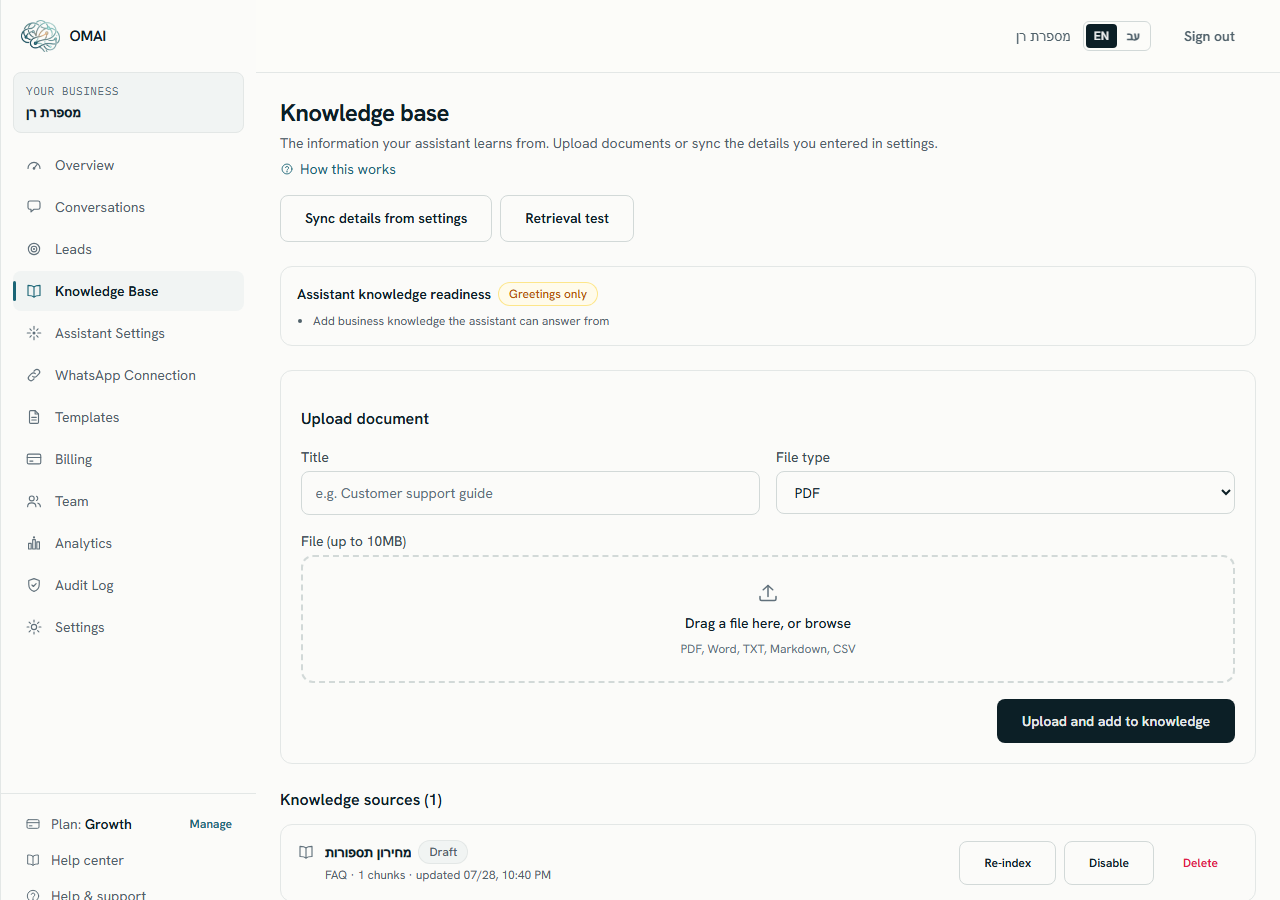
An uploaded file becomes a knowledge source: OMAI reads the text out of it, splits it into short passages and stores those passages so the assistant can search them while it answers a customer. Everything happens on Dashboard → Knowledge Base, in the Upload document form.
What you can upload
Five file types are accepted, and the type you pick in File type must match what is actually inside the file. The contents are checked against the type, so a PDF renamed to .docx is rejected rather than half-read.
| File type | Option in File type | Extensions | Largest file | Other limits |
|---|---|---|---|---|
.pdf | 20 MB | Up to 300 pages. Password-protected files are rejected. | ||
| Word | Word (DOCX) | .docx | 20 MB | Files containing macros are rejected. The older .doc format is not accepted. |
| Plain text | Text (TXT) | .txt | 5 MB | — |
| Markdown | Markdown (MD) | .md, .markdown | 5 MB | — |
| CSV | CSV | .csv | 10 MB | Up to 50,000 rows. Each row is kept together as one passage. |
.pdf, .docx, .txt, .md, .markdown, .csvThe field states the limit for the type you have selected — File (PDF, up to 20MB) and so on — and it changes when you change File type, because there is no single figure: PDF and Word are 20 MB, CSV 10 MB, and TXT and Markdown 5 MB. A file over its own limit is refused in the form with a message naming that limit; nothing is uploaded.
Two things OMAI does not do: there is no way to import a web page or point the assistant at a URL, and text that exists only inside an image is not recognised. A scanned contract, a photographed price list or a PDF exported as images produces no text and fails.
Upload a file
Step 1 Open Dashboard → Knowledge Base.
You should see: The page shows Assistant knowledge readiness, the Upload document form, and your existing Knowledge sources.
Step 2 Choose the matching option in File type.
- The list is PDF, Word (DOCX), Text (TXT), Markdown (MD) and CSV. PDF is preselected.
Step 3 Drag your file onto Drag a file here, or browse, or click the area and pick it.
- One file at a time. If you drop several files, only the first one is taken.
You should see: The file name appears under the drop area with an x to remove it, and Title fills in from the file name if you left it empty.
Step 4 Check the Title. It is the name the file is listed under, and the name shown next to any passage the assistant retrieves from it.
- Up to 200 characters. Use something a colleague would recognise: “Price list 2026”, not “scan_final_v3”.
Step 5 Choose Upload and add to knowledge.
You should see: The button reads Uploading…, then the form clears and a message confirms the file was uploaded and queued for indexing.
Step 6 Watch the new row under Knowledge sources.
You should see: Its status moves from Waiting to be read through Reading document and Preparing for the assistant to Ready.
What happens after you upload
The upload itself is immediate; the processing is not. The file is stored and a job is queued, and a background worker picks the job up and runs it through these stages.
- Reading. The text is extracted from the file. OMAI counts what it managed to read: pages for a PDF, paragraphs for a Word file, rows for a CSV.
- Checking. The result is classified. A file that produced no usable text fails here. A file where fewer than 90% of the pages or rows were read, or whose table structure could not be preserved, is held for your review instead of being published.
- Splitting. The text is cut into passages of roughly 500 tokens, never more than 1,200. Headings are repeated into each passage, and a table row, an FAQ entry or a list item is never split down the middle — that is what keeps a price attached to the service it belongs to.
- Indexing. Each passage is turned into a numeric representation the search can compare against a customer question, in batches of 64.
- Activation. Only after every passage is confirmed indexed does the new version replace the old one, in a single step. Until that moment the previous version keeps answering.
The page tells you that indexing usually takes a minute or two, and it refreshes itself every 4 seconds while any source is still being processed, so you do not have to reload. There is no fixed processing time, and a very large file takes longer. If a row is still showing Reading document after half an hour, use Re-index on that row.
The status on each source
Every source carries one status badge. Under it sits a line reading, for example, Document · PDF · Version 3 · 42 chunks · updated and the date — the type, the file format, how many times the file has been indexed, and how many passages it currently contributes.
| Status | What it means | What to do |
|---|---|---|
| Waiting to be read | The job is queued and has not started. | Nothing. Wait. |
| Reading document | The text is being extracted from the file. | Nothing. Wait. |
| Preparing for the assistant | The passages are being created and indexed. | Nothing. Wait. |
| Ready | The document is indexed and the assistant can use it in answers. | Nothing. Test it from the knowledge test page. |
| Needs your review | The file was read, but something about the result needs a person to look at it. | See the section below. |
| Approved | You pressed Approve and use and the file is being read again. | Wait for the next status. |
| Could not be read | No usable text came out of the file, or extraction failed. | Read the red line on the row, then fix the file and upload it again. |
| Updating | A replacement version is being built. | Nothing. The current version keeps answering until the new one is ready. |
| Needs a check | It has been 180 days since the document was last confirmed current. It is still being used in answers. | Press Still current, or upload a fresh copy. |
| Archived | The source was disabled or rejected. It is not used in answers, and nothing was deleted. | Press Enable to bring it back — this re-reads the file from scratch. |
| Deleting | Deletion is in progress. The source has already stopped answering. | Nothing. Wait. |
| Deletion incomplete | Deletion did not finish after repeated attempts. | Contact support with the source title. |
When a document needs your review
A document is held at Needs your review — with the note Review before this goes live — when the reading step produced something OMAI is not willing to publish on its own. The reasons are:
- Fewer than 90% of the pages, paragraphs or rows could be read.
- The character encoding could not be decoded cleanly, so parts of the text may be wrong.
- Table structure could not be preserved reliably, which is how a number ends up next to the wrong label.
- The file contains instruction-like text. It is stored as data only and the assistant will not act on it, but an administrator is asked to look first.
The panel on the row lists exactly what could not be read, and adds a line such as 28 of 34 pages read. Approve and use re-runs the reading step on the same stored file — so if the thing that flagged the document is still in the file, it comes back to Needs your review. The reliable fix is to correct the file itself (export the PDF with a real text layer, flatten the table, remove the odd characters) and upload the corrected copy. Reject archives the source instead, without deleting it.
When a file is refused
Some problems are caught before the file is stored — you get a red line above the form and nothing is added to the list. Others are only visible once the file has been read.
| What you see | Cause | Fix |
|---|---|---|
The file is too large (max 10MB). | The file is over 10 MB. | Split the document, or export it without embedded images. |
The file was rejected: file_too_large. | The file is inside 10 MB but over the limit for its own type — 5 MB for TXT and Markdown, 300 pages for a PDF, 50,000 rows for a CSV. | Split it into smaller documents. Shorter, focused sources also retrieve better. |
The file was rejected: password_protected. | The PDF is encrypted. | Remove the password and upload it again. |
The file was rejected: file_corrupt. | The contents do not match the type you chose, or the file is damaged. | Open it, re-export it from the original application, and pick the matching File type. |
The file was rejected: active_content_blocked. | The file carries a macro or is an executable. | Save the Word file as a plain .docx without macros. |
Choose a file. | No file was attached, or the attached file is 0 bytes. | Attach the file again and check its size on your computer. |
Enter a title. | The Title field is empty. | Type a title, or attach the file first and let it fill in. |
| Status Could not be read, with “This file has no text we can read” | The file is a scan or is made of images. | Upload a text-based file. There is no image-to-text recognition. |
A few of these messages appear in English even when the dashboard is in Hebrew. The wording after The file was rejected: is a fixed code, and the table above tells you what each one means.
Storage allowance
The allowance counts the files you upload. It is a limit on total size, not on how many sources you keep, and the details synced from your settings — services, FAQs, policies and opening hours — have no file behind them and do not use it. Deleting a source releases its share of the allowance as soon as you confirm the deletion; disabling a source does not, because the file is kept.
Can I upload several files at once?
No. The form takes one file per upload, and dropping a group of files picks up the first one only. Upload them one after another — you do not have to wait for the previous one to finish indexing.
Can I see the text OMAI extracted from my file?
There is no preview of the extracted text. What you can see is which passages come back for a given question, on the knowledge test page.
Does uploading a document replace the details I entered in settings?
No. An uploaded file and the details synced from settings are separate sources and both stay searchable. If they disagree, remove the outdated one — see updating and deleting knowledge.
Is the assistant answering from a document before it says Ready?
No. Only sources in Ready, Needs a check and Updating are searched, and Updating serves the previous version until the new one is finished.