
Keeping your account secure
Practical steps that work with the controls OMAI actually has: choosing and changing a password, deciding who to add and at which role, reviewing the team list, signing out, and what to do — and send us — if you think an account has been misused.
- Who
- Owners and admins
- Plan
- All plans
- Role
- Owner or Admin to change team members
Before you start
- Access to the mailbox on your OMAI account
Your OMAI account holds every conversation your customers have had with your business. The controls that protect it are a password, the role you give each teammate, and the record of what was done. This article is the short list of habits that make those three work.
Your password
What the product enforces
- PasswordPasswordRequired
- The password for signing in with an email address. It is stored hashed, never in readable form.
At least 8 characters, up to 200. No rules about upper case, digits or symbols are enforced, and the password is not checked against known breached passwords.
Because complexity is not enforced, length is what you have. A long passphrase of a few unrelated words beats a short password with a symbol bolted on.
- Use a password that exists nowhere else. Reuse is how one leaked site becomes an OMAI break-in.
- Store it in a password manager rather than in a browser profile shared by the team.
- Never send it over WhatsApp, and never share one login between people — add each person to the team instead, so the audit log can tell them apart.
- Continue with Google is an alternative to a password. If you use it, the security of the account follows the security of that Google account.
Sign-in attempts are rate-limited: 20 from one network address and 10 against any single email address in a 15-minute window. A legitimate person who trips the limit simply waits and tries again.
Changing your password
Set a new password
Step 1 From inside the dashboard, open Settings → Account & privacy and fill in the change-password form.
- A new password must be at least 8 characters. Repeated wrong guesses at your current password are rate-limited for a few minutes.
You should see: The form confirms the change, and the other devices signed in to your account lose their sessions on their next request. If the current password you typed is wrong, the form says so and nothing is changed.
Step 2 If you cannot sign in at all, use the reset route instead: select Forgot password? on the sign-in page.
You should see: The Reset your password page opens with a single email field.
Step 3 Enter the email address on the account and select Send reset link.
You should see: You see *If an eligible account exists for this address, reset instructions have been sent.* The same message appears whether or not the address exists, so the page cannot be used to discover who has an account.
Step 4 Open the link in the email within 30 minutes and choose a new password.
- The link works once. Requesting a new one invalidates the previous link.
You should see: The page confirms *Your password has been reset. All other sessions were signed out.* — every other browser and device is signed out at that moment. A notification email is sent to the address on the account.
Who to add, and at which role
Every role can read every conversation, so the question is not "should they see customer messages" but "should they be able to change things". Start at Agent — the default on the form — and move someone up only when a task actually fails without it.
- Viewer for someone who only needs to look: a bookkeeper, an analyst, a stakeholder.
- Agent for the people who answer customers. They can reply, assign, pause the AI and resolve, and change nothing else.
- Admin only for people who should be able to change the knowledge base, the assistant, the WhatsApp connection, billing and the team itself.
- Owner only for people you would trust with the whole business account. An owner can request deletion of it.
Seats are limited by plan: 2 on Starter, 5 on Growth, 15 on Pro. Removing someone frees their seat immediately. Adding a team member walks through the form.
Review the team list
Nobody is removed automatically when they leave your business. Put a recurring reminder in your calendar — monthly is enough for most businesses — and read the list top to bottom.
The review
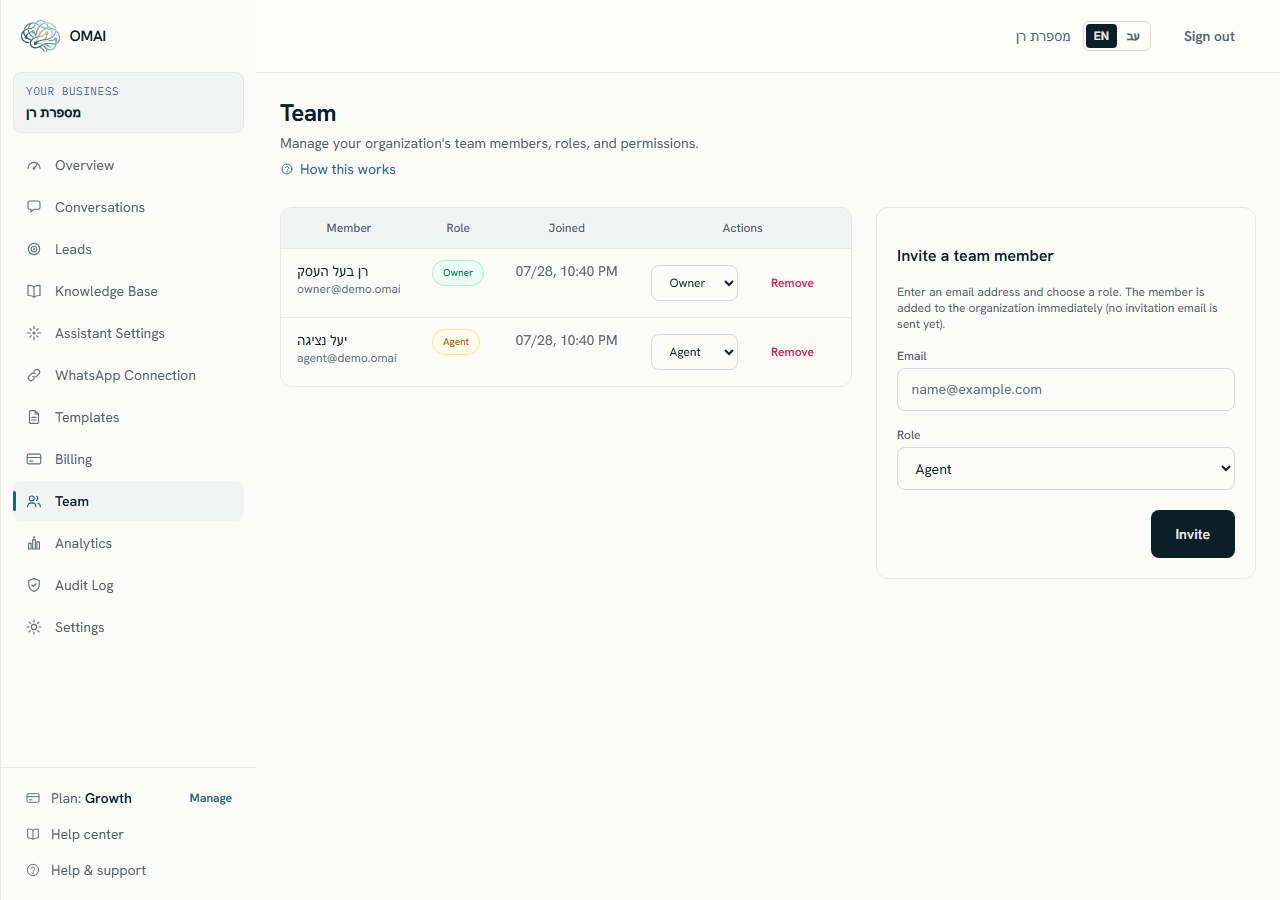
Step 1 Open Dashboard → Team.
You should see: Every member is listed oldest first, with their name or email address, their role, and the date they joined.
Step 2 Change the role of anyone who has more access than their job needs, using the dropdown on their row.
You should see: The change takes effect at once. There is no confirmation message on success — the dropdown simply keeps the new value.
Step 3 Select Remove on anyone who should no longer be there and confirm in the dialog.
You should see: Their access to your organization ends on their very next request. The confirmation dialog opens with Cancel focused, so pressing Enter by accident cancels rather than removes.
Signing out
A signed-in session lasts 30 days and survives closing the browser. Sign out at the top right of the dashboard ends the session in that browser only — it does not touch a session on another device. To see and end the others, use the signed-in devices list in Settings → Account & privacy: it shows each browser signed in to your account, when it was last used, and which row is the one you are reading this on.
- Sign out on any shared or public computer, every time.
- To evict one device — a lost phone, a laptop you no longer have — end that row in the devices list. Its sign-in stops working on its next request; you do not have to change your password.
- To end every session but this one at once, use the sign-out-everywhere control in the same section, or change your password. Both keep the browser you are using signed in.
- When someone leaves, remove them from the team as well — that ends their access to your organization no matter which sessions their browser still holds.
If you think an account has been misused
In this order
Step 1 Change the password of the affected account immediately — from Settings → Account & privacy if that person can still sign in, or through Forgot password? if they cannot.
You should see: Every other session for that account loses access, including whoever should not have been there. The devices list in the same section is where to confirm what is left.
Step 2 Open Dashboard → Team and remove any member you do not recognise, and demote anyone whose role looks wrong.
You should see: Unwanted access ends at once.
Step 3 Open Dashboard → Audit Log and read the recent entries.
You should see: Look for Sign in entries at times or IP addresses you do not recognise, and for Role change, Team member invite, WhatsApp connection change, Billing change and Data export you did not perform.
Step 4 Check Dashboard → WhatsApp Connection and confirm the connected number is the one you expect.
You should see: If a number was removed or added, you know how far the problem went.
Step 5 Write to support@omai-software.com with the details listed below.
You should see: We investigate from our side and reply from the same mailbox.
What to send us
- Your organization name and the email address on the account.
- What you saw that looked wrong, in one or two sentences.
- The dates and times, and the time zone you are quoting them in.
- The IP addresses and entries from the audit log that concerned you.
- The WhatsApp number involved, if the problem touches messaging.
The same address takes security reports about OMAI itself. If you found a vulnerability, tell us and we will handle it responsibly — see the Security page for what we do and how we work.
Can I see which devices are signed in to my account?
Yes — Settings → Account & privacy lists every browser signed in to your account, with when it was last used and a marker on the one you are using. Each other row can be ended on its own, and one control ends all of them at once. You do not have to change your password to evict a device, though changing it has the same effect on the others.
I removed someone but they said they could still open the dashboard.
Their access ends on their next request to your organization, and what they land on is a page telling them they no longer have access to this workspace, with a button to sign out. Their session cannot reach any of your data.
Someone left the company and we do not know their password. What now?
You do not need it. Remove them from Dashboard → Team — that is what ends their access. Never keep a shared login for a person who left.
Can I force everyone in my team to sign in again?
Not from one control, and not on someone else’s behalf: the devices list and the sign-out-everywhere control act on your own account only. Each person does it for themselves from Settings → Account & privacy, by ending their sessions there or by changing their password. Removing someone from the team is what ends THEIR access to your workspace.