
Leads
How the assistant captures leads from WhatsApp conversations, what the Leads screen shows, and how to work the list — statuses, the reason column, and the details backed by the customer’s own words.
- Who
- Anyone with dashboard access
- Plan
- All plans
- Role
- Any role can view. Agent, Admin or Owner can change a lead status
Before you start
- A signed-in dashboard account
- A connected WhatsApp number
When a WhatsApp conversation shows real buying interest — a price question, interest in a service, an availability or booking request, a follow-up on an existing order — the assistant adds a lead to the Leads screen on its own. Each lead carries the reason it qualified and detail chips backed by the customer’s own words. Some enquiries may not be identified; anything the assistant misses can still be tracked with conversation tags and internal notes.
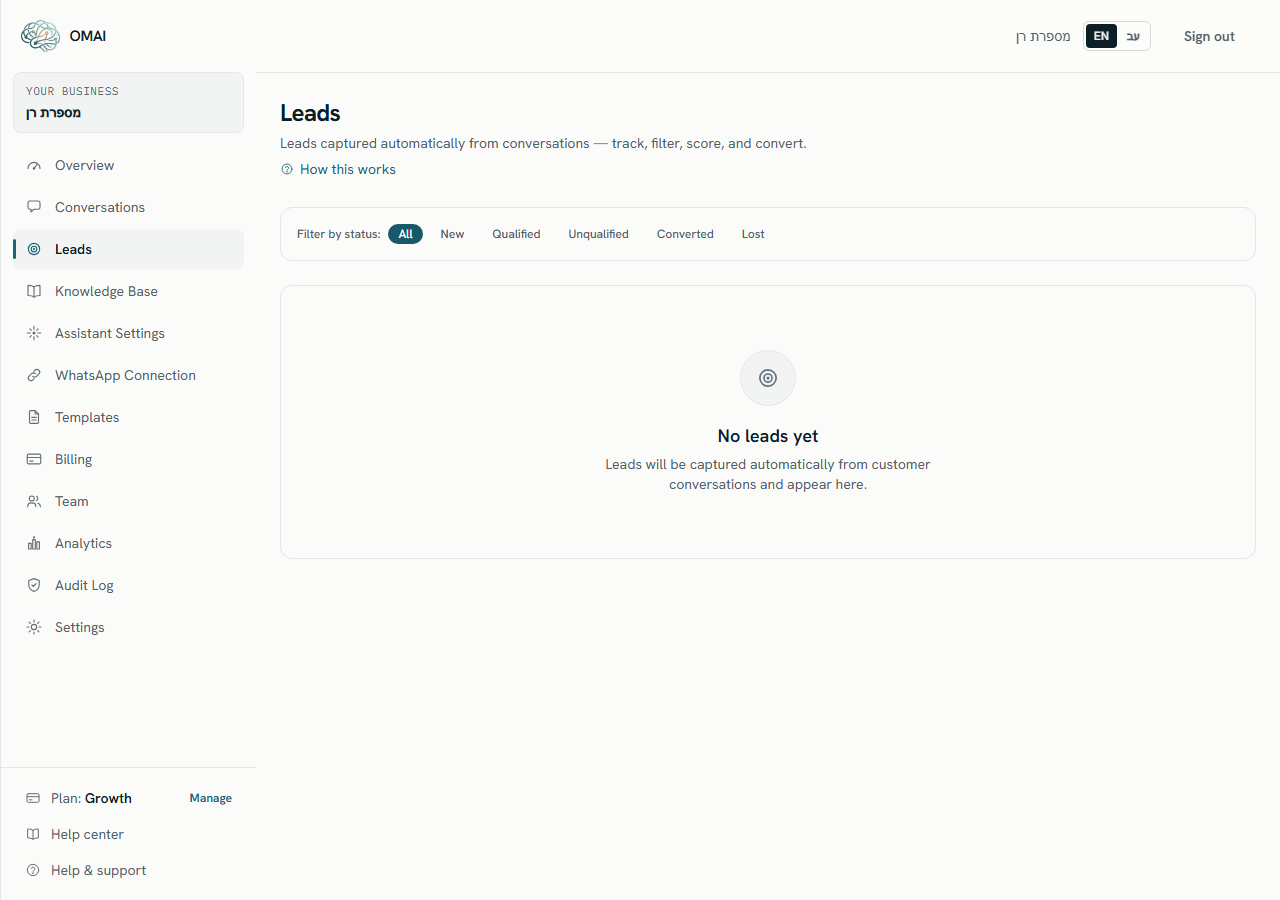
The Leads screen sits under Leads in the dashboard menu. It is a single table of lead records for your organization, with a status filter and a status control on each row for Agents and above. There is no lead detail page, and no way to create or delete a lead by hand — capture is the assistant’s job, the pipeline decisions are yours.
What a lead is
A lead is a stored record that points at one of your contacts and carries a pipeline status. It is a separate record from the contact and from the conversation — changing it does not change either of them, and the customer never sees it.
- The contact it belongs to — the customer name if one is known, otherwise the phone number.
- A link to the conversation the lead came from.
- The reason it qualified — asked about price, interested in a service, asked about availability, asked to book, or a follow-up to an existing order.
- A status, one of five pipeline values, which only your team changes.
- Detail fields the assistant extracted — a service, a name, a preferred time — each backed by a quote from the customer’s own messages. Phone numbers are never extracted as details; the contact’s number is already on the record.
How a lead comes to exist
The assistant reads each enquiry as the conversation unfolds and classifies it. Only conversations with evidence of real buying interest become leads — greetings, support questions about a finished matter, wrong numbers and spam do not. A returning customer who starts a new enquiry later produces a new lead, so one person can appear more than once, once per enquiry.
If the assistant later concludes an earlier lead was not one after all — say the customer clarifies they meant something else — the lead is not deleted: it gains a worth a look marker so a person makes the final call. A lead your team has already worked (any status change) is never altered by the assistant.
The Leads table
| Column | What it shows |
|---|---|
| Contact | The contact name, or the phone number when no name is stored. The phone number is repeated underneath, always left to right. A dot marks a lead nobody has seen yet, and an Open conversation → link opens the thread it came from. |
| Details | One chip per extracted detail, in the form key: value. Every value comes from the customer’s own words in the conversation. When the record has none, the column reads No additional details. |
| Why | The reason the enquiry qualified as a lead. |
| Status | The current pipeline status, as a badge. |
| Update status | A dropdown that saves as soon as you pick a value — shown to Agents, Admins and Owners. |
Lead statuses
| Status | What it is for |
|---|---|
| New | The default a captured lead starts on. |
| Qualified | You decided this enquiry is worth pursuing. |
| Unqualified | You decided it is not a fit — this is also how you dismiss a wrong capture. |
| Converted | The enquiry turned into business. |
| Lost | The enquiry ended without business. |
Statuses are yours alone — the assistant never changes one. Marking a lead Converted, Unqualified or Lost also closes its enquiry: if the same customer writes again later with a new request, that becomes a new lead rather than reopening this one.
Working the list
Step 1 Open Leads from the dashboard menu. A badge on the menu entry counts leads nobody has opened yet.
You should see: The full list loads, newest first. Opening the page marks the listed leads as seen.
Step 2 Choose a status chip — All, or one of the five statuses — to narrow the list.
- When a filter returns nothing, the screen says no leads were found with the selected status and suggests another one.
You should see: The address bar gains a
?status=value, so you can bookmark a filtered view or share it with a colleague who has dashboard access.Step 3 Pick a new value in the Update status dropdown on the row you want to change.
You should see: The row saves immediately — there is no separate save button and no confirmation dialog. The change is written to the audit log with the old and the new status.
Who can do what
| Action | Lowest role that can do it |
|---|---|
| Open the Leads screen and read every row | Viewer |
| Change a lead status | Agent |
| See the audit entry a status change produces | Admin |
A viewer sees the list without the status dropdown. Roles are explained in Roles and permissions.
Limits
- Capture is not exhaustive: an enquiry the assistant is not confident about does not become a lead. Tag the conversation if you want to track it anyway.
- Up to 200 lead records load per view. There is no pagination and no "load more".
- Sorting is fixed, newest first. The column headers are not sortable.
- There is no search box on this screen — the status chips are the only filter.
- Capture runs within a daily allowance per business; on an extremely busy day the newest enquiries may be picked up with a delay.
- Leads are not gated by plan. Every plan can open the screen.
What goes wrong
Can I add a lead by hand?
No. The screen has no create control and there is no import. If the assistant missed an enquiry, tag its conversation and add an internal note — see Tags, filters and search.
The assistant captured something that is not a lead. What do I do?
Set its status to Unqualified. The record stays for your own accounting but is out of your working pipeline, and the assistant never reopens a lead you have touched.
What does the “worth a look” marker mean?
The assistant captured the lead and later, with more of the conversation in view, was no longer sure it qualifies. Nothing was deleted — it is asking a person to decide. Any status change you make clears the marker.
What exactly happens when I change a status?
The record is updated and an entry is written to the audit log naming you, the lead, the old status and the new one. The customer is not notified and the conversation does not change.
Can I get my leads out of OMAI?
Lead records and their detail fields are included in the account-level JSON export, described in Getting your data out. There is no leads-only export and no CSV.