
Messages aren’t arriving
Inbound messages that never reach the inbox, replies the customer never received, chat history that did not come across after connecting, and messages that appear late or in the wrong place — with the checks that separate a delivery problem from a display one.
- Who
- Owners, admins and agents
- Plan
- All plans
- Role
- Any team member can read the inbox; Owner or Admin to change the connection
Before you start
- A connected WhatsApp number
- A test phone that is not one of your business numbers
A message goes through several hands before it appears in your inbox, and “it never arrived” can mean a different thing at each stage. The chain below is short, and each symptom on this page belongs to exactly one link in it. Work out which link first — it saves you from changing settings that were never the problem.
How a message reaches your inbox
- The customer sends a WhatsApp message to your business number.
- Meta delivers it to OMAI, signed so we can verify it really came from Meta.
- OMAI matches the number it was sent to against your connected numbers. That match is what decides the account it belongs to; with no matching connection the message is recorded as unrouted and goes no further.
- A contact and a conversation are created or reused, and the message is stored with the time the customer sent it — not the time it reached us.
- The assistant is queued to answer, and the conversation list refreshes about every 5 seconds.
Symptoms and fixes
A customer says they wrote, and nothing is in the inbox.
Likely causes
- They wrote to a number that is not connected in this account — an old business line, a different number by one digit, or a number connected in another OMAI account.
- They wrote from one of your own connected business numbers, which is treated as your own outgoing message coming back and is dropped.
- The organization is suspended or waiting to be deleted, so incoming messages are not taken in at all.
- The message is in the inbox, but behind a filter, a search box, or below the 100 most recent conversations.
- The earlier conversation with that customer was marked resolved, so their new message opened a separate, newer conversation.
What to do
- Ask the customer which number they wrote to, and compare it digit by digit with the card on WhatsApp Connection.
- Set the inbox filter to All and clear the search box.
- Search the inbox for the customer’s phone number rather than their name — the name is only there if it was saved.
- Look for a second, newer conversation with the same customer before assuming the message is gone.
- Ask them to send a fresh message while you watch the list, so you are testing something that is happening now.
How to check it worked
A message sent from a phone that is not one of your business numbers appears in the conversation list within a few seconds.
When to contact us
Send us your business number, the number the customer wrote from, the exact time and time zone, and a screenshot of the customer’s own WhatsApp chat showing their message and its ticks. Without the sending number we cannot trace a single message.
A reply was sent from the dashboard and the customer never received it.
Likely causes
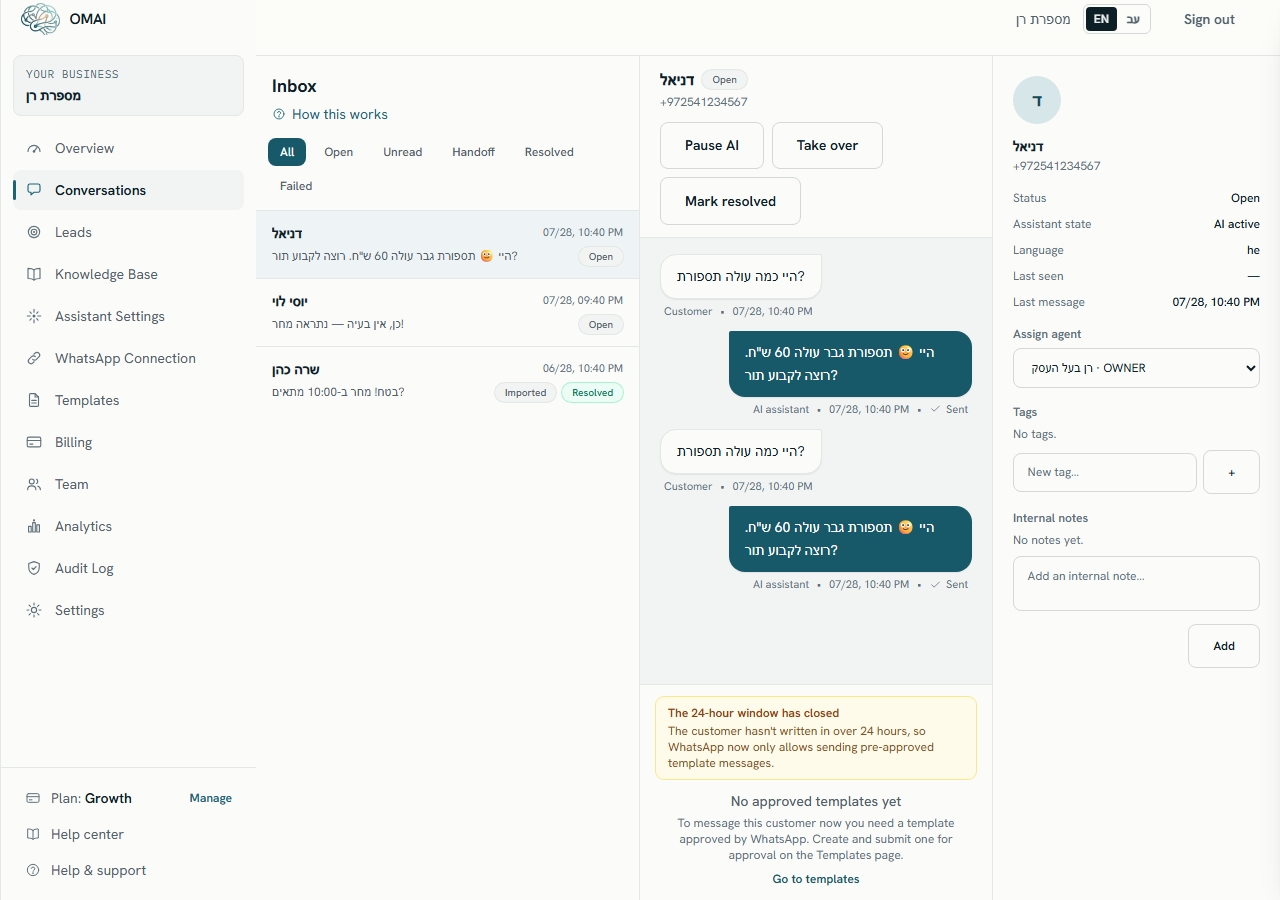
- The message failed on send. The status under the bubble says Failed.
- The number’s connection is on Action required or Disconnected, so nothing can leave it — you get “This WhatsApp number isn’t connected. Reconnect it before sending.”
- The 24-hour window had closed and a free-form message was refused.
- The account is suspended or pending deletion — “Messaging is disabled while this account is suspended or pending deletion.”
- The message left OMAI but WhatsApp could not deliver it — the customer’s phone is off, the number is wrong, or they blocked the business number.
What to do
- Open the conversation and read the status under the outgoing bubble: Queued, Sent, Delivered, Read or Failed.
- On Failed, fix the connection first — see WhatsApp connection problems — then send the message again. A failed send is not retried on its own.
- If the window has closed, send an approved template instead; see Message templates.
- On Sent that never becomes Delivered, the message is with WhatsApp and out of our hands — contact the customer another way to confirm the number.
- Use the Failed filter in the inbox to see every conversation that contains a failed message.
How to check it worked
The status under the bubble moves on to Delivered, and usually Read shortly after.
When to contact us
Send us the customer’s number, the time you pressed send, and the status word shown under the bubble. The provider’s own reason for a failure is stored with the message but is not displayed in the inbox, so we look it up from that pair.
Old chats did not come across after connecting.
Likely causes
- Chat history only comes across for a number that also runs in the WhatsApp Business app on your phone. A number connected through Meta’s Cloud API starts with an empty inbox by design.
- History sharing was declined on the phone — the card says “You chose not to share history — the inbox will fill from new conversations only.”
- The import is still running — “Importing your chat history… this can take a few minutes.”
- The import never finished, and the card moved to Action required with guidance to disconnect in the phone app and connect again.
- The chats are there, but sitting at their original dates rather than at the top of the list.
What to do
- Read the sync line on the number’s card on WhatsApp Connection before anything else. It names which of these you are in.
- While it says the history is being imported, wait — it can take several minutes.
- Search the inbox by a customer’s phone number and look for the Imported badge on the conversation.
- If the card asks you to, disconnect in the phone app (Settings › Account › Business Platform) and connect again from the WhatsApp screen.
- Treat what arrives as up to about six months of recent chats, brought over on a best-effort basis — not as a copy of everything on the phone.
How to check it worked
Open a customer you know you have chatted with before: the conversation carries the Imported badge and an “End of imported history” divider before the newer messages.
When to contact us
Send us the number, whether you approved history sharing on the phone, roughly when you connected, and the exact sync line shown on the card.
Messages appear late, or in an odd place in the list.
Likely causes
- The conversation list refreshes about every 5 seconds and stops refreshing while the browser tab is in the background.
- Each message is stored with the time the customer sent it, so a delayed delivery keeps its original time instead of jumping to the top.
- Meta retries delivery to us, so a message can reach the inbox minutes after it was sent.
- The list is ordered by the most recent message and shows the 100 most recent conversations.
- On a number that also runs on your phone, your own replies from the phone appear as Owner (from phone) and follow whenever the phone syncs them.
What to do
- Bring the tab to the front and give it a few seconds, or reload the page.
- Open the conversation itself — an open conversation receives new messages as they arrive, rather than waiting for the list to refresh.
- Search by phone number instead of scrolling; a conversation whose last message is old sits far down the list.
- Compare the message time in the inbox with the time on the customer’s phone before treating a gap as a fault.
How to check it worked
Send a test message at a time you note down, and check that it appears in the conversation with that same time.
When to contact us
Send us two timestamps — when the message was sent and when it appeared — plus the customer’s number. A repeated gap of more than a few minutes is worth investigating; a one-off is usually a retry.
What to send us
- Your business number and the customer’s number, both in international format.
- The exact time and time zone the message was sent, and when you noticed it was missing.
- A screenshot of the customer’s own WhatsApp chat, showing the message and its ticks.
- For an outgoing message: the status word under the bubble, and the time you pressed send.
- The badge on the number’s card on WhatsApp Connection, and its
detailvalue under Technical details. - For chat history: whether you approved sharing on the phone, and the sync line the card shows.
Do messages still arrive while the assistant is paused?
Yes. Pausing stops replies, not receiving. Messages keep landing in the inbox and your team can answer them by hand.
A customer wrote again after I marked the conversation resolved. Where is it?
In a new conversation with the same customer. A resolved or archived conversation is never reopened by an incoming message — the message starts a fresh one, which is why the old thread looks quiet.
Why is the message time earlier than the moment it appeared?
Because messages are stored with the time the customer sent them. When a delivery is delayed or replayed, it takes its rightful place in the thread instead of pretending to be new.
Do messages I send from my phone show up here?
On a number that also runs in the WhatsApp Business app, yes — they appear as Owner (from phone). Messages you delete or edit on the phone afterwards are received but not applied, so the original text stays in the inbox.