
Invitation problems
What the invitation email contains, why a person you added still cannot sign in, what to do when the link expired or never arrived, why an invitee lands in a different organization, and what to do when the seat limit is reached.
- Who
- Owners and admins managing the team
- Plan
- All plans. The number of team members is set by your plan.
- Role
- Owner or Admin to add, change a role, or remove someone
Before you start
- The email address of the person you are adding
Adding a team member sends them an invitation email. Until 7 August 2026 it did not — nothing was sent, and someone who had never used OMAI could not get in at all unless they signed in with Google. If you added people before that date, the last section tells you how to get them in now.
What adding a team member actually does
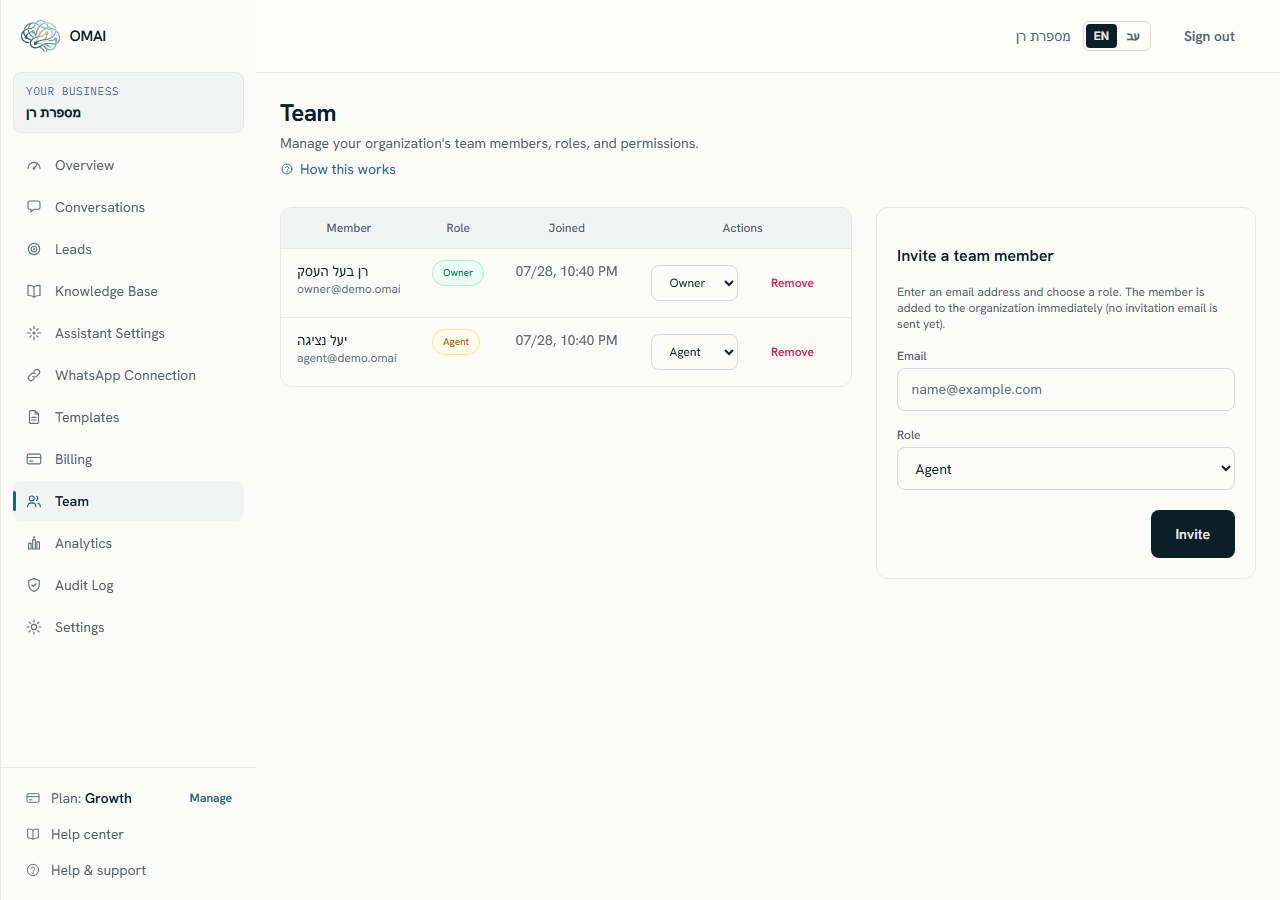
- You enter an email address on the Team screen and choose a role. The role box starts on Agent.
- A seat is claimed against your plan. If none is free, the add is refused before anything is created.
- If that address already has an OMAI account, it is joined to your organization. If it does not, an account is created for it with no password.
- The membership exists from that moment. The person can reach your dashboard as soon as they are signed in — nothing else has to happen.
- The screen confirms with Team member added to the organization. and a toast reading Invitation created. The wording is the only part of this that is an invitation.
Symptoms and what to do
The person you added never received an invitation email.
Likely causes
- None was sent. Adding a member does not produce mail of any kind.
- They are already a member and simply do not know it.
- You are thinking of the verification or password-reset emails, which are the only account mail OMAI sends — and neither is triggered by adding someone.
What to do
- Open Team and confirm the person’s row exists with the role you picked and today’s date under Joined.
- Tell them yourself: give them the sign-in address for OMAI, the email address you added, and the role.
- If they never had an OMAI account before, read the next symptom before telling them to sign in — there is a real obstacle there.
How to check it worked
Their row is visible in the members table, and the role shown is the one you chose.
When to contact us
If there is no row at all, the add did not go through. Write to us with the address, the role you picked and the time you tried.
The person you added cannot sign in at all.
Likely causes
- They had no OMAI account before, so adding them created one with no password on it. Password sign-in cannot work on that account.
- Send reset link produces no email for that address either, because there is no password to reset.
- They already had their own OMAI account under a slightly different address, and are signing in with that one.
What to do
- If Continue with Google is shown on the sign-in page and the address you added is a Google account, ask them to use it. That route signs them in and lands them in your organization.
- Do not ask them to create a new account with the same address. Signup refuses it with An account with this email already exists — sign in instead.
- If Google is not an option for them, write to us with the address and we will set the account up.
- Check the address on their row against the one they are typing — a single character is enough to break it.
How to check it worked
They reach the dashboard, and their name replaces the bare email address in the Member column on the Team screen.
When to contact us
Send us the email address, the role, and whether Continue with Google appears on their sign-in page.
A link they were sent says it has expired.
Likely causes
- It was not a team invitation. Team members are added without any link, so there is nothing that could have expired.
- It was an email-verification link. Those last 24 hours and work once.
- It was a password-reset link. Those last 30 minutes and work once.
- The link had already been opened — a mail scanner or a link preview in the mail system can use one up before a person clicks it.
- A newer link was requested, which cancels the older one immediately.
What to do
- Identify the email by its subject:
Verify your email for OMAIorReset your OMAI password. - For a verification link, use Resend verification on the page that shows the expiry message.
- For a reset link, request exactly one new link from Forgot password? and open only the newest email.
- Open the link in a normal browser window rather than from a mail preview pane.
- The full set of link lifetimes is in You can’t sign in.
How to check it worked
The link opens the screen it was meant to — Choose a new password, or the green verification confirmation.
When to contact us
Send the subject line and date of the email, and the address it was sent to.
The person signs in and lands in a different organization.
Likely causes
- Their address already belonged to another organization, and they signed in from the sign-in page directly instead of from the button in the invitation email — the email link is what lands them in your organization.
- They signed in with a different address from the one you added.
- They are signed in to a second account of their own.
What to do
- Ask them to read the organization name in the top bar of the dashboard, and in the navigation menu.
- Ask them to open the workspace switcher (the organization name in the top bar) and pick your organization — every organization their address belongs to is listed there.
- Compare the address they signed in with against the one on their row in Team — that is the address that carries your membership.
How to check it worked
The organization name shown in the dashboard is yours, and the screens they need are in the navigation menu.
When to contact us
Send both organization names, the person’s email address, and which of the two they need to land in.
You’ve reached the number of team members included in your plan. Upgrade to add more.
Likely causes
- Every row on the Team screen counts, owners included.
- Your plan includes a fixed number of team members — see the table below.
- An organization with no subscription at all is limited to a single member.
- Rows created by earlier additions are still there even if that person never signed in. They still hold a seat.
What to do
- Count the rows on the Team screen and compare them with your plan’s allowance.
- Remove anyone who no longer needs access. A removed member frees the seat immediately, and their access ends on their next page load.
- Or use the Upgrade plan link shown next to the message, which takes you straight to Billing.
- Check for rows added by mistake — an address with a typo occupies a seat exactly like a real colleague.
How to check it worked
The add form accepts the address and the new row appears in the table.
When to contact us
If the message appears while the table has fewer rows than your plan allows, write to us with the organization name and the number of rows you can see.
How many team members you can have
The limit is counted live from the rows on the Team screen. There is no reservation and nothing to reconcile: remove someone and the seat is available on the next add.
| Plan | Team members |
|---|---|
| Starter | 2 |
| Growth | 5 |
| Pro | 15 |
| Custom | 100 |
| An organization with no subscription at all | 1 |
What to send us
- The organization name as it appears in OMAI.
- The email address of the person concerned, exactly as it is on their row.
- The role you gave them.
- What they see when they try to sign in, copied word for word.
- Whether they have ever had an OMAI account of their own with that address.
Can I resend an invitation?
There is nothing to resend. The member was added when you submitted the form. If they cannot get in, the obstacle is sign-in, not the invitation — see You can’t sign in.
Can I add someone without giving them access yet?
No. Adding is immediate. If you want to hold off, add them when they are ready, or give them the Viewer role, which can read but cannot reply to conversations or change anything.
What happens when I remove someone?
Their row disappears and their access to your organization ends on their next page load. Any other organization they belong to is untouched. The seat is free at once.
Why can’t I remove the last owner?
An organization must keep at least one owner, so demoting or removing the only one is refused. Promote a second person to Owner first, then change the original.
Does a team member need to verify their email?
It is worth doing so we can reach them, but nothing in the product is blocked while an address is unverified.