
Connect your number with Embedded Signup
The full connection run: the authority check, Meta’s sign-in window, the approval on your phone, the page you land on afterwards, and what OMAI does with what comes back — including how to recover when the window closes early.
- Who
- Owners and admins
- Plan
- All plans
- Role
- Owner or Admin
- Takes
- A few minutes, with your phone in hand
Before you start
- Admin access to the business’s Meta Business account
- The phone that receives WhatsApp for this number
- The number in international format
Embedded Signup is Meta’s own connection window. OMAI opens it; Meta signs you in, shows you your businesses and your numbers, and hands back a result. Your Facebook password is typed into Meta’s window and never reaches OMAI — the card says as much: "You'll sign in with Meta in a secure window — we never see your password."
This article walks the whole run: what OMAI shows, what Meta shows, what OMAI does with the result, and what to do when the window dies halfway. Follow it once and the number is connected.
What you need first
- The Owner or Admin role. A team member with the Viewer or Agent role can open the WhatsApp Connection screen but cannot connect a number.
- A Facebook account that is an Admin of the business’s Meta Business account. Meta requires this, and nobody at OMAI can grant it for you.
- The phone number in international format, and the phone itself. Meta will either send a one-time code to it or ask you to scan a code inside the WhatsApp Business app.
- Somewhere to stand still for a few minutes. Do not close the OMAI tab while Meta’s window is open.
- Room on your plan. Starter and Growth cover one connected WhatsApp number; Pro and Custom include more than one — see the plans.
Everything starts with the authority check
OMAI will not open Meta’s window until you have confirmed you are allowed to connect the number, so the connect card carries two tick boxes directly above the button that opens Meta: I’m authorized to manage this business’s Meta / Facebook account. and I’m authorized to connect this phone number. The reason is blunt: Meta’s onboarding cannot be undone from OMAI, so nobody should start it on a business’s behalf without saying they may.
If you would rather be told what will happen to your number before anything happens to it, the link Not sure which path fits? Run the guided check at the bottom of the connect screen opens the longer version. It ends on a verdict with three parts — What to prepare, What to expect and Next step — with the connect card inline under Next step, already tied to that check. It is also the path that handles buying a brand-new number and the cases that need a person. The check before Meta’s window opens covers both forms in detail.
Connect the number
Step 1 Open Dashboard → WhatsApp Connection.
You should see: The screen opens with a banner about customer consent and, when nothing is connected yet, the two ways in: the card that keeps the number working on your phone, and the option to get a brand-new number.
Step 2 On the card that keeps the number on your phone, check the country beside Which number are you connecting? (it opens on your organization’s country) and type the number the way you dial it — for Israel,
054-123-0000or0541230000.- A mistyped number is refused right under the field, naming the country and showing an example in that country’s format — before anything is sent.
- OMAI watches for exactly this number to finish connecting, which is what makes the recovery below work.
You should see: As soon as the number reads correctly, a Full number: line shows the international form that will be used (for example
+972 54 123 0000), and Continue to Meta can open. Type it with the country code instead (+972…,00972…, even+972 055…) and it reads the same; paste a number from another country with its+and the country beside the field follows it.Step 3 Tick both boxes: I’m authorized to manage this business’s Meta / Facebook account. and I’m authorized to connect this phone number.
- Would you rather be told what will happen first? Choose Not sure which path fits? Run the guided check at the bottom of the screen instead.
- Nothing here ever asks for a password or a verification code. If a screen in OMAI asks you for either, stop and contact us.
You should see: Continue to Meta becomes available. It stays disabled until both are ticked.
Step 4 Choose Continue to Meta.
- Nothing opened? Your browser blocked the pop-up. Allow pop-ups for this site and choose the button again.
- "Still loading — please try again in a moment." means Meta’s script has not finished loading. Wait a few seconds and choose the button again.
- If the number belongs to another active setup the window does not open at all, and the card explains why instead.
You should see: OMAI records your confirmation, checks the number against the setups it already knows about, and Meta’s window opens. The card turns into a progress list: Opening the secure Meta window…, then Complete the steps in the Meta window….
Step 5 In Meta’s window, sign in to Facebook with the account that manages the business.
- Meta requires that account to be an Admin on the business, not an employee-level user.
Step 6 Choose the business portfolio the number belongs to, or create one.
- Choose carefully: a WhatsApp Business Account cannot be moved to a different business afterwards.
- A brand-new Facebook account sometimes has to wait about an hour before Meta lets it create a business.
Step 7 Give Meta the number and complete its verification.
- WhatsApp limits how many times you can request or enter that code, so type it carefully.
You should see: For a number already running in the WhatsApp Business app, Meta asks you to enter it and then scan a code inside that app on your phone. For a number that is not on WhatsApp yet, Meta sends a one-time code to it by text or voice call and asks you to type the code back.
Step 8 Decide whether to share your contacts and recent chat history when Meta offers it.
You should see: This offer only appears for a number that stays on your phone. Declining is a normal choice — the inbox then fills from new conversations only. See keeping WhatsApp on your phone.
Step 9 Let Meta’s window close on its own and leave the OMAI tab open.
You should see: The card moves to Activating your number… while OMAI exchanges Meta’s one-time code for an access token, subscribes to your WhatsApp Business Account and saves the number.
Step 10 If One last choice: who should the AI answer on this number? appears, pick an option and choose Save choice.
- Keep the default for now is safe: the careful setting, New contacts only, is already saved on the server before this question is shown.
You should see: The choice is stored against that number.
Step 11 Let OMAI take you to the confirmation page.
You should see: The page WhatsApp connected opens and tells you, in plain words, whether the assistant is already answering on that number — and what to do next either way.
What Meta asks you to grant, and why
| Permission | What OMAI does with it |
|---|---|
whatsapp_business_messaging | Send and receive messages on your number. Without it the assistant cannot reply and your inbox stays empty. |
whatsapp_business_management | Read the number’s details, subscribe OMAI to your WhatsApp Business Account so incoming messages are delivered to us, and manage message templates and the business profile. |
Meta lists the permissions in the window before you approve them, and the access token OMAI receives is scoped to the WhatsApp Business Account you picked. It gives no access to your personal Facebook profile, your ad accounts or any other business asset.
What exists on Meta’s side afterwards
- A WhatsApp Business Account (WABA) inside your Meta Business account — the one you chose, or a new one created during the run. It is yours, not OMAI’s.
- Your phone number attached to that account, with a display name Meta reviews and approves.
- A webhook subscription that delivers your incoming messages to OMAI. This is the step that makes the inbox fill.
- An access token issued for your account, valid for about 60 days. OMAI refreshes it in the background from 14 days before it expires; after three failed refreshes the connection is flagged Action required so you can reconnect.
- For a number that is not staying on the phone app, a Cloud API registration secured with a two-step verification PIN that OMAI derives and sets for you. The PIN is never stored and never shown.
How long it takes
A few minutes for most businesses. The slow part is inside Meta’s window — signing in, picking the business, and the code on your phone. OMAI’s own work after the window closes takes seconds, and the card shows it as Activating your number….
Two timers matter while you work. A completed check — either form — stays valid for 60 minutes, so a run you abandon at lunchtime will not still be there in the evening. And once a phone-side connection is launched, OMAI watches for it every 8 seconds for up to 10 minutes — the safety net described next.
If Meta’s window closes early
This happens most on phones, where switching to the WhatsApp Business app to scan the code can kill the browser window Meta opened. The onboarding itself often succeeded on Meta’s side — so OMAI does not treat a lost window as a failure.
- On the card that keeps the number on your phone, the card switches to a waiting state: "The Meta window closed — no problem. Finish the approval in WhatsApp on your phone; we're watching and will complete the setup here automatically." Finish the approval on the phone and leave the tab open.
- OMAI checks with Meta every 8 seconds for up to 10 minutes. The moment Meta reports the number as connected, the card carries on by itself and goes to the answering-scope question.
- Cancel and start over stops the watch and returns the card to its starting state.
- After 10 minutes with nothing arriving, the card shows "Connection failed." Choose Try again — approving on the phone a second time is not needed if the first approval went through.
- On the other card, closing Meta’s window shows "Login was canceled." Nothing was changed on your number. Choose Try again.
- If you lost the whole tab, open Dashboard → WhatsApp Connection again. A connection Meta completed appears there as a card; if it does not, tick the two boxes again and relaunch.
The page you land on
A finished connection takes you to WhatsApp connected, a page whose only job is to answer “what just happened, and what should I do now?”. It reads the assistant’s real state rather than assuming success, so it cannot congratulate you on an assistant that is not actually answering. The number you connected is printed under the headline in every case. There is no screenshot of this page below — it is described state by state instead, and we would rather do that than show you a picture of a different screen.
| Headline | What it means | What the page offers |
|---|---|---|
| Your assistant is live on WhatsApp · badge Live | Everything finished. The assistant answers customers on that number at any hour, and every conversation lands in your inbox. | Test the assistant, plus Open dashboard and Add business info — and a row of links for tone, knowledge, team and advanced settings. |
| Connected — we’re finishing your assistant’s setup · badge Setting up | The number is connected and safe; the last steps behind it are still running. Meta may also still be verifying the number. | Nothing to press. The page refreshes itself and changes the moment the assistant is ready. |
| Connected, but message routing needs attention · badge Needs a look | The number is connected, but something in the routing has to be fixed before the assistant can answer. Usually a quick fix. | Check the connection, and a Talk to support link underneath. |
| We couldn’t finish the setup — your connection is safe · badge Setup unfinished | The account is suspended or awaiting deletion, so nothing may run for it. Your number stays connected. | Try again, which returns you to the connection screen. |
| Your assistant is paused · badge Paused | The connection worked, but the assistant is paused for the whole organization — usually because somebody paused it earlier. | Open dashboard, where Resume the assistant sits on the assistant card. |
Under the headline sits Make your assistant better: a short progress line and the next few things worth doing, read from the same nine-step assessment the dashboard uses. Nothing there is required, and nothing there is holding the assistant back — see Before you let customers in: a checklist. If you close the page you have missed nothing; the same information is on the Overview.
What you should see afterwards
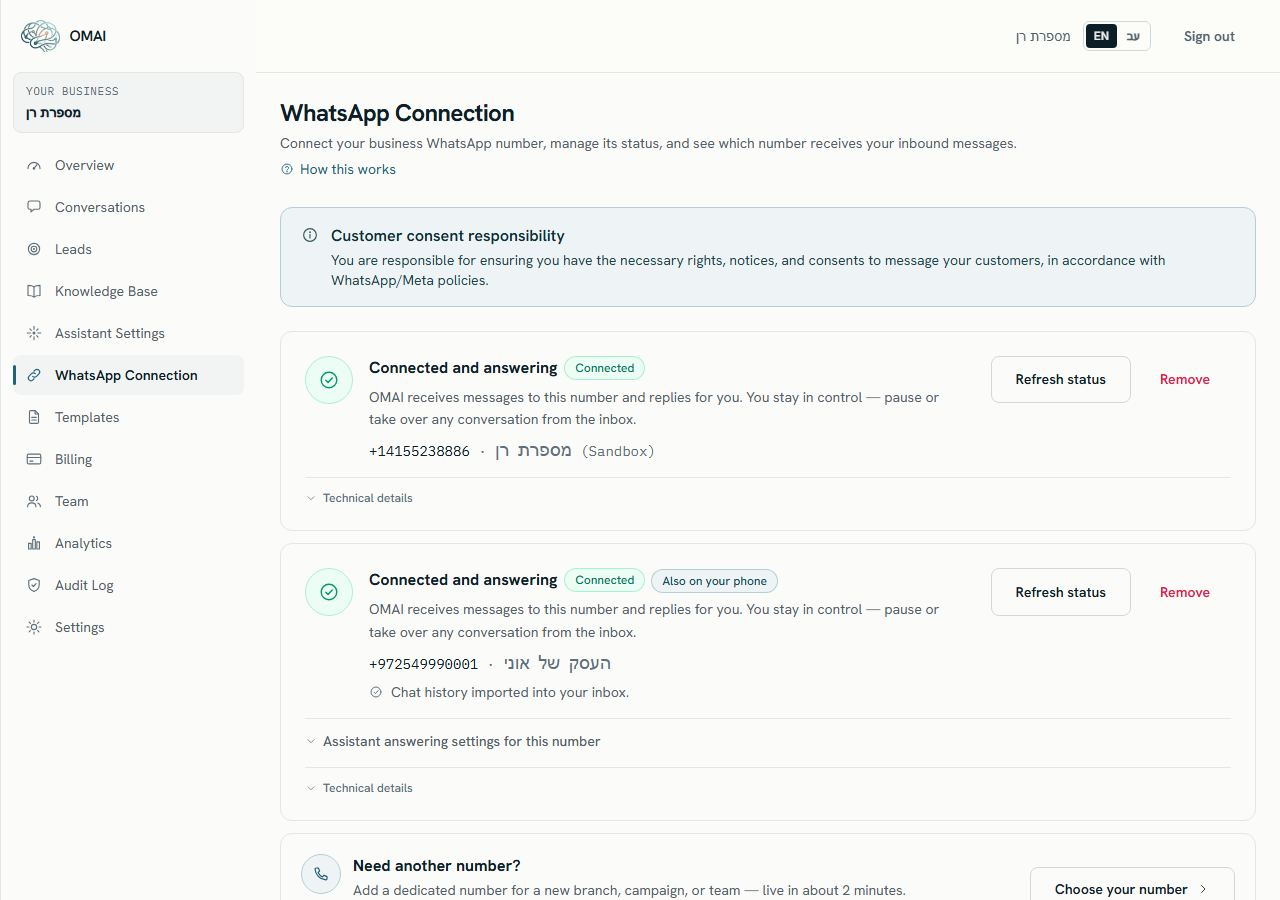
- Connected, with the card headline Connected and answering — messages to that number reach OMAI and the assistant replies.
- Pending verification, with Almost there — verifying your number — Meta has not finished. Use Refresh status on the card.
- Action required, with This connection needs a quick check — something on Meta’s side did not complete. The card names it in plain language underneath.
- Also on your phone as a second badge — Meta confirmed the number is still running in the WhatsApp Business app.
Send a WhatsApp message to the number from a different phone and watch it arrive in the inbox. Connection statuses explains every badge, and Meta errors covers the codes behind Action required.
Messages you may see, and what they mean
| What the screen says | What happened | What to do |
|---|---|---|
| Login was canceled. | Meta’s window closed before it reported a result. | Choose Try again. Nothing changed on your number. |
| No number details received from Meta. Please try again. | Meta finished but sent back no number. | Choose Try again, and make sure you select a number inside Meta’s window. |
| Still loading — please try again in a moment. | Meta’s script had not finished loading when you pressed the button. | Wait a few seconds and choose the button again. |
| One step left — the guided check | The guided check was not completed, or its 60 minutes ran out. | Choose Go to the guided check and run it again. If you already approved on your phone, nothing there has to be repeated. |
| This number needs a quick review | The number is already tied to another active setup, or an earlier setup for it is still open. | Talk to support and give us the number — we untangle it from our side. |
| Connection failed. | OMAI could not finish, or the 10-minute watch elapsed with nothing arriving from Meta. | Choose Try again. If it repeats, contact us with the number and the time you tried. |
| Network error. | The request never reached OMAI. | Check your internet connection and choose Try again. |
| Self-connect (Embedded Signup) isn't available right now. | Connecting through Meta is not switched on for this installation. | Contact support — we connect the number for you. |
Does OMAI see my Facebook password?
No. You type it into Meta’s own window. When you finish, OMAI receives an access token for the WhatsApp Business Account you selected, and nothing else.
Do I have to confirm again to reconnect the same number?
No. Repairing a connection for a number that is already yours here skips the check entirely, so an expired connection is a one-click reconnection rather than a fresh run through the questions. Your conversations and settings are untouched by a reconnection.
Can I connect a second number later?
Yes — start again from the WhatsApp Connection screen and confirm the two authority boxes for the new number. Starter and Growth cover one connected number; Pro and Custom include more than one.
Who pays Meta’s messaging fees?
You do, directly. Meta bills its own messaging fees to the payment method you add in WhatsApp Manager, separately from your OMAI plan.
Can I undo the connection?
You can disconnect the number in OMAI at any time with Remove on the connection card — see managing connections. What Meta created stays in your own Meta Business account.