
Check what your assistant knows
The knowledge retrieval test runs a real customer question against your indexed material and shows the passages that come back. How to use it, how to read the score, and what the result does and does not prove.
- Who
- Anyone with dashboard access
- Plan
- All plans
- Role
- Any signed-in member
- Takes
- A few seconds per question
Before you start
- At least one knowledge source in **Ready**
The Knowledge retrieval test answers one question: for this wording, what does the assistant find in your knowledge base? It runs the same search the assistant runs on a real message, and shows you the passages that come back and where each one came from. It does not write an answer.
Open the test
Step 1 Open Dashboard → Knowledge Base and choose Retrieval test in the page header.
You should see: The Knowledge retrieval test page opens, with a Test question box and a Back to knowledge base link.
Step 2 Type the question the way a customer would send it, then choose Search.
- Your question stays in the box, so you can change one word and search again.
You should see: The button reads Searching…, then a summary line appears with one card for each passage that was found.
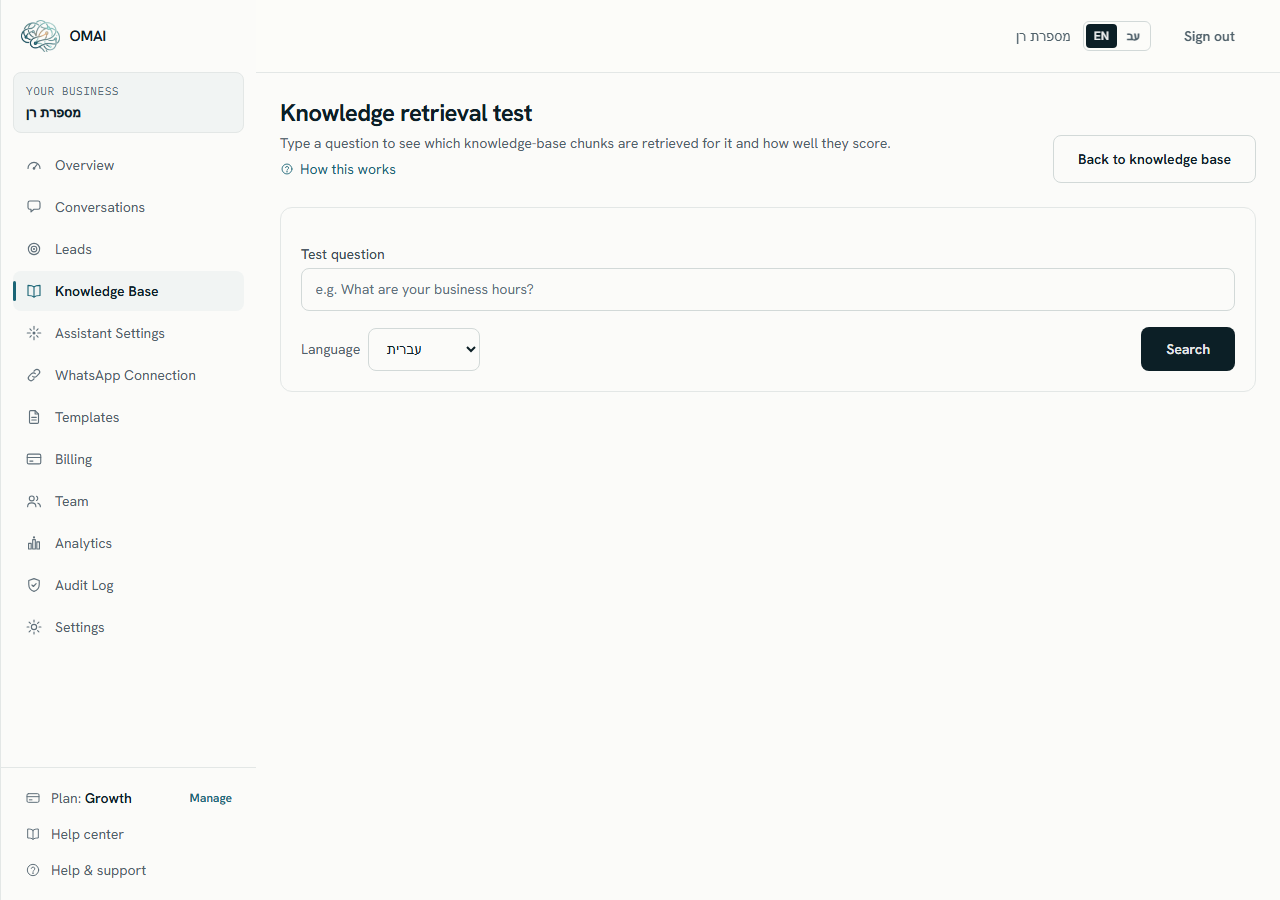
The two fields
- Test questionTextRequired
- The question to search for. It is used exactly as you typed it — no rewriting, no spelling correction.
Up to 500 characters.
- LanguageDropdown
- Offers עברית and English. The search compares your question against every eligible passage whatever language it is in, so this selection does not change the result you get.
Default:
עברית
Reading the result
The line above the cards summarises the search; each card below it is one passage, in the order the assistant would receive them.
| What you see | What it means |
|---|---|
Found 4 chunks | How many passages came back. Never more than 5 — that is the number the assistant is given for one message. |
· time: 812ms | How long the search took. This is the search only; writing an answer is separate work that this page does not do. |
#1 · Price list 2026 | The rank and the title of the source the passage came from. #1 was the closest match. |
| The small grey label next to the title | The internal source type: document for an uploaded file, and faq, service, policy or hours for material synced from your settings. These labels are not translated. |
score: 0.812 | How close the passage was to the question. See the next section. |
| The text inside the card | The passage exactly as the assistant would receive it — including the repeated heading and the labels around a price. |
The yellow pill No results found — fallback… | Nothing came back for this question. |
No matching chunks were found in the knowledge base for this question. | The same situation, shown as a card in place of results. |
What the score is, and is not
The score is a similarity measure between your question and the passage. Higher is closer, and the cards are already sorted by it, so the first card is always the best match the search could find.
- Values sit roughly between 0 and 1, and they are shown to three decimal places.
- There is no pass mark. The page displays no threshold and no verdict, and a low score does not mean the assistant will refuse to answer.
- Compare scores inside one search, not between two searches. The numbers are only meaningful relative to each other.
- If every card shows
1.000, the search matched on words rather than on meaning. Read it as “these contain your text”, not as “these are perfect answers”.
What the result proves
It does prove
- That the question reaches material at all, and which source it reaches.
- Which passages the assistant would be given for that exact wording, and in what order.
- That an update went live: after a re-index or Sync details from settings, the new text appears here.
- That a source is genuinely searchable. A source at Needs your review, Could not be read or Archived never appears in these results.
It does not prove
- What the assistant will say. No answer is generated here, and your assistant settings — tone, reply language, after-hours message — are not applied.
- That a reply will be sent at all. A paused conversation, a used-up AI answer allowance, or a handover to your team each change what actually happens on WhatsApp.
- That a customer who phrases the question differently gets the same passages. Test the two or three wordings you actually see in your inbox.
- That the readiness item Test the assistant with real questions is done — that one counts runs of the assistant simulator, not searches on this page.
When nothing comes back
An empty result is a finding, not a failure of the tool. Work through these in order:
- Check the status of the source you expected. Only Ready, Needs a check and Updating are searched.
- If the answer lives in your settings — a service, an FAQ, a policy or your opening hours — check that it was synced. Details saved in Business settings reach the assistant only after Sync details from settings.
- Try the words that appear in your material. If your price list says “consultation” and the customer says “first meeting”, add the customer’s words to the entry.
- Search a phrase you know is in the document, word for word. If that finds nothing either, the document is probably not indexed — open Upload documents and check its status and warnings.
- The same yellow pill also appears if the search itself failed. If a question that worked a minute ago suddenly returns nothing, search again before changing anything.
Testing the reply itself
This page stops at retrieval. To see the wording a customer would actually get — tone, language, opening-hours handling — use the assistant simulator. The useful order is: search here first to confirm the material is reachable, then simulate the conversation to check how it is said.
Why does a passage look different from my original document?
You are seeing one indexed passage, not the file. Headings are repeated into each passage and long sections are split, so the text is a fragment of the original with its context attached.
Can I test a specific source only?
No. The search always runs over everything searchable in your organization. The source title on each card tells you where each passage came from.
Does the Language selector matter for Hebrew customers?
Not for this test — the result is the same either way. What does matter is your Business content language in Business settings, because that is the language the synced services, FAQs, policies and hours are written in.
The right passage comes back but the assistant still answered badly. What next?
That points at the reply rather than the knowledge. Go to wrong answers and reproduce the exchange in the assistant simulator.