
Your business details
The Business details card holds your display name, city, address and description. This page lists every field with its limits, and says exactly which of them change what the assistant replies — and which do not.
- Who
- Owners and admins
- Plan
- All plans
- Role
- Owner or Admin
- Takes
- About 2 minutes
Before you start
- An OMAI account with a business created
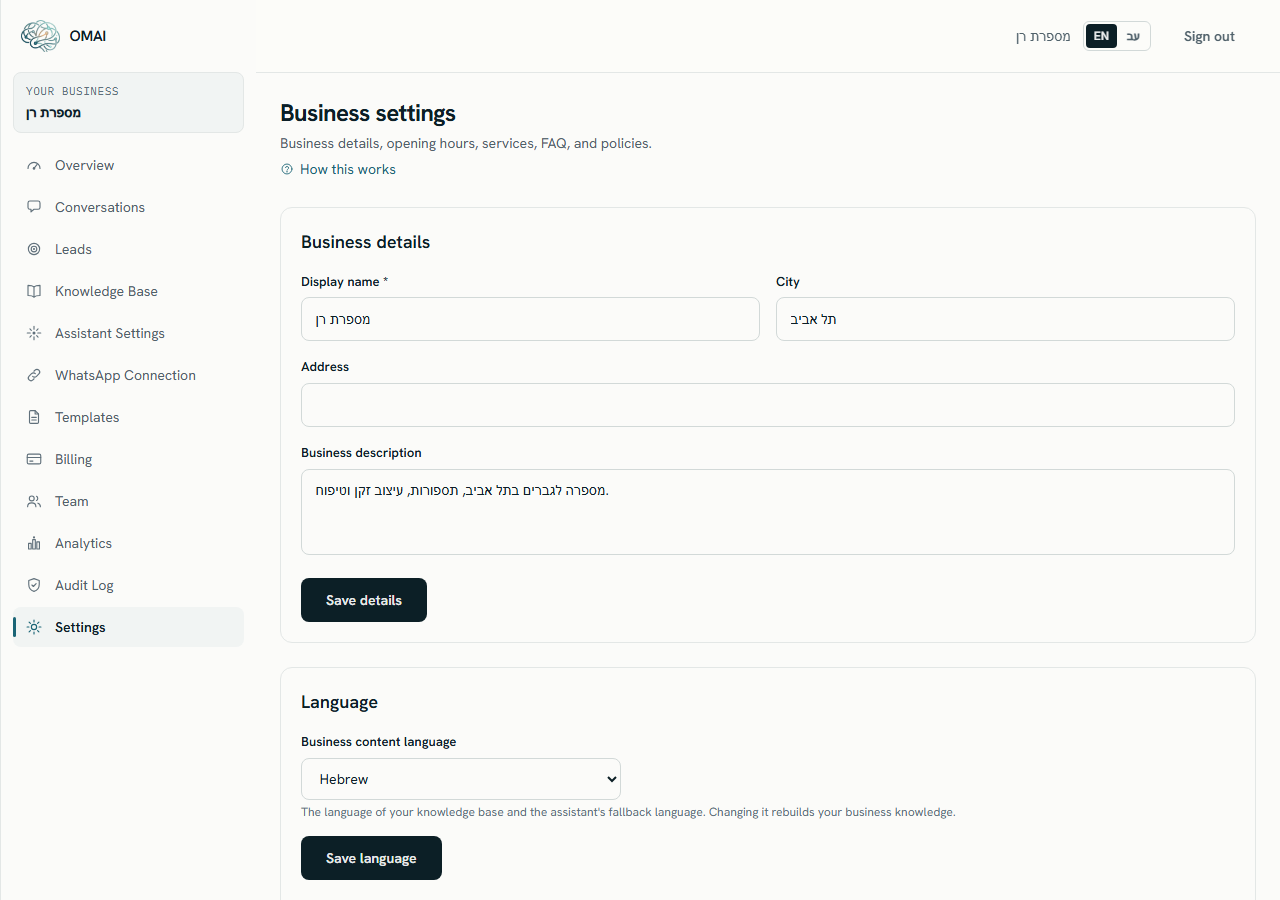
Open Settings from the sidebar. The screen is titled Business settings, and the first card on it is Business details. Four fields live there, and they are filled in for you at signup: your display name is set from the business name you typed when you created the account.
This card is the identity record for your business. It is not the same thing as the searchable knowledge the assistant answers from — that distinction matters, and the section below spells it out.
The fields on the card
- Display name *TextRequired
- The name of your business as OMAI records it. Used by the readiness checks on the Knowledge Base screen and by the setup score in the setup wizard.
Default:
The business name you entered when you created the account·Required. Up to 160 characters. Saving with it empty is rejected. - CityText
- The city you operate in. Together with the address, it satisfies the Complete your business name and address item on the readiness card.
Default:
—·Optional. Up to 120 characters. - AddressText
- Your street address. Same readiness check as the city — filling in either one is enough to clear it.
Default:
—·Optional. Up to 300 characters. - Business descriptionText area
- A short description of what your business does. It contributes to the setup score in the setup wizard.
Default:
—·Optional. Up to 2,000 characters.
Saving your details
Step 1 Open Settings and find the Business details card at the top of the page.
Step 2 Edit the fields you need, then press Save details.
- A star in a label means the field is required. If Display name is empty the save is refused and the error appears under the field.
- The whole card saves at once — there is no per-field save.
You should see: The line Details saved. appears next to the button.
Which details change replies
None of these four fields is part of the searchable knowledge. Sync details from settings compiles your services, questions and answers, policies and opening hours — it does not compile the business profile. So the assistant cannot quote your address or read out your description just because you typed them here.
The name the assistant uses when it speaks for you is separate again. It comes from the business name recorded on the account at signup, which is the name shown at the top of the sidebar. There is no field in the dashboard that changes it — write to us if it is wrong.
Where these details are used
- The Assistant knowledge readiness card on the Knowledge Base screen lists Complete your business name and address until the display name and at least one of city or address are filled in.
- The setup score in the setup wizard awards points for the display name and for the description.
- The display name is one of the checks that must pass before the assistant can be activated from the setup wizard.
- Your data export includes the profile — see Exporting and deleting your data.
Language and time zone
The card below Business details carries two settings that change the assistant’s behaviour far more than the profile fields do.
- Business content languageDropdown — Hebrew, English
- The language of your knowledge base and the assistant’s fallback language. Saving it rebuilds your business knowledge immediately, because the labels stored around your services and hours are written in this language.
Default:
The language chosen when the account was created·Press **Save language**. The confirmation reads **Language saved. Your business knowledge is being updated.** - Business timezoneDropdown — every time zone your browser knows
- Used for your business hours, for the assistant’s after-hours behavior, and for analytics. Set it wrong and the assistant will think you are closed at the wrong times.
Default:
Detected when the account was created·Press **Save timezone**. The confirmation reads **Timezone saved.**
The language the assistant replies in is a different setting again: Assistant reply language on Assistant Settings, which defaults to matching the customer. See The language your assistant replies in.
I changed the display name. Will the assistant introduce itself differently?
No. The assistant uses the business name recorded on your account, not this field. The two start out identical because signup writes the same value into both.
Do I need to sync after editing business details?
No — there is nothing to sync. These fields never become searchable knowledge. Syncing matters for services, questions, policies and opening hours.
Who can open this screen?
Owners and admins. An agent or a viewer who opens Settings gets the generic error card instead of the form, because reading the business profile requires the settings permission.
Why does my readiness card still ask me to complete the business name and address?
Because one of the two is still empty. Fill in Display name and either City or Address, press Save details, then reload the Knowledge Base screen.