
Who can see your data
What each role in your team can read and change, how one organization is kept apart from another, the restricted OMAI operator role that exists for support, and where privileged actions are recorded.
- Who
- Owners and admins
- Plan
- All plans
- Role
- Reading the audit log needs Owner or Admin
Two groups of people can reach the information in your account: the members of your own team, each limited by the role you gave them, and a separate, restricted OMAI operator role that exists so support and legal requests can be handled. This article describes what each of them can actually do.
The four roles you can assign
Each role is a superset of the one below it. You choose the role when you add someone on Dashboard → Team, and you can change it later from the dropdown on their row.
| Role | Can read | Can also change |
|---|---|---|
| Viewer | Conversations, the knowledge base, billing, the team list, message templates and reports | Nothing |
| Agent | Everything a viewer can read | Reply in a conversation, assign it, pause the AI on it, resolve it, add an internal note |
| Admin | Everything an agent can read, plus the audit log | The knowledge base, assistant settings, business settings, WhatsApp connections, message templates, billing, team members and their roles, and the data export |
| Owner | Everything an admin can read | Everything an admin can change, plus requesting deletion of the account |
The invite form starts on Agent, which is the limited, non-administrative choice. Roles and what each one can do goes through the same list feature by feature.
What the dashboard shows each role
Permission is checked on our servers when an action runs, not when a page draws — hiding a control has never been what protects anything. That said, the dashboard no longer offers a role what it cannot use: the two screens limited to owners and admins, Assistant Settings and the Audit Log, are left out of the sidebar for an agent and a viewer, so their menu really is shorter. On the Team page those roles get a read-only roster: no invite form, and no controls for changing a role or removing a member. Every screen still in their menu does open for them.
Rules that sit on top of the roles
- Only an owner can add a new member as Owner, and only an owner can promote an existing member to Owner.
- The last owner cannot be demoted or removed. The attempt fails with *Cannot remove the last owner of the organization.*
- While a second owner exists, an admin can demote or remove an owner. Keep the owner role to people you would trust with the whole account.
- Only an owner can request deletion of the account. An admin who tries sees *Only the account owner can request deletion.*
- There is no separate transfer-ownership button. Promote the new owner first, then change the previous owner’s role.
One organization at a time
Every request carries the organization it belongs to, and membership is looked up in the database on each request rather than trusted from the browser. A record that belongs to another organization is reported as not found, so nothing about it leaks — not even the fact that it exists.
Removing someone from the team therefore ends their access on their very next request. Their browser may still hold a signed-in session, but the dashboard will not load your organization for them: they are sent to a short page telling them they no longer have access to the workspace, with a button that signs them out so they can sign in to whichever workspace they do still belong to. They are not left guessing, and they are not shown a failure.
The OMAI operator role
A separate operator role exists so OMAI can investigate a support ticket, answer a legal request, or stop something that is going wrong. It is not the same as your Owner role and it is not granted by anything you do in the dashboard. Each request re-checks in the database that the account still holds it, so removing the permission takes effect immediately rather than when a session expires.
The support screens show, across organizations:
- The organization profile — name, legal name, website, phone, language, timezone, created date.
- Counters: AI replies, inbound and outbound messages, and cost totals.
- The subscription, the plan and the billing state.
- The team member list, with names, email addresses, roles and join dates.
- WhatsApp connection status, and a read-only diagnostic that checks the token, its scopes, the phone number and the webhook subscription against Meta.
- Error records, failed webhooks and failed indexing jobs.
They do not show the content of conversations, the text of any message, the content of your knowledge base, or card details. The diagnostic never displays an access token; provider failures are reduced to an error code.
A small number of operator actions change something: suspending or reactivating an organization, overriding the plan, pausing or resuming the assistant for a whole organization, and issuing a refund. Each one requires typing a confirmation word before it will run, and each one writes an audit record.
Your own audit log
Open Dashboard → Audit Log to see the sensitive actions taken inside your organization, newest first. It needs the Owner or Admin role. The screen loads up to 200 entries and you can narrow them with Filter by action:.
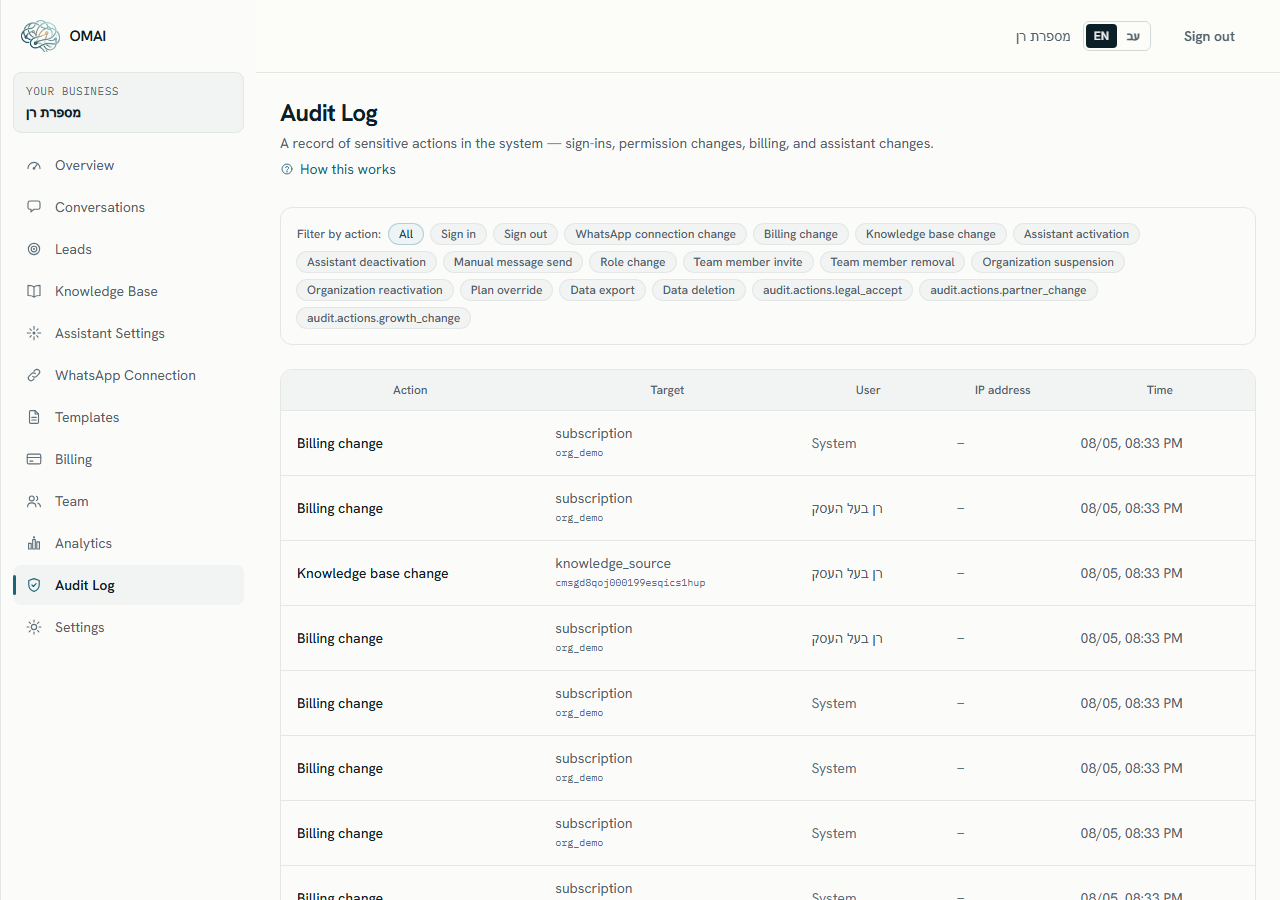
The actions recorded are: sign in, sign out, WhatsApp connection change, billing change, knowledge base change, assistant activation, assistant deactivation, manual message send, role change, team member invite, team member removal, organization suspension, organization reactivation, plan override, data export and data deletion.
An audit entry is written on a best-effort basis: if the write itself fails, the original action still completes. Treat the log as strong evidence of what happened, not as proof that nothing else did.
Can I stop an agent from reading a particular conversation?
No. Access is decided by role across the whole organization; there is no per-conversation or per-customer restriction. If someone should not see your conversations at all, do not give them a role — every role can read them.
Does a removed member keep a copy of anything?
Nothing is served to them after removal, but anything they exported or copied while they had access is already outside OMAI. Ask for it back the way you would with any other business record.
Who can download the full data export?
Owners and admins. The download is recorded in the audit log as Data export.
Can OMAI sign in as me?
The support screens are a separate area with their own account and their own permission; there is no button that signs an operator into your dashboard as you. Operator actions that change something require a typed confirmation and are recorded.